 Adobe Community

- Home
- Illustrator
- Discussions
- Re: QR Codes Not Working Once Exported from Illust...
- Re: QR Codes Not Working Once Exported from Illust...

Copy link to clipboard
Copied
Hello!
I am having some issues with QR codes in Adobe. I created a QR code in Adobe InDesign, and brought it over to Illustrator for a full page magazine ad I am designing.
the QR code worked great when I made it in InDesign before I brought it over, and also worked when I tested in in the Illustrator file viewing at 100%.
I "saved as" .pdf, and when viewing at 100%, the QR code does not work. If I zoom in quite a bit, it does work.
Is this just because the QR code need to be bigger? It is currently .5119"x.5119". I don't want it to be gigantic, but I'm not sure what other issues might be causing it not to read.
ALSO... For you other Adobe users out there... Is InDesign your go-to QR code generator? Or do you prefer something else?
Thanks in advance!


 1 Correct answer
Yes, I did try printing it out. The only thing that made it work was making it bigger.
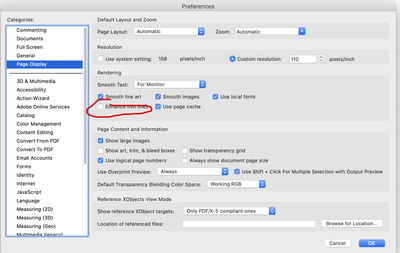
I am looking for these page display setting and I am not seeing them. Edit-->Preferences-->?

Explore related tutorials & articles
 12
Replies
12
12
Replies
12



Copy link to clipboard
Copied
Did you print out the code or scanned with your cell from the screen????????
There likely is nothing wrong with the QR code in the .pdf file, you may have a vie setting like enhance thin lines on. Try printing out and scnaning.
Correct answer by
Marley C.
AUTHOR
Copy link to clipboard
Copied
Yes, I did try printing it out. The only thing that made it work was making it bigger.
I am looking for these page display setting and I am not seeing them. Edit-->Preferences-->?
Copy link to clipboard
Copied
You can also see this post,
Copy link to clipboard
Copied
I don't believe this post is releant to me issue.

Copy link to clipboard
Copied
Make a new file in RGB (for me 2000px x 2000px), then upload the artboards from your QR to the new file, delete the artboard from 2000px x 2000px. Transform the file from RGB to CMYK. Then export again in PDF. Fixed it for me.

Copy link to clipboard
Copied
@yonipeters schrieb:
Make a new file in RGB (for me 2000px x 2000px), then upload the artboards from your QR to the new file, delete the artboard from 2000px x 2000px. Transform the file from RGB to CMYK. Then export again in PDF. Fixed it for me.
Delete the artboard? That is not possible if there is only one artboard.
The problem in this thread is probably the size of the QR code (minimum size is 0.8 x 0.8 inches), but how should your post solve that?

Copy link to clipboard
Copied
I had a similar problem when I saved a copy from Illustrator (from a document in .aic format- saved in cloud assets) to a .PDF output. The QR code looked incomplete. At first, I thought I made a mistake and tried it several times. I fixed it by adding a white rectangle behind the qr code image. It resolved the error and the code works fine, even when I make it smallish (looks better).

Copy link to clipboard
Copied
QR Codes are not going to work accurately if they are placed on anything other than a white background. They'll work on a light colored background or light gradient background. But anything with texture and varying degrees of contrast will interfere with the code.
Copy link to clipboard
Copied
Good callout. In my case it was a white/empty background in Illustrator. Adding a white rectangle behind it oddly worked.
Copy link to clipboard
Copied
Hopefully this late response isn't pointless, but how was the QR code artwork brought into Illustrator? Was it exported from InDesign and brought into Illustrator as a PDF file? If so, one thing I've noticed is the QR Codes tend to lack the usual white background. The black data tiles are the only elements that get imported. On top of that there is a good number of overlapping blocks that should be cleaned up with the Pathfinder Unite command. Nevertheless, the white background (or solid light colored background) is vital for the code to work.
The QR Codes generated by InDesign are a bit more "clean" than those generated by Adobe Express. The SVG versions of QR Codes output from Adobe Express tend to have one or more extranneous clipping masks present. When the SVG file is first imported into Adobe Illustrator it usually doesn't have a fill at all. The QR Code has to be viewed in Outline View. Clipping masks have to be released and eliminated. Then a black fill can be applied to the actual code tiles. It also helps to perform a Pathfinder Unite operation on the code tiles to clean up the overlapping trash. It goes without saying to keep the smartphone handy to test the code as you go.
Copy link to clipboard
Copied
I'll look into using InDesign's QR codes. I used Express for ease of use and exported to svg. It did look like a clipping mask the way it cut off part of the QR image. Something a little off in how it exported the image in Express perhaps.
Copy link to clipboard
Copied
The Epress codes are a mess:


 AdChoices