
"Display All Blacks Accurately" enabled. My Blacks are not appearing as I intend. Why?
I am creating artwork for a foil wrapper for a trading card pack.
The background color (a large rectangular path) will be blended with the foil in a sort of multiplicative printing pass, but there are several other elements which we want to appear true to color. In order to do this, our printer is having us create a white layer, where any assets in black will receive a white color pass before the color pass, to make them print accurately and not in that multiplicative way previously described.
The color layer is composed of raster images (character art and company logos) and vector elements (text, paths, ec).
I have a duplicate of all those elements for the white layer, where all the elements are black. Herein lies my issue.
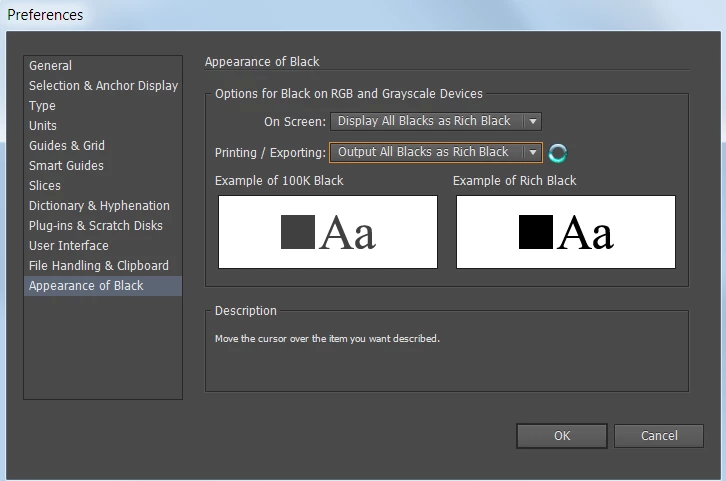
I have the project settings set to: Display All Blacks Accurately and Output all Blacks Accurately. I am setting my paths not to 0C 0M 0Y 100K black, but rather to a Rich Black setting of 70C 50M 30Y 100K. However, all my paths in the white layer appear greyish, as you would expect 100K black. The raster elements in the white layer are appearing rich black, as intended.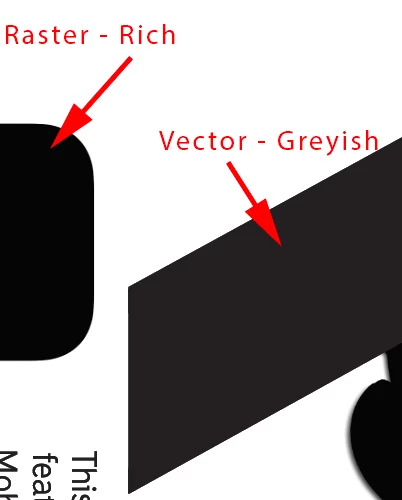
I tried to do this also by making a spot color swatch in rich black, but no luck there. If I change my output to Output as Rich Black, that doesn't seem to do the trick either when I output to PDF.
I'm fairly new to this and am totally lost as to the proper way to set this up. Can someone point me to the right way to set up such a white layer?
Thanks!
Using Illustrator 2020 (21.4.3) and OSX Catalina 10.15.5
 AdChoices