
Participant
August 14, 2009
Answered

"Mirror" a path in Illustrator

  • August 14, 2009
  • 6 replies
  • 90330 views

Hi there!

I'm wondering if it is possible to "mirror" a path in Illstrator (don't know the right term for it).

I've been working some in 3DS Max and in that application there is a feature that is very useful when creating symmetric models. I think it is called the "Symmetry Modifier". Let's say I want to create a head that is totally symmetric. In 3DS Max I would model one half of the face (i.e. the left) and use this feature to automatically do the other half (the right). The neat thing is that if I do changes to my original half, the other half automatically updates.

Is there something similiar in Illustrator? Or is there another good way of achieving symmetrical path easily?

I'm using Illustrator CS4.
    This topic has been closed for replies.
    Correct answer Mario Arizmendi

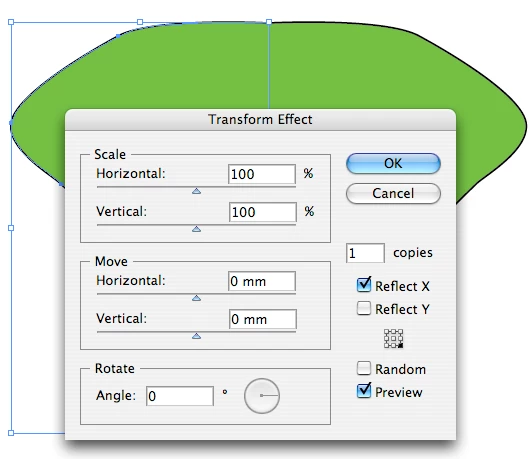
    Select the object, then menu  Effect/Distort and Transform/Transform.

    Use 1 copy and reflect as you want

    6 replies

    haagelAuthor
    Participant
    August 14, 2009

    Thank you Jacob!

    I got it to work. However, I'm having really problems with the ungrouping and joining part. I have to try alot of ways before I get it to work, otherwise I get an error message saying:

    "To join, you must select two open endpoints. If they are not on the same path, they cannot be on text paths nor inside graphs, and if both of them are grouped, they must be in the same group."

    Though, I'm guessing I just haven't grasped all of this grouping...

    It seems that I have to ungroup AND remove the fill (which will be there even if I didn't have any before the "mirror operation".

    Jacob Bugge
    Community Expert
    Community Expert
    August 15, 2009

    You are welcome, haagel.

    It seems that I have to ungroup AND remove the fill (which will be there even if I didn't have any before the "mirror operation".

    The former should not be necessary, and the latter should not happen.

    You may have something wrong in your preferences, so it may be worth trying to Move the folder. This method is thorough, and reversible in case it does not help.

    Jacob Bugge
    Community Expert
    Community Expert
    August 14, 2009

    haagel,

    1) Object>Expand Appearance,

    2) Ungroup (as many times as needed),

    3) Direct Select coinciding Anchor Points and Ctrl/Cmd+J to join.

    haagelAuthor
    Participant
    August 14, 2009

    That was exactly what I was looking for. Thank you very much!!!

    A follow up question: Can I "apply" this effect? That is make the path including both the original and the copy into one ordinary editable path?

    Steve Fairbairn
    Inspiring
    August 14, 2009

    Use the Reflect tool (O) and Copy. It's hidden under the Rotate tool.

    You can also use the Scale dialogue box and enter a negative value (-100%). Then say Copy.

    PrepressPro1
    Legend
    August 14, 2009

    Wait a minute, nothing is ever "Hidden" in an Adobe product. It's just "Tucked Away" under the rotate tool. Adobe would never hide anything from there users.

    Mario Arizmendi
    Legend
    August 14, 2009

    PrepressPro1 wrote:


    Adobe would never hide anything from there users.

    PrepressPro1
    Legend
    August 14, 2009

    Here is a cool tutorial which will allow you to make a reflecting layer. Everything you draw on the layer is reflected, check it out.

    http://blog.choppingblock.com/2009/03/illustrator-cs3-cs4-reflection-templates/

    Mario Arizmendi
    Mario ArizmendiCorrect answer
    Legend
    August 14, 2009

    Select the object, then menu  Effect/Distort and Transform/Transform.

    Use 1 copy and reflect as you want

    August 14, 2009

    Holy cow that works tons better than Object > Transform > Reflect. Your way reflects on any given side whereas the object/transform/reflect stays in place -- which was so annoying!

    Thanks!

    Jacob Bugge
    Community Expert
    Community Expert
    August 14, 2009

    And you just change the original to change both/all.