
Participating Frequently
June 2, 2019
Answered

Raster content in Illustrator is jagged when exported with the new "Export for screens..." dialog

  • June 2, 2019
  • 2 replies
  • 11174 views

When I place a hi-res bitmap in an artboard along with some vector, it looks good on screen.

When I use the "Save for Web (Legacy)" dialog with "Art Optimized" selected, everything looks good.

When I use the new "Export for screens..." dialog, vector content is sharp, raster content is jagged and blurred.

I use the same export settings on both export functions (2048 px wide PNG)

Please note that changing the DPI in "Document Raster Effect Settings" does not change anything (there is no effect, it's just a bitmap placed on the artboard).

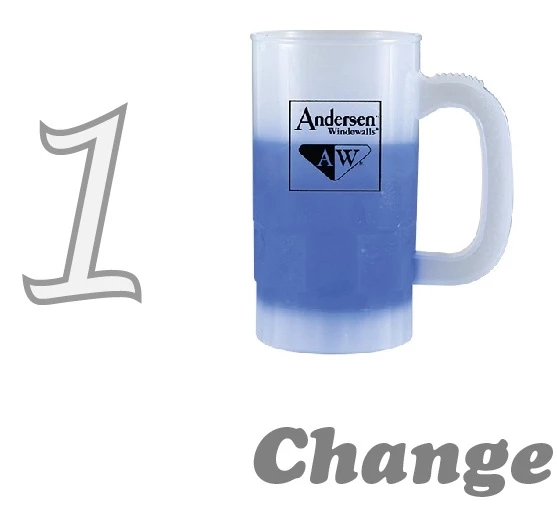
"Export for screens..." (stein is jagged and blurred):
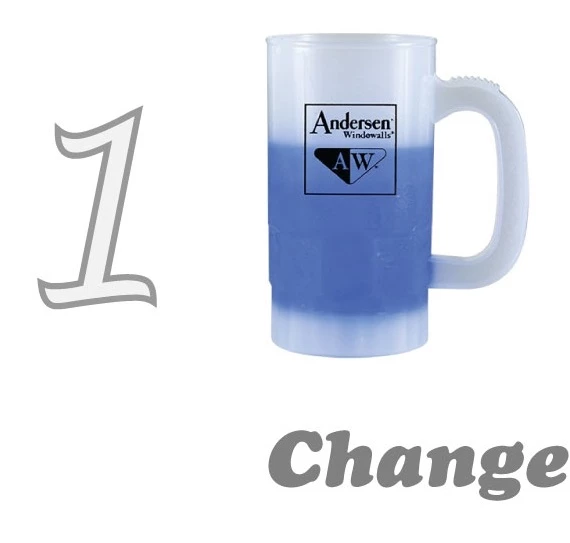
"Save for Web (Legacy)" (stein is smooth, as shown on screen):
Correct answer Ton Frederiks

Forget about the confusing "hi-res" part, let's say it's just a bitmap. What I mean is that it is enough resolution to be rendered correctly for the target export size with no upscaling. When you place bitmap having a certain DPI and export the artboard with an equal or lower DPI, the raster bitmap should look good. In my initial post, you can clearly see a difference between the exports. If it looks the same on your system, I don't know what to tell you, I don't understand why the same version of Illustrator exports differently on two systems. There is no anti-aliasing options in the new export dialog.


sixstorm2  wrote

There is no anti-aliasing options in the new export dialog.

There is an option for Type Optimized or Art Optimized in both export options.

The option is a little hidden in the Export for Screens (click the Cog icon).

2 replies

Ton Frederiks
Community Expert
Community Expert
June 2, 2019

Which version of Illustrator?

What format is your high res bitmap?

What resolution, and did you scale it in Illustrator?

I tried to replicate your problem, but I could not.

Maybe you can share your .ai file?

Participating Frequently
June 2, 2019

1. Illustrator CC 2018 23.0.1 (64-bit)

2. JPG. But it doesn't matter, I can reproduce with any raster format (BMG, PNG, etc).

3. Yes it is scaled down in Illustrator at about 50%. The DPI of my imported bitmap (92 DPI scaled at 50%  = 192 DPI)  is much higher than the DPI of the exported artboard  (72 DPI), so it should look sharp.

4. Here is the link to the AI. Export the AI and notice the difference in the smoothness of the steins between "Export for screens" and the legacy "Save for Web" functions. Sondage Bucks 2019.ai - Google Drive

Participating Frequently
June 3, 2019

Forget about the confusing "hi-res" part, let's say it's just a bitmap. What I mean is that it is enough resolution to be rendered correctly for the target export size with no upscaling. When you place bitmap having a certain DPI and export the artboard with an equal or lower DPI, the raster bitmap should look good. In my initial post, you can clearly see a difference between the exports. If it looks the same on your system, I don't know what to tell you, I don't understand why the same version of Illustrator exports differently on two systems. There is no anti-aliasing options in the new export dialog.


Also, please note that the original image is 341 x 417 px. 145 x 145 is the size after it was scaled down on the artboard. You can see the original resolution so if you "Unembed" the image and check the file properties.

gary_sc
Community Expert
Community Expert
June 2, 2019

Hi Sixstorm,

You're not the first person to complain about Adobe's Export feature. It has promise but it's not there yet. I suggest you continue to use the "Save for web..." as I (and many others) do.

If you haven't already, please leave a comment here: Adobe Illustrator Feedback