Priscila Weilemann
Known Participant
June 25, 2023
Answered

Rotação com medida de forma automática?

  • June 25, 2023
  • 3 replies
  • 1133 views

Olá gente, gostaria de pedir uma ajuda, não sei se existe esse recurso no Ai, estou tentando encontrar algo, porém, até agora, sem sucesso!


Tenho um objeto (linha reta) de 29,995 mm, preciso que de forma automática ou de forma simplificada, essa linha faça angulação até atingir a medida de 27mm. Eu não quero que a linha diminua, eu quero que ela faça o ângulo necessário para ficar nessa largura. Alguém sabe se existe algum recurso dentro do programa que faça isso automaticamente? Sem precisar rotacionar manual?

This topic has been closed for replies.
Correct answer Jacob Bugge

Priscila,


I had hoped for an (early) answer from one of our scripting friends (it may still come).


For now, I believe the easiest way for you is to use something like this free online calculator, or its equivalent on your computer, at least for repeated/edited rotations,

https://www.calculator.net/scientific-calculator.html


Using that, you can get the exact angle quite easily and create the line at that angle with the Line Segment Tool in one go:

( https://helpx.adobe.com/illustrator/using/drawing-simple-lines-shapes.html )


1) In the calculator linked to, simply 1a) - 1d) press the keys shown in the image below, then 1e) select the angle by ClickDragging over it (or including at least the first 4 decimals);

2) Select the Line Segment Tool, then insert the length (30 mm), then insert the angle from 1), then press OK.


This way will give you the 30 mm line at the angle that makes the W value 27 mm; you can check it directly in the Document Info panel (click the three dots and choose Selected as well as Objects, I always have it showing this) and in the Transform panel.


And this way will correspond exactly to the script I had in mind; the web page even says: "This is an online javascript scientific calculator."
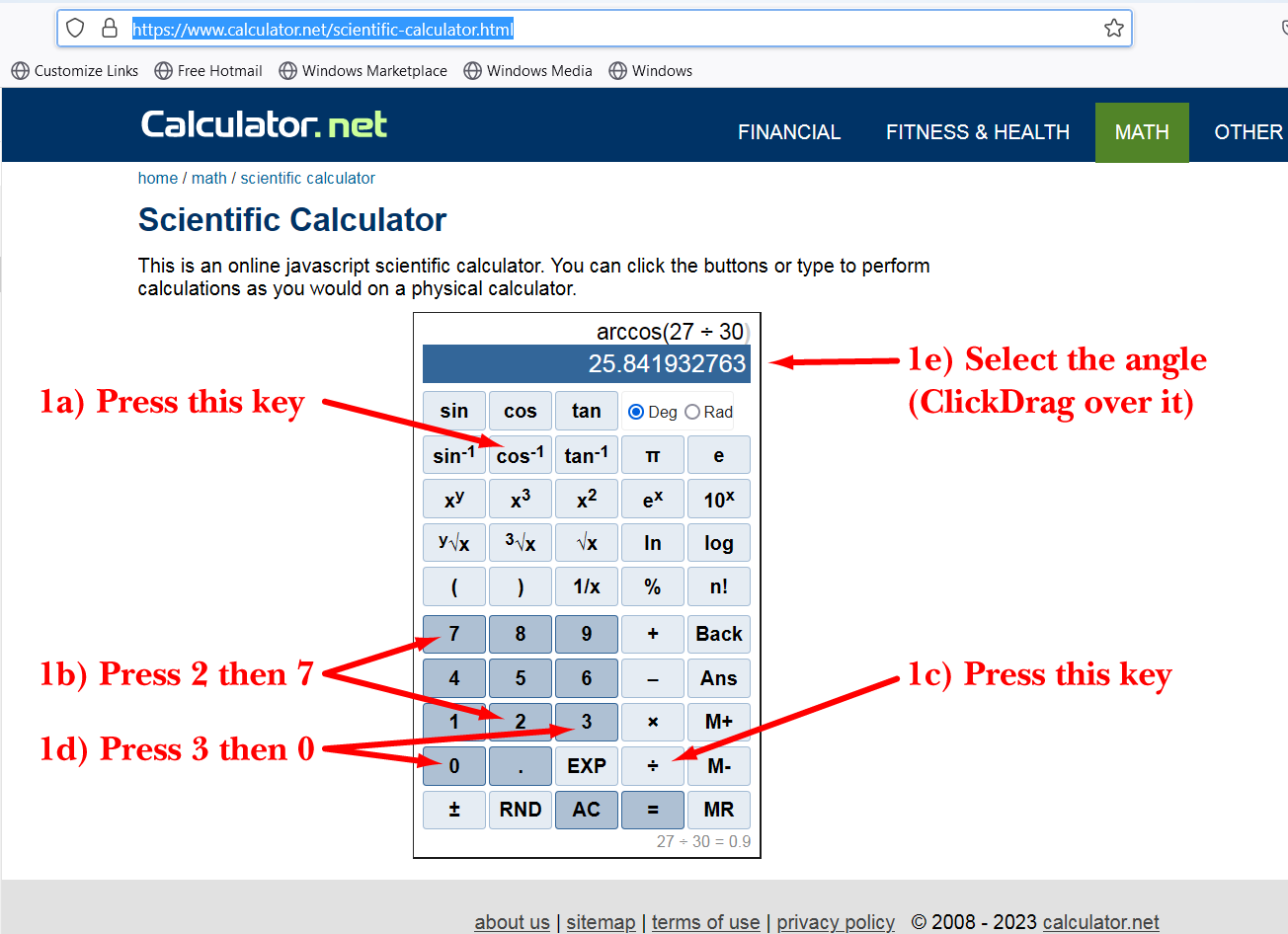


Click/RightClick to get closer

3 replies

Legend
June 27, 2023

Here is a script I wrote. Is this what you want to do?

https://gist.github.com/sttk3/fea99f9ba399e2f25dcf92f91a5264b0

Jacob Bugge
Community Expert
Community Expert
June 25, 2023

Priscila,


As Ton pointed out, the actual rotation way is impossible to get accurate.


Instead (Smart Guides still being your friends saying when you are within snapping distance) you can, within the accuracy of Bezier circles:


1) Starting at the starting point of the original line (Smart Guides say anchor when you are there) create a vertical line of sufficient height (you can use ShiftClickDrag with the Line Segment Tool, or Click twice with the Pen Tool (Smart Guides showing vertical when you are close enough));

2) Move the vertical line by 27 mm towards the end of the original line (you can just add 27mm to the X value or use Transform>Move);

3)Create a circle with W = H = 60 mm/twice the length of the original line and move its centre to the starting point of the original line;

4) With the Line Segment Tool ClickDrag from the starting point to the original line to the intersection of the circle and the vertical line (Smart Guides say center and intersect).


This will create a new line to extend 27 mm horizontally, as you can see in the Transform panel (W box) where you can also see the height (H box).


You can check the full length of the rotated line in the Document Info panel (click the three dots and choose selected as well as Objects, I always have it showing this).


A quite different and undoubtedly the most accurate approach would be a script that rotates (a copy of) the line by the angle (+/-) defined as arc cos of the quotient, in this case 27/30, round the starting point, the +/- depending on which end the starting point is. So in this case +/- arc cos(27/30).


Any scripters?


Priscila Weilemann
Known Participant
June 25, 2023

Muitíssimo obrigada Jacob, 

Você me ajudou muito! Confesso para você que não consegui fazer de uma maneira exata, sem precisar ajustar milímetros manualmente. Mas com certeza já ajudou demais, pois consegui fazer de uma forma mais simplificada. 


Você conhece algum script que faz isso de maneira automática?

Sinceramente, estou querendo testar isso no Blender, mas não gostaria de levar meu trabalho do Ai para o outro programa, por isso gostaria muito de uma forma mais exata (recurso do programa) para fazer isso! Tenho a impressão de que existe alguma forma muito fácil de resolver isso e eu não estou sabendo chegar nela.

Jacob Bugge
Community Expert
Jacob BuggeCommunity ExpertCorrect answer
Community Expert
June 26, 2023

Priscila,


I had hoped for an (early) answer from one of our scripting friends (it may still come).


For now, I believe the easiest way for you is to use something like this free online calculator, or its equivalent on your computer, at least for repeated/edited rotations,

https://www.calculator.net/scientific-calculator.html


Using that, you can get the exact angle quite easily and create the line at that angle with the Line Segment Tool in one go:

( https://helpx.adobe.com/illustrator/using/drawing-simple-lines-shapes.html )


1) In the calculator linked to, simply 1a) - 1d) press the keys shown in the image below, then 1e) select the angle by ClickDragging over it (or including at least the first 4 decimals);

2) Select the Line Segment Tool, then insert the length (30 mm), then insert the angle from 1), then press OK.


This way will give you the 30 mm line at the angle that makes the W value 27 mm; you can check it directly in the Document Info panel (click the three dots and choose Selected as well as Objects, I always have it showing this) and in the Transform panel.


And this way will correspond exactly to the script I had in mind; the web page even says: "This is an online javascript scientific calculator."


Click/RightClick to get closer

Jacob Bugge
Community Expert
Community Expert
June 25, 2023

Priscila,


You can (Smart Guides being your friends sying when you are withoin snapping distance):


1) Starting at the starting point of the original line (Smart Guides say anchor when you are there) create a vertical line of sufficient height (you can use ShiftClickDrag with the Line Segment Tool, or Click twice with the Pen Tool (Smart Guides showing vertical when you are close enough));

2) Move the vertical line by 27 mm towards the end of the original line (you can just add 27mm to the X value or use Transform>Move);

3) Select (a copy of) the original line, then switch to the Rotate Tool, then Click the starting point to set it as rotation centre, then ClickDrag the other end point ((Smart Guides say anchor) up to snap to the vertical line (Smart Guides say path).


This will rotate you (copy) line to extend 27 mm horizontally, as you can see in the Transform panel (W box) where you can also see the height (H box).


You can check the full length of the rotated line in the Document Info panel (click the three dots and choose selected as well as Objects, I always have it showing this).


Edit: Before that, I believe it is worth setting the original line length to 30 mm, unless you specifically wish it to be just that wee bit short of this round number.


Ton Frederiks
Community Expert
Community Expert
June 25, 2023

Hi Jacob, that's what I was trying, but it won't snap to the vertical path (or guide), smart guides say Path, but the result is slightly more or less than 27 mm.

Jacob Bugge
Community Expert
Community Expert
June 25, 2023

Right you are, Ton.


I am about to post another approach, and a quite different option.