
asaforeman
Participant
June 11, 2022
Answered

Rotate the points and only the points of a star

  • June 11, 2022
  • 4 replies
  • 569 views

How would I go about making a star like in the image? I'm trying to acheive a star with the points rotated but no anything else. Almost as if the star is spinning.


This topic has been closed for replies.
Correct answer barbara_a7746676

This is one way.

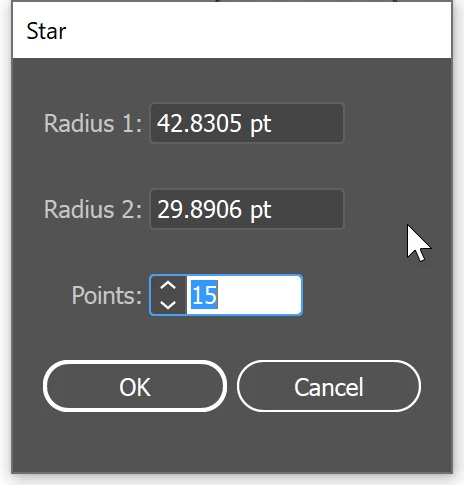
Use the Star tool to draw a star shape. If you keep your mouse down as you are drawing the star you can use the up and down arrows on the keyboard to increase or decrease the number of points. And if you continue to keep the mouse button down without releasing it, you can hold down Ctrl and drag in towards the center or away from the center to change the inset. OR, you can simply click on the artboard with the Star tool and type in the numbers you want. These are the numbers I used:
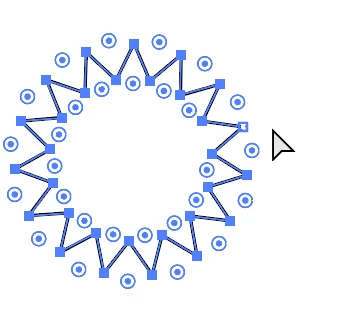
With the Direct Selection tool select all of the anchor points except for one.
Click the Convert Anchor Point icon in the options bar.
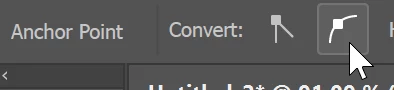
With the Direct Selectiont tool, select the remaining anchor point and click the Convert Anchor point tool. This will give you the rounded points as in your example.
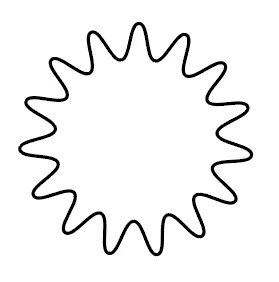
With the Selection tool (black arrow), select the whole object.

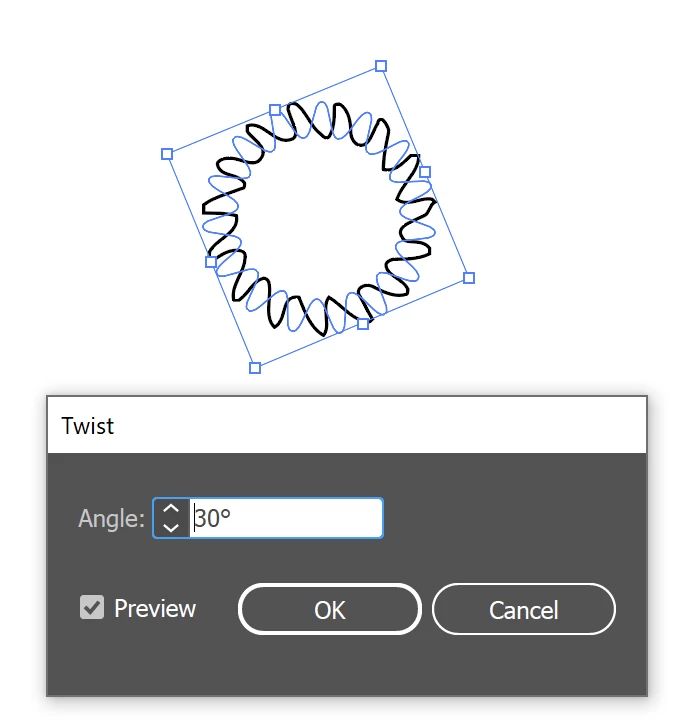
Choose Effect > Distort Transform > Twist. 
4 replies

kphotopage
Legend
June 12, 2022

Asaforeman, Hi.


To add what has already been suggested, here are the steps I used.


Draw a circle, (shown in green so you can see). Give a stroke color of none.

Draw a rectangle, centered.

Group. Effects>Transform.

This gives you 30 teeth to that blade.


Next

Expand, Transform.

Add a circle.

Pathfinders >Unite.

Lasso inside anchors, Convert to Smooth points.

Switch to Rotate Tool. I rotated 3


Lastly.

I selected each Anchor Point on top left and gave it a radius of 12pt.

Add a center small circle, Pathfinders>minus front.


K

barbara_a7746676
Community Expert
barbara_a7746676Community ExpertCorrect answer
Community Expert
June 12, 2022

This is one way.

Use the Star tool to draw a star shape. If you keep your mouse down as you are drawing the star you can use the up and down arrows on the keyboard to increase or decrease the number of points. And if you continue to keep the mouse button down without releasing it, you can hold down Ctrl and drag in towards the center or away from the center to change the inset. OR, you can simply click on the artboard with the Star tool and type in the numbers you want. These are the numbers I used:

With the Direct Selection tool select all of the anchor points except for one.

Click the Convert Anchor Point icon in the options bar.

With the Direct Selectiont tool, select the remaining anchor point and click the Convert Anchor point tool. This will give you the rounded points as in your example.

With the Selection tool (black arrow), select the whole object.

Choose Effect > Distort Transform > Twist. 

asaforeman
Participant
June 15, 2022

This seems like the correct way to achieve my desired result, but why are there all those imperfections in the points of the twisted version of the star?

Jacob Bugge
Community Expert
Community Expert
June 11, 2022

asaforeman,


Edited for clarity.


I believe an answer to the actual question stated in the heading is this:


You can create a star with the desired number and tooth height and rotate the whole set of outer (or inner) Anchor Points; you can simply select all of them with the Lasso Tool.


This corresponds to some special circular saw blades with straight teeth,


On the other hand, if you wish to make it look like a (normal) circular saw blade as in the picture, you can create one tooth and rotate copies of it; you can do that as an Effect (Distort & Transform) or just use Transform, and you can start the rotation with just one tooth and a centre or with two opposite teeth.


Obviously, you need to match the tooth size, number, and saw blade size, as desired.


Monika Gause
Community Expert
Community Expert
June 11, 2022

Draw one of those rounded points (so that it matches its neighbours) and then either duplicate/rotate it or make a pattern brush.