


icd6512675
Participant
March 15, 2018
Answered

Rounded corners - change style

Hello,

I am trying to round the corners, as you can see in the attachment, I would like to round the corners, and not round everything, like illustrator do it automatically.

Is there a possibility to just round the corner, and not everything?

This is what I want to achive:
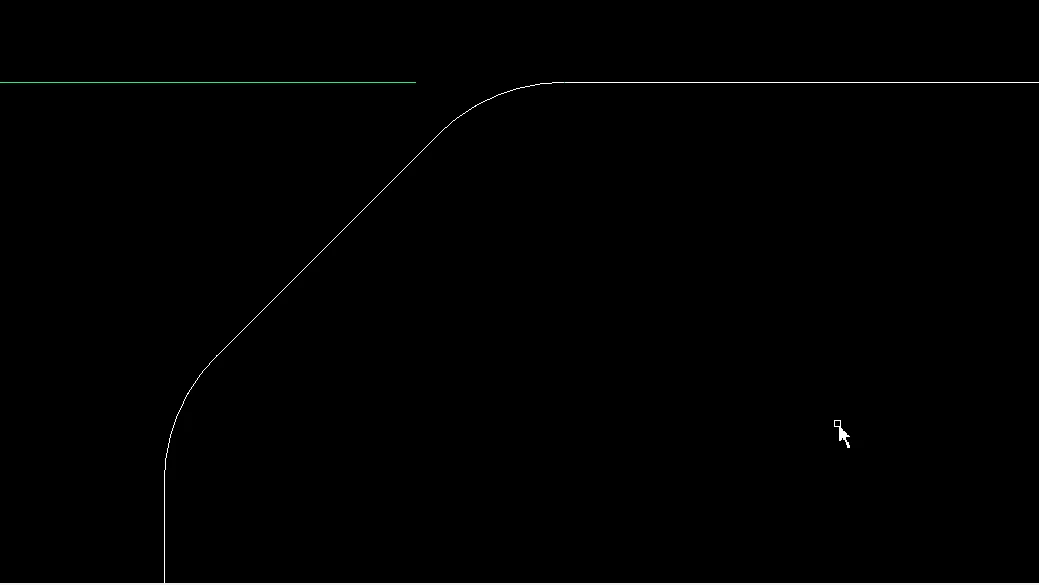
This is how it looks like originally in Illustrator:
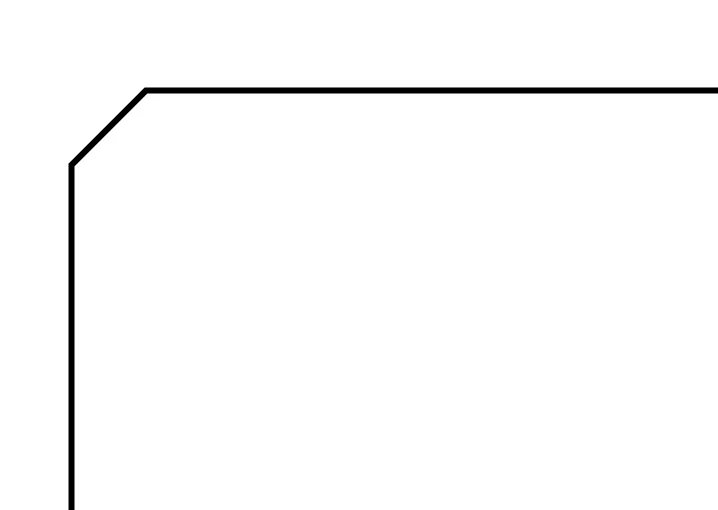
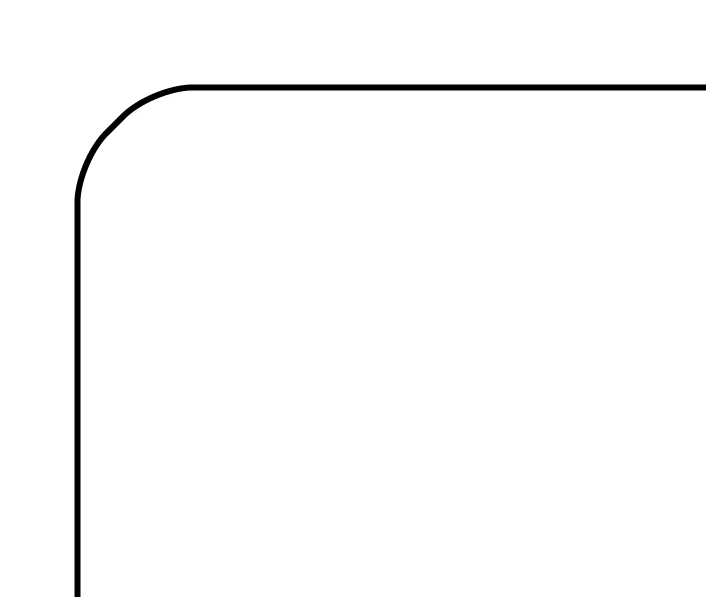
This is how it looks like after I select rounding: I've selected the same rounding radius, the first picture is from a CAD program to draw .dwg files.
Thank you!
    This topic is closed to new replies. Start a new post to keep the conversation going.
    Ton Frederiks
    Ton FrederiksCorrect answer
    Community Expert
    March 16, 2018

    icd6512675  wrote

    Hello, and thank you, for all your answeres.

    As you can see I have attached a circle with radius = 2,4mm to the CAD drawing and also to the AI drawing.

    If I select my whole path and go to stylize round corners and apply 2,4mm radius, you can see what happens. It's a much bigger radius.

    If I select one corner with the direct selector tool and drag the little point that allows me to set the radius, and I apply 2,4mm radius - it's the correct rounding.

    Can anyone tell me why this isn't working as I would expect? And can anyone tell me, why I can't just round one corner with the stylize round corners tool? I am only able to do that by dragging that little point in the corner.

    Stylize > Round Corners is an old Effect and applies to all corners.

    To round one corner, use the Direct Selection Tool and either drag the widget or enter a value in the Control Panel at the top (View menu > Control Panel).

    8 replies

    tromboniator
    Community Expert
    Community Expert
    March 16, 2018

    I may be misunderstanding entirely, and if so I apologize, but are you trying to recreate the CAD drawing? Are the CAD and Ai drawing at about the same scale? If so, the bevel is much too high and to the left in your first Ai drawing, so applying that large a radius causes the two curves to meet, as A, below, rather than leave a straight portion between them, as at B.

    Translate
    icd6512675
    Participant
    March 16, 2018

    Hello, and thank you, for all your answeres.

    As you can see I have attached a circle with radius = 2,4mm to the CAD drawing and also to the AI drawing.

    If I select my whole path and go to stylize round corners and apply 2,4mm radius, you can see what happens. It's a much bigger radius.

    If I select one corner with the direct selector tool and drag the little point that allows me to set the radius, and I apply 2,4mm radius - it's the correct rounding.

    Can anyone tell me why this isn't working as I would expect? And can anyone tell me, why I can't just round one corner with the stylize round corners tool? I am only able to do that by dragging that little point in the corner.

    CAD with circle = 2,4mm radius

    AI with circle = 2,4mm radius and stylize - round corner - 2,4mm radius

    AI with drag and set 2,4mm radius to one corner

    Thank you!

    Translate
    Ton Frederiks
    Community Expert
    Ton FrederiksCommunity ExpertCorrect answer
    Community Expert
    March 16, 2018

    icd6512675  wrote

    Hello, and thank you, for all your answeres.

    As you can see I have attached a circle with radius = 2,4mm to the CAD drawing and also to the AI drawing.

    If I select my whole path and go to stylize round corners and apply 2,4mm radius, you can see what happens. It's a much bigger radius.

    If I select one corner with the direct selector tool and drag the little point that allows me to set the radius, and I apply 2,4mm radius - it's the correct rounding.

    Can anyone tell me why this isn't working as I would expect? And can anyone tell me, why I can't just round one corner with the stylize round corners tool? I am only able to do that by dragging that little point in the corner.

    Stylize > Round Corners is an old Effect and applies to all corners.

    To round one corner, use the Direct Selection Tool and either drag the widget or enter a value in the Control Panel at the top (View menu > Control Panel).

    Translate
    Ton Frederiks
    Community Expert
    Community Expert
    March 15, 2018

    Select only one corner point with the Direct Selection tool (white arrow) to round only that corner.

    Translate