
Participant
June 25, 2018
Answered

S-shaped lines in a circle. Aligning along a diagonal. Wave filter.

  • June 25, 2018
  • 3 replies
  • 1292 views

I would like to recreate this logo idea in Illustrator to have a play with it, get better symmetry and rigid lines:
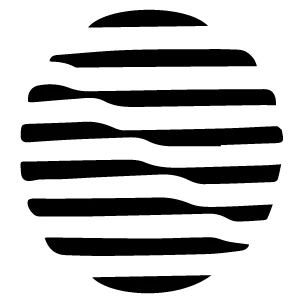
My best idea was to recreate it manually. Meaning I create first a black circle. Then I create white "S" shaped lines and copy-paste them and align them along a diagonal.

Is there a better way to create this? A distortion filter along the diagonal or something similar?

This way it could ensure symmetry (which takes a lot of planning ahead to in terms of angles, line thickness, aligning along a diagonal etc.) and be a bit more flexible with trying to create different versions (i.e. angles, number of lines, etc.).

Thank you!
    This topic has been closed for replies.
    Correct answer kphotopage

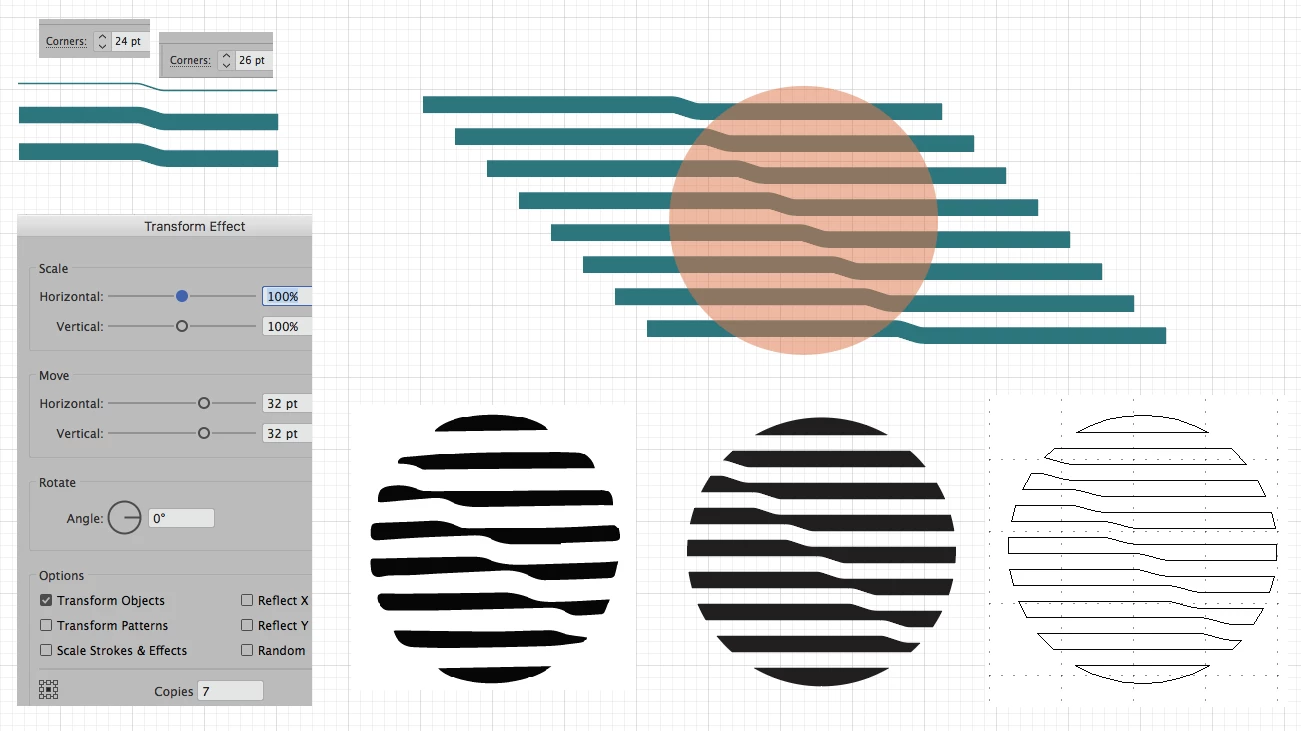
    Here is how I would recreate that pattern.

    Pen Tool, draw your S shape.

    The two anchors in the center, I assigned a corner radius.

    Then I gave the stroke a 16pt weight.

    Expand, now working with a Fill shape.

    Next, Effect>Transform Effect.

    Expand Transform.

    Then Live Paint with a circle.

    At the end, you have a nice tidy clean logo design.

    K

    3 replies

    kphotopage
    kphotopageCorrect answer
    Legend
    July 3, 2018

    Here is how I would recreate that pattern.

    Pen Tool, draw your S shape.

    The two anchors in the center, I assigned a corner radius.

    Then I gave the stroke a 16pt weight.

    Expand, now working with a Fill shape.

    Next, Effect>Transform Effect.

    Expand Transform.

    Then Live Paint with a circle.

    At the end, you have a nice tidy clean logo design.

    K

    Participant
    July 5, 2018

    Very nice! Thank you!

    kphotopage
    Legend
    July 5, 2018

    Glad I could help.

    K

    Inspiring
    June 26, 2018

    I would use the 'warp' tool. This is just a series of white rectangles over a black circle. Lock the circle, select all and run the 'warp' tool through. Play around with size and fidelity.

    Participant
    June 26, 2018

    Hey!

    Warp gave a couple of nice ideas for me to play with, but not my original design. The lines end up on the same height left as right.

    The envelope distort was a great idea! Though I still didn't get the desired result, it got me very close. Unless something closer comes up I'll mark it as the correct answer.

    So far I stuck to copy paste and skewing. I'll make the "s" shape smoother, and play with the angles, but I think this might get me there.

    Thanks for the suggestions!

    sharp_hands16B8
    Community Expert
    Community Expert
    June 25, 2018

    This is a very interesting, and somewhat organic shape. It almost looks like it was captured on a phone and digitized in Adobe Capture.

    You could do some Envelope Distort with Grid on the center area. I would probably first just make the internal guts of the lines the way I want. Then afterward, use a circle to mask it out.  Notice the rounded corners on all the shapes? After you mask it, expand the whole thing and then round the corners with shape properties.