
Participant
May 31, 2016
Answered

Saving Illustrator as PDF without the hidden layers

  • May 31, 2016
  • 3 replies
  • 20636 views

We have roughly 55cards that all have the exact same text. The titles and backgrounds differ among the cards. So I've made just one AI with the different backgrounds and all the text as one copy in a layer on top.

Now I can just hide each background layer and save as PDF. But even unchecking preserve editing capabilities, the file sizes let me know that it is still including the images and backgrounds for all the hidden layers. Doing a quick test and deleting all the hidden layers brings the file sizes done considerably.

I was under the impression that saving as a PDF without editing capabilities only saved what was needed for that particular PDF. It seems I was wrong. Do I just have to keep deleting the hidden layers for each copy?      
Correct answer Mike_Gondek10189183

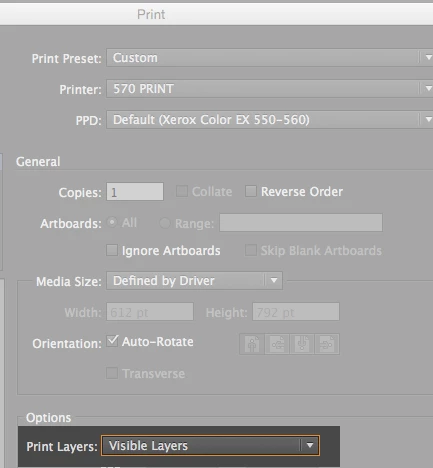
Make separate layers for you copy versions, then hide the layer(s) you do not want to go into PDF, and use this settings. Though this says print layers, apples to making of PDFs also..

You also need to turn off Illustrator editing capabilities in the save dialog when making your pdf.

3 replies

Mike_Gondek10189183
Community Expert
Mike_Gondek10189183Community ExpertCorrect answer
Community Expert
May 31, 2016

Make separate layers for you copy versions, then hide the layer(s) you do not want to go into PDF, and use this settings. Though this says print layers, apples to making of PDFs also..

You also need to turn off Illustrator editing capabilities in the save dialog when making your pdf.

Participant
September 29, 2018

This didn't work for me.  I had a 19MB file with the print visible layers only.  I then deleted the hidden layer, and the file dropped to 70KB.

The only thing that worked when saving a copy with the hidden layer, oddly, was to choose compatibility = Acrobat 8, with no standard.

Choosing PDF-X-4:2010 led to a 600KB file, and choosing PDF-X-1a:2001 led to a 19MB file again.  In every case, all option checkboxes were unchecked.

Suffice it to say, the export is buggy.  The standard has nothing to do with simply leaving the hidden layer out of the exported file.  When the hidden layer takes 19MB after being excluded, it's not working.

On top of this, when printing the 19MB pdf with acrobat the hidden layer does not print, but when printing with Chrome, it does.  I'll blame the buggy PDF rendering of Chrome for that, but on the other hand, you could say there's a "broken" layer in there if Illustrator says it wasn't included, but somehow something was.

Participant
April 15, 2025

Acrobat 8 option worked for me! Literally nothing else did, this is easy to save into a preset too, so this is the easiest solution I've discovered. Thanks!

Inspiring
May 31, 2016

just use the PDF/X1-a:2001 setting and it will nuke all the dead stuff and shrink the file by leaving those hidden bits out.

Ton Frederiks
Community Expert
Community Expert
May 31, 2016

It still leaves some stuff in.

If I save a file with 3 layers, 2 hidden I get 1,3 mb when saved as PDF/X-1a:2001.

If I delete the hidden layers and save the file as  PDF/X-1a:2001 the file becomes 596 KB.

Inspiring
May 31, 2016

would using a custom flattener preset make a difference, like the pass4press 'job options' settings.?

Just because If I were doing it, I'd want to try and get it done without the extra step through acrobat if i could.

Ton Frederiks
Community Expert
Community Expert
May 31, 2016

You can do that in Acrobat.

Save the file with the hidden layers in Illustrator with "Create Acrobat Layers from Top-Level Layers" checked.

In Acrobat:

Save as other... > Optimized PDF and in the Discard User Data check > Discard hidden Layer content and flatten visible layers.