Answered
SCRIPT ILLUSTRATOR
HELP, I´m trying make a script to align two objects, somebody know how please!!!

HELP, I´m trying make a script to align two objects, somebody know how please!!!
Are you already able to make basic scripts by yourself?
There are some levels of complexity when trying to replicate the Illustrator UI's alginment but let me provide a rudimentary sample which works on just path objects such as a couple of rectangles.
Here we shall start with one green and one yellow square which have different sizes:
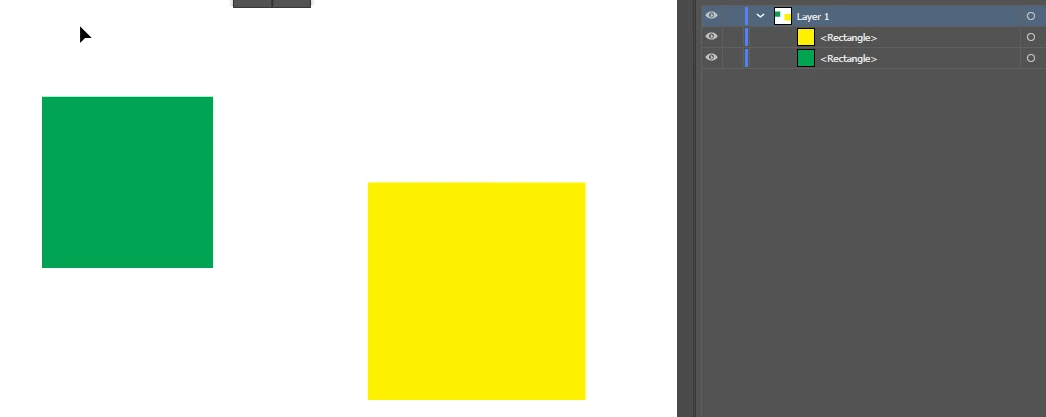
Let's try to align the yellow one to the green one.
First concept is that in an Illustrator document, the art objects are inside array-like collections and those are directly tied to their stacking order. If we wanted to grab a hold of the green one, it would be the 2nd item in this collection of Document.pathItems at index 1 because in javascript all counting is started at index 0. The yellow item would be in index 0 therefore.
Here's a sample script:
#target illustrator
function test(){
	var doc = app.activeDocument;
	var yellowSquare = doc.pathItems[0];
	var greenSquare = doc.pathItems[1];

	yellowSquare.top = greenSquare.top;
};
test();
And now the result shows that after making the yellow square's .top property equal to the green square's .top property, they are aligned to the top of the green square!
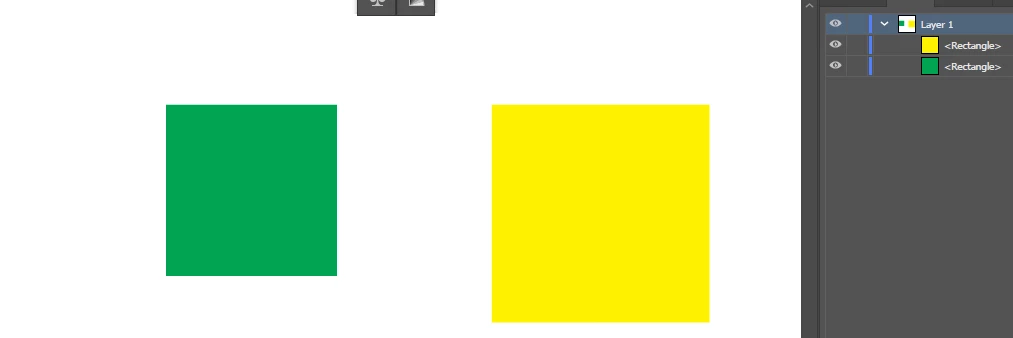
Now let's try to align the green square to the vertical middle of the yellow one. This is a little more intense as you have to do some calculation in your script.
Here is a sample snippet that works in a bad way:
#target illustrator
function test(){
	var doc = app.activeDocument;
	var yellowSquare = doc.pathItems[0];
	var greenSquare = doc.pathItems[1];

	var heightDiff = yellowSquare.height - greenSquare.height;
	greenSquare.top = yellowSquare.top + (heightDiff / 2);
};
test();
First, I get the difference in height between the yellow and green square because they are of different height sizes. When this difference is divided by two, theoretically we should be able to add this number to the .top of the green square to get it vertically aligned to the middle of the yellow one. However, the result I get is not as expected:
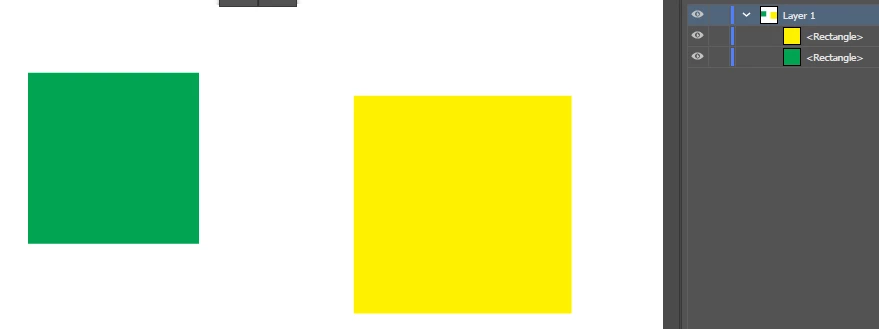
This was done because 1) I needed to refresh my own memory obviously, it wasn't on purpose 🙂 and 2) to also show you an Illustrator elimentary 'gotcha' when it comes to the coordinate system: it's actually reversed vertically. So unlike in its own UI or in web design or anywhere else, in Illustrator scripting the Y values have to be subtracted from instead of added-to in order to move something downward and the reverse for moving something upward.
Let's try the fixed snippet now:
#target illustrator
function test(){
	var doc = app.activeDocument;
	var yellowSquare = doc.pathItems[0];
	var greenSquare = doc.pathItems[1];

	var heightDiff = yellowSquare.height - greenSquare.height;
	greenSquare.top = yellowSquare.top - (heightDiff / 2);
};
test();
And now we can see the green square is perfectly vertically aligned to the middle of the yellow square.
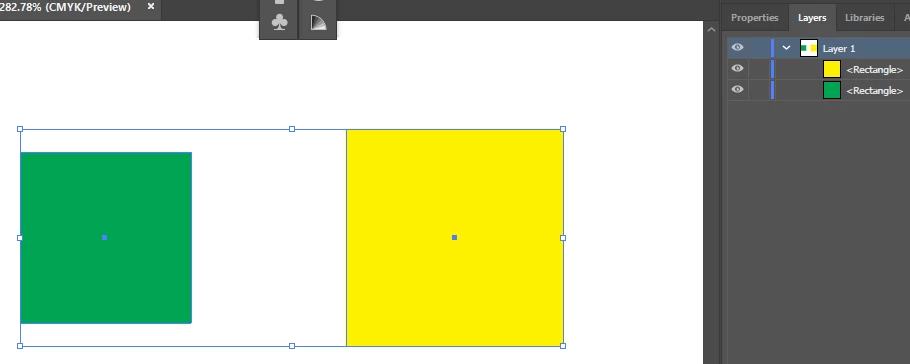
The difference being, I changed the operative line greenSquare.top = yellowSquare.top + (heightDiff / 2); to use the minus instead of plus so it looks like this: greenSquare.top = yellowSquare.top - (heightDiff / 2);.
And this is just a simple example, as there are more complexities when using paths with strokes or using clipped art and it's especially horrible when trying anything with opacity masks because it requires playing an action to undo the opacity masks first and then playing one to re-apply them (in most cases over the years of this forum this has not been a prevalent need and I would venture to say that most users learned to work around such issues instead of attempting to script them).
So now you can ask more questions specific to the kind of alignment you want and/or use the PDF scripting guide along with these provided snippets to make your own script.
Already have an account? Login
Enter your E-mail address. We'll send you an e-mail with instructions to reset your password.
 AdChoices