
dzgnr89
Inspiring
November 30, 2020
Answered

Selecting just the outlines of a set of geometry?

  • November 30, 2020
  • 7 replies
  • 1460 views

How can I select just the outermost lines of a collection and thicken them? Just by click, click, carefully picking the outer lines is a very tedious process.

There must be a smart and fast way.

I downloaded the following file from the website pimpmydrawing.com. Sharing its screenshot and soft copy. 
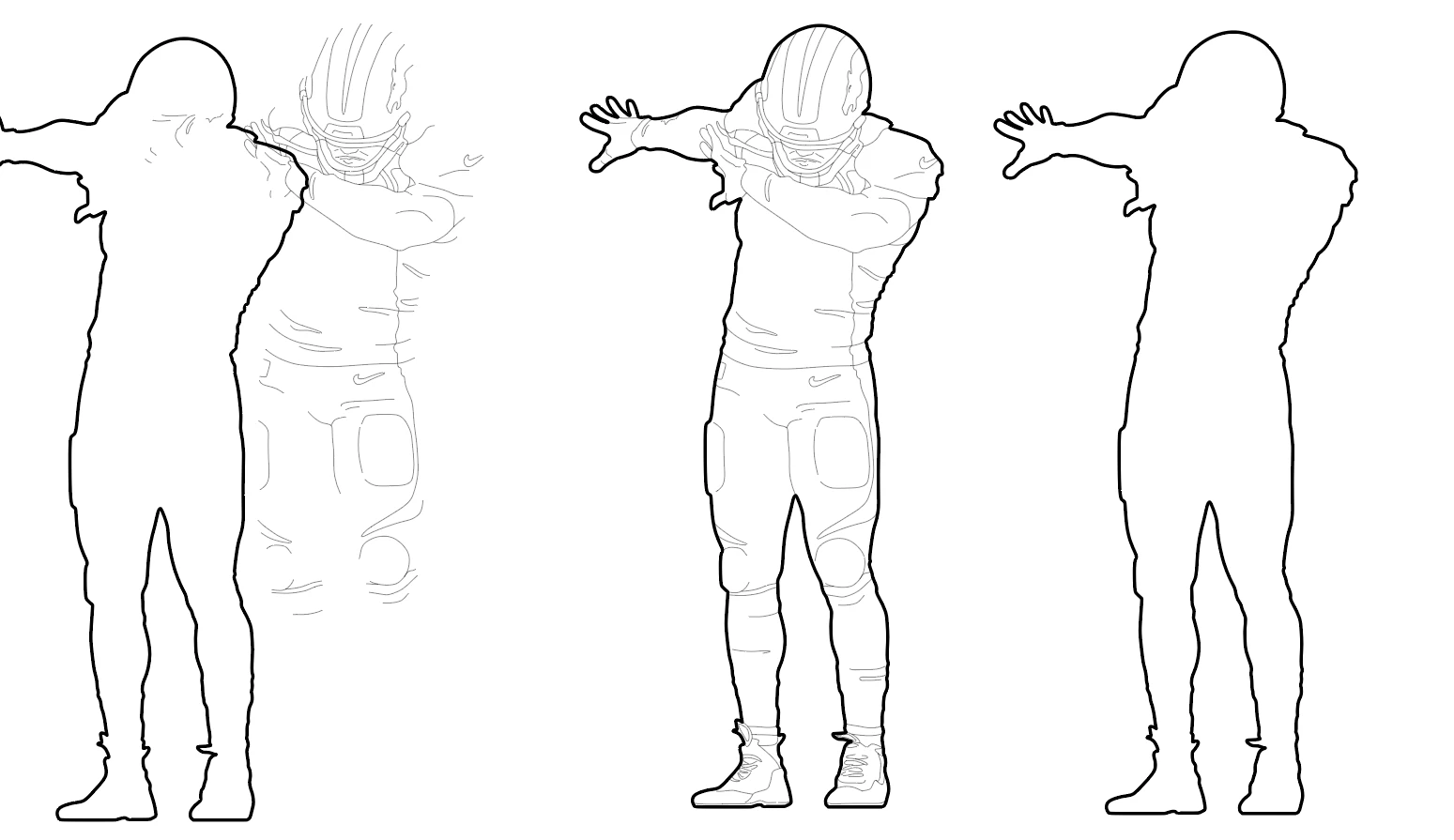


It has a very neat set of thick outlines and thin inner lines.

I would like to do the same for the following file. Sharing its screenshot and soft copy (geometry set1.ai).
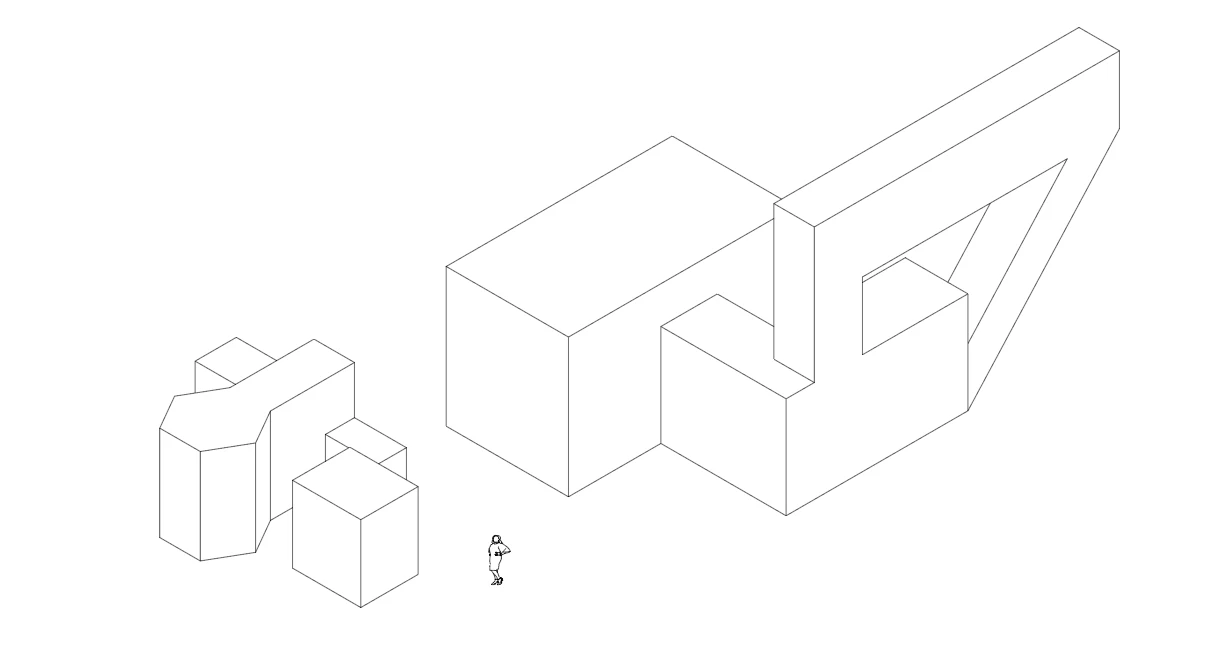


I'm sharing the illustrator files via dropbox. I keep getting the following error when trying to attach directly here on the forum post. 

 

https://www.dropbox.com/s/o7iyyfppftym8xt/american-football-player-celebrating-sanaa-people-105-pimpmydrawing.ai?dl=0


https://www.dropbox.com/s/t2v3lbm1e10bnbe/geometry%20set1.ai?dl=0


This topic has been closed for replies.
Correct answer Ton Frederiks

I improved the action, it now removes the old strokes and gives only the new fat stroke.

You can download it here:

https://shared-assets.adobe.com/link/cc29216b-481a-471c-4293-9ce6f83eb7fc

7 replies

Kurt Gold
Community Expert
Community Expert
December 5, 2020

Thanks for the sampe files.


Your large_urban_blocks.pdf file can be called pretty "huge" and it's rather obvious that it may not be a good idea to process all objects in one single shot. Neither with an action, nor with a graphic style. Chances are that Illustrator will then freeze or even crash.


I still do not think that the additional paths produced by the graphic style (followed by expanding appearance) or by Ton's first action (which I do like more than the second "destructive" action) will result in considerable performance lags. But that may of course vary on different machines.


Kurt Gold
Community Expert
Community Expert
December 1, 2020

"When I have lots of geometry, it will increase the number of lines, thereby making file heavy and giving performance lag."


Hmh, then your files must be incredibly huge.


Normally – at least nowadays on a modern machine – the additional paths or attributes should not cause noteworthy performance lags.


Can you perhaps share one of those huge files?


dzgnr89
dzgnr89Author
Inspiring
December 5, 2020
Ton Frederiks
Community Expert
Ton FrederiksCommunity ExpertCorrect answer
Community Expert
December 1, 2020

I improved the action, it now removes the old strokes and gives only the new fat stroke.

You can download it here:

https://shared-assets.adobe.com/link/cc29216b-481a-471c-4293-9ce6f83eb7fc

dzgnr89
dzgnr89Author
Inspiring
December 1, 2020

Thanks a lot! It's an amazing action. Will take me hours or maybe a week to figure out how you did the magic. Even clicking on individual steps in your action doesn't explain much. 


I get frequent popups "unlock all" is not available when the action does it job. Even though, the action works flawlessly. Any way to stop this message from appearing?


Ton Frederiks
Community Expert
Community Expert
December 1, 2020

Thanks, good to hear you liked it.

The action selects everything that is not selected and locks it.

After the action is done, it unlocks it.

If there is nothing to lock then it cannot unlock anything, I guess that is happening when the only thing in your file is what you select before playing the action.

Kurt Gold
Community Expert
Community Expert
November 30, 2020

If creating at least one addtional object or attribute is strictly undesired, then Doug's, Ton's as well as my approach are kind of inappropriate, of course.


Can you tell why it is unsuitable to take that route in this case?


dzgnr89
dzgnr89Author
Inspiring
December 1, 2020

Right now I have only few geometry. When I have lots of geometry, it will increase the number of lines, thereby making file heavy and giving performance lag. 

Ton Frederiks
Community Expert
Community Expert
November 30, 2020

You can try this, download and load this action, select all and run the action:

https://shared-assets.adobe.com/link/fb0ab699-3052-40e6-78a1-ec93de57e165

Kurt Gold
Community Expert
Community Expert
November 30, 2020

Another approach:


https://drive.google.com/file/d/1Ue-iMzDpz5-O3q6gLZ2AJZVNy0FuqbLJ/view?usp=sharing


  • Download, unzip and open the sample file.
  • Select all and apply the graphic style "Contour_Line_1".


Modify the graphic style if required.


Doug A Roberts
Community Expert
Community Expert
November 30, 2020

That's great, Kurt. I'm going to save that one for later.

Doug A Roberts
Community Expert
Community Expert
November 30, 2020

For the geometric shapes I would make a copy and use shape builder on it to join the parts I want outlined.

dzgnr89
dzgnr89Author
Inspiring
November 30, 2020

How would you select just the outer lines in the first go? Manual click click, lasso, etc. ?