
JeffreyW
Known Participant
February 5, 2019
Answered

Set text on a path to not be upside down

  • February 5, 2019
  • 5 replies
  • 82892 views

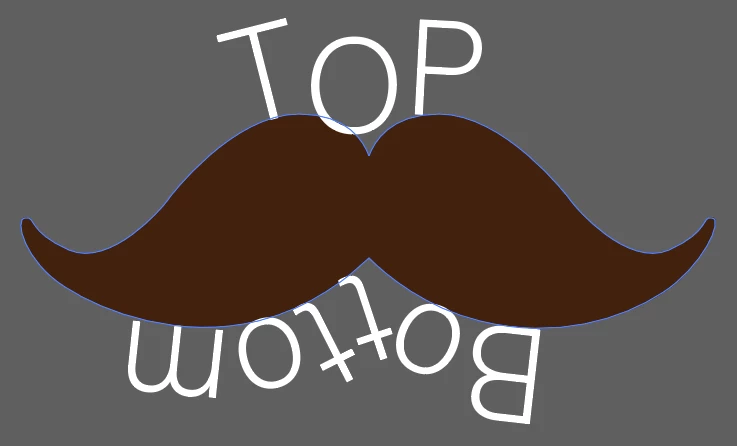
I have the following illustration below in which I typed text on a path, but I'd like to have the bottom text be right side up (like how the 'Top' text is) and I've tried various options within text on a path, but just can't seem to get the 'Bottom' text to flip and be upright per se. How can I go about fixing this?
Thx
Correct answer Bill Silbert

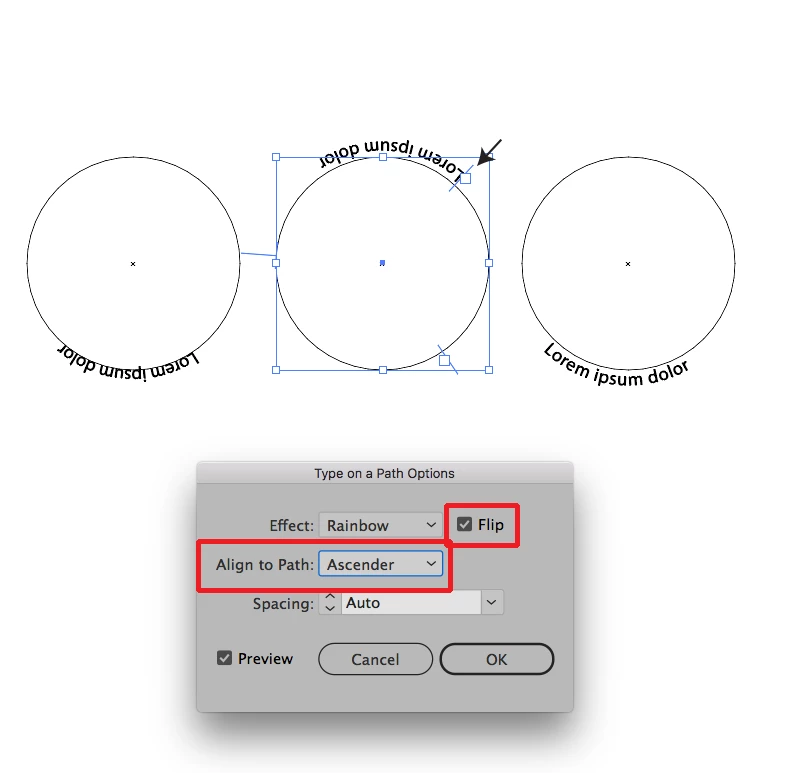
First thing to do is to have the type that says "Bottom" on a separate path from "Top". Then Select the path containing the upside down text with the regular selection tool (black arrow). Then go to Type>Type on a Path>Type on a Path Options and click on the "Flip" option and choose "Ascender" from the "Align to Path:" option. After you do this it will flip the text and align the top of the letters to the contour of the path. You will probably need to move the text into position by dragging the text using the boundary handles as pointed to in the screen shot with the black arrow.

5 replies

New Participant
August 27, 2025

Straight

Jacob Bugge
Community Expert
February 5, 2019

Jeffrey,

If you want a silly simple solution with unchanged and whole path, you can (starting from the image in your OP (original post)):

1) With the (Path) Text Tool select the whole word Bottom, then in the Character options set Character Rotation to 180 degrees, this will reverse the order of your letters, and keep them under the path;

2) Unreverse the order of the letters (type again);

3) Adjust the vertical(ish) position using the Baseline Shift if needed/desired, you can do this for individual letters.

You may also wish to use 3) for the top word.

JeffreyW
JeffreyWAuthor
Known Participant
February 5, 2019

Thx Jacob, I figured there'd be multiple ways to accomplish this task

Jacob Bugge
Community Expert
February 5, 2019

For my part you are welcome, Jeffrey.

As mentioned, you may use 3) for any individual letter for fine adjusting the appearance.

Bill Silbert
Bill SilbertCorrect answer
Community Expert
February 5, 2019

First thing to do is to have the type that says "Bottom" on a separate path from "Top". Then Select the path containing the upside down text with the regular selection tool (black arrow). Then go to Type>Type on a Path>Type on a Path Options and click on the "Flip" option and choose "Ascender" from the "Align to Path:" option. After you do this it will flip the text and align the top of the letters to the contour of the path. You will probably need to move the text into position by dragging the text using the boundary handles as pointed to in the screen shot with the black arrow.

JeffreyW
JeffreyWAuthor
Known Participant
February 5, 2019

Bill,

Thx a million for the reply and breakdown - greatly appreciated

Bill Silbert
Community Expert
February 5, 2019

Happy to help.

jane-e
Community Expert
February 5, 2019

Hi Jeffrey,

Kenneth’s answer is correct, but nothing is selected in your screen shot. I prefer the Direct Selection tool for dragging the middle handle to avoid the bounding box.

Community Expert
February 5, 2019

Type > Type On A Path > Type On A Path Options > Flip

or you can drag the middle handle of the text to flip it over

JeffreyW
JeffreyWAuthor
Known Participant
February 5, 2019

Thx for the reply - the problem I'm having is that it flips both words like below.

I found that if I type one word and then copy/paste in place and then follow your steps I can flip the bottom word to right side it to match the top as follows

Thx

JeffreyW
JeffreyWAuthor
Known Participant
February 5, 2019

I often split the path in two so that each can have different text orientation- if this is what you mean


Yes - how can I split the path in two?

Thx