


- Home
- Illustrator
- Discussions
- Simplest way to stack lines and style individually
- Simplest way to stack lines and style individually
Simplest way to stack lines and style individually

Copy link to clipboard
Copied
Hi,
I am making a map and have several trails that follow the same route.
I want to automate stacking these lines together, and be able to style them independantly of each other.
I have taken the following approach, but there is likely a much better idea since I am not an illustartor expert.
I have the main trail drawn in illustrator as a path.
I then use Effect>Path Offset to get the path repilcated.
Then I use Object>Outline Path.
This gives me basically 3 copies which is all I need.
I want to be able to style the 2 black and 1 white lines individually but I don't know how to do this.
Ideally they would adjust together as a manipulate them, but I need to be able to style them independently.
Heres an example:

On the left is the trail path styled with a 1mm stroke.
On the right I have taken the previous outlined steps, and I consider the object to have 2 black and 1white copy of the path I want.
I am hoping someone can steer me in the right direction.
Thanks.



Explore related tutorials & articles
 12
Replies
12
12
Replies
12




Copy link to clipboard
Copied
Hello @map1,
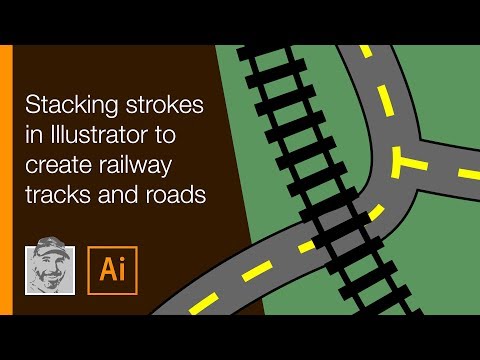
Thanks for reaching out. I would request you try the steps shared in this tutorial (https://www.youtube.com/watch?v=Pd5kdkSChFg) and check if it helps.
Looking forward to your response.
Thanks,
Anubhav


Copy link to clipboard
Copied
What do you need to do exactly when you say 'style them indepedently'? Style in what way?
You can use two strokes on the same path and keep your effect live:

Copy link to clipboard
Copied
Hi,
thanks Anubhav Majumder, that video opened my eyes to multiple strokes which I didn't know about.
Thanks Doug as well, although I'm still not sure how to get my desired effect.
I'm trying to get 3 or more lines all stacked correctly with the ability to manipulte each one's style:
(I've manully stacked them here, poorly...)

Thanks.
Copy link to clipboard
Copied
Please be specific about what you mean by 'style'. Is that exactly what you want to do or just an example?
This uses some strokes with an offset width profile. There are other ways:

Copy link to clipboard
Copied
Hi Doug,
What you have shown is what I am after, but when I use the offset path it only works if I join the ends of the path as shown below.
I've also shown the most complicated style of one of the lines, the dashed green and black one with outline below.
I don't know how to hide/make transparent the joining lines (or even if that's the way to do it), and there will be a map image below that can't be covered.

Thanks again.
Copy link to clipboard
Copied
Hi,
it seems what I want to do is explained here:
https://www.youtube.com/watch?v=kDZuqQQVyQk
Thanks for the prompt replies.
![Adobe Illustrator: Add Multiple Strokes to Drawn Paths [+Pen Tool, Clipping Masks & Outline Path]](https://i.ytimg.com/vi/kDZuqQQVyQk/hqdefault.jpg "Adobe Illustrator: Add Multiple Strokes to Drawn Paths [+Pen Tool, Clipping Masks & Outline Path]")
Copy link to clipboard
Copied
Please see this file for a couple of examples:
https://drive.google.com/file/d/10R0T-IihvpUkgZ0a8nkPxSbxJAmmzeF4/view?usp=sharing
Check the appearance panel for the structure.

Copy link to clipboard
Copied
The black and dashed green one is not complicated at all. You need to apply a thick black stroke and then a second green one which is slightly thinner and dashed.
If you need proper crossroads, you need to apply the multiple strokes not to the paths, but to the layer. For that target the layer and then add strokes to it.
Targeting: clicking on the circle in the layers panel.
Copy link to clipboard
Copied
Hi,
thanks Monika and Doug.
Monika - that sounds like the way to go at joins for sure.
Doug - how did you get the strokes to offset without using the align setting?
It seems you set a custom width, but I'm not sure how.
Finally, if you had to do something like the following in a nice way,
how would you go about doing it?
(Assume I'm starting with the black line path)
(Maybe there's a tutorial you can link)

Thanks.
Copy link to clipboard
Copied
You could have the 3 shapes. The black one gets a normal stroke.
The other 2 get the Offset Path effect to make them move: one to the inside, one to the outside.
Copy link to clipboard
Copied
Thanks all for your help.
I have a lot to play with now.
I am very impressed with the fast and helpful responses.
Copy link to clipboard
Copied
Doug - how did you get the strokes to offset without using the align setting?
It seems you set a custom width, but I'm not sure how.
By @map1

It's a width profile, made with the width tool, that puts the stroke wholly on one side of the path:

To make one yourself, using the width tool, hold alt and drag one side of the stroke to the centreline at each end of the path.


Get ready! An upgraded Adobe Community experience is coming in January.
Learn more
 AdChoices