Known Participant
April 8, 2017
Answered

Sketching glaciers. Work with lines.

  • April 8, 2017
  • 9 replies
  • 1519 views

Hello,

I have problem,

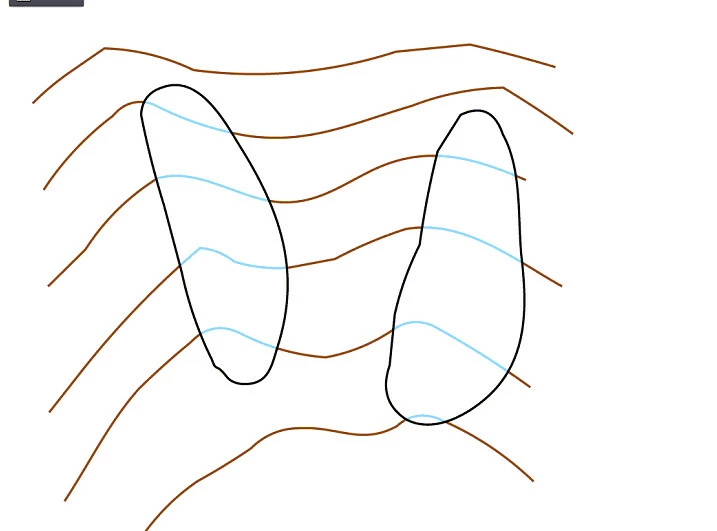
My question is, how in the simpliest way turn what is on Fig .1 into what is on Fig. 2 ?

I have lines like these. These are glaciers, and their contour lines should be blue. The rest should be brown.

Thanks for any advices.
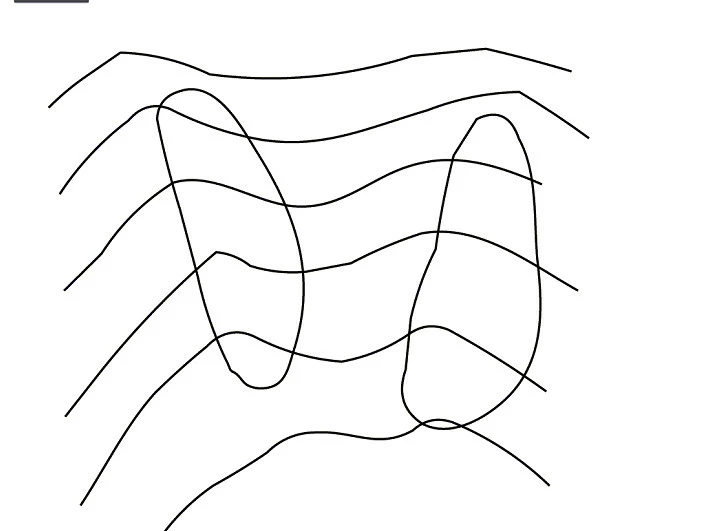
Fig. 1

Fig. 2

    This topic has been closed for replies.
    Correct answer carlosgarro

    I just check your file.

    It is huge!

    You need to optimize it but is not so easy with the standard tools.

    The file counts 132082 anchor points.

    14739 are unneeded points.

    But you need to mask some areas, check the attached file please: Dropbox - Glac_Opcion.ai

    Blue and brown lines are the same I just mask the blue ones using the Glacier Shape.

    For the cleanup, I highly recommend you VectorFirstAid - Astute Graphics

    Best Regards

    9 replies

    BeffAuthor
    Known Participant
    April 14, 2017

    Thank you very much

    I will check also this option.

    BeffAuthor
    Known Participant
    April 13, 2017

    I wanted to thank you all. All these advice are very helpful.

    Huge ? But this is only small part of the map

    Besides there are other layers

    I will have to really think about simplifying. These are the files imported from CAD. But when I make my stuff, despites huge amounts of RAM, it can also kneel down the computer

    carlosgarro
    Community Expert
    Community Expert
    April 14, 2017

    I can imagine how big every file is!

    That's why I recommend you the optimization tool.

    carlosgarro
    Community Expert
    carlosgarroCommunity ExpertCorrect answer
    Community Expert
    April 13, 2017

    I just check your file.

    It is huge!

    You need to optimize it but is not so easy with the standard tools.

    The file counts 132082 anchor points.

    14739 are unneeded points.

    But you need to mask some areas, check the attached file please: Dropbox - Glac_Opcion.ai

    Blue and brown lines are the same I just mask the blue ones using the Glacier Shape.

    For the cleanup, I highly recommend you VectorFirstAid - Astute Graphics

    Best Regards

    rcraighead
    Legend
    April 14, 2017

    Carlos,

    Wouldn't your method be half the size and easier to edit if a single set of paths were saved as a Symbol? The paths could be edited in one place and both colors would update.

    By setting the stroke to "NONE" in the Static Symbol and assigning the stroke at the Symbol Instance level, the paths have only one stroke attribute in Appearance Panel. A Dynamic Symbol could also be used and line strokes changed directly on the Instance (I just prefer the straightforward approach of adding an Stroke Attribute in the Appearance Panel because it could be saved as a Graphic Style).

    The black border could also be assigned directly to the Clipping path instead of being a duplicate path.

    carlosgarro
    Community Expert
    Community Expert
    April 14, 2017

    So cool!

    You're right

    Here's the previous file but with rcraighead method >> Dropbox - Glac_Opcion02.ai

    Thanks for the tip!

    BeffAuthor
    Known Participant
    April 12, 2017

    This Live Paint is interesting aproach.

    But on the beginning I was thinking also on making a clipping path for all objects - glaciers (but I was able to making clipping path only for one object - glacier). Is this your approach, rcraighhead, something similar to that ? Making a clipping path to many objects ? How it looks in details ?

    rcraighead
    Legend
    April 12, 2017

    When more than one shape is used as a clipping mask, first convert the multiple shapes to a "Compound Path" (Cmd/Cntl-8) then assign it as a Clipping Path (Cmd/Cntl-7).

    rcraighead
    Legend
    April 9, 2017

    Live Paint is a reasonable approach. You might also consider using a single Smart Object with two instances then assign a clipping path on the top objects. It is very similar to this recent post, except with lines instead of text:

    Re: Object within Text

    BeffAuthor
    Known Participant
    April 9, 2017

    No, no, In fact the objects are very complex, and there is plenty of them. I just wanted to make to problem as simple as possible

    I will look closer to his Live Paint function, how much I can use it.

    My Illustrator it's a CS 6

    Kurt Gold
    Community Expert
    Community Expert
    April 10, 2017

    Can you share a sample .ai file as per your screenshot in post 4?

    It's not quite obvious how your drawings are constructed. Taking a look at a sample file may lead to other useful perceptions.

    BeffAuthor
    Known Participant
    April 10, 2017
    cmgap
    Community Expert
    Community Expert
    April 8, 2017

    Here is a quick demo of live paint.

    occulus.nigra
    Inspiring
    April 10, 2017

    Is it possible to see the video? It says: "his video is private."

    Cheers...

    cmgap
    Community Expert
    Community Expert
    April 10, 2017

    The video plays here in the Reply window.

    Monika Gause
    Community Expert
    Community Expert
    April 8, 2017

    If this drawing is not too complex, you could try the pathfinder (panel) "Outline" fr all selected paths.

    Then ungroup and color them (they will be invisible, you could first select all and assign a stroke width of whatever you need.

    Or select all and use Live paint.

    Kurt Gold
    Community Expert
    Community Expert
    April 8, 2017

    Are you talking about stroked paths? Then you can cut them at the intersections and apply different stroke colours. Use the Scissors tool with Smart Guides turned on.

    There may be other more flexible ways. Depends on which version of Illustrator you are using.