Copy link to clipboard
Copied
Hi!
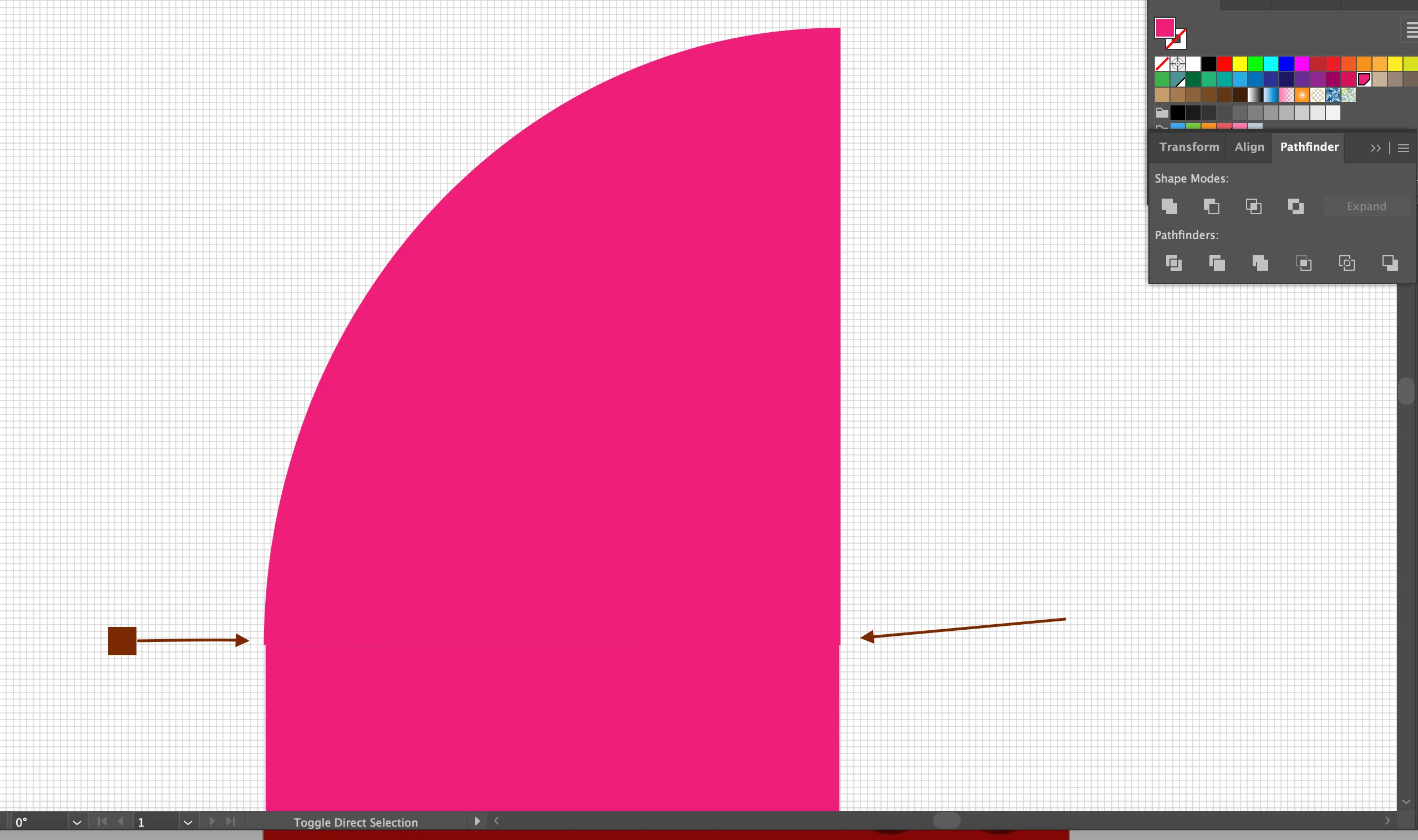
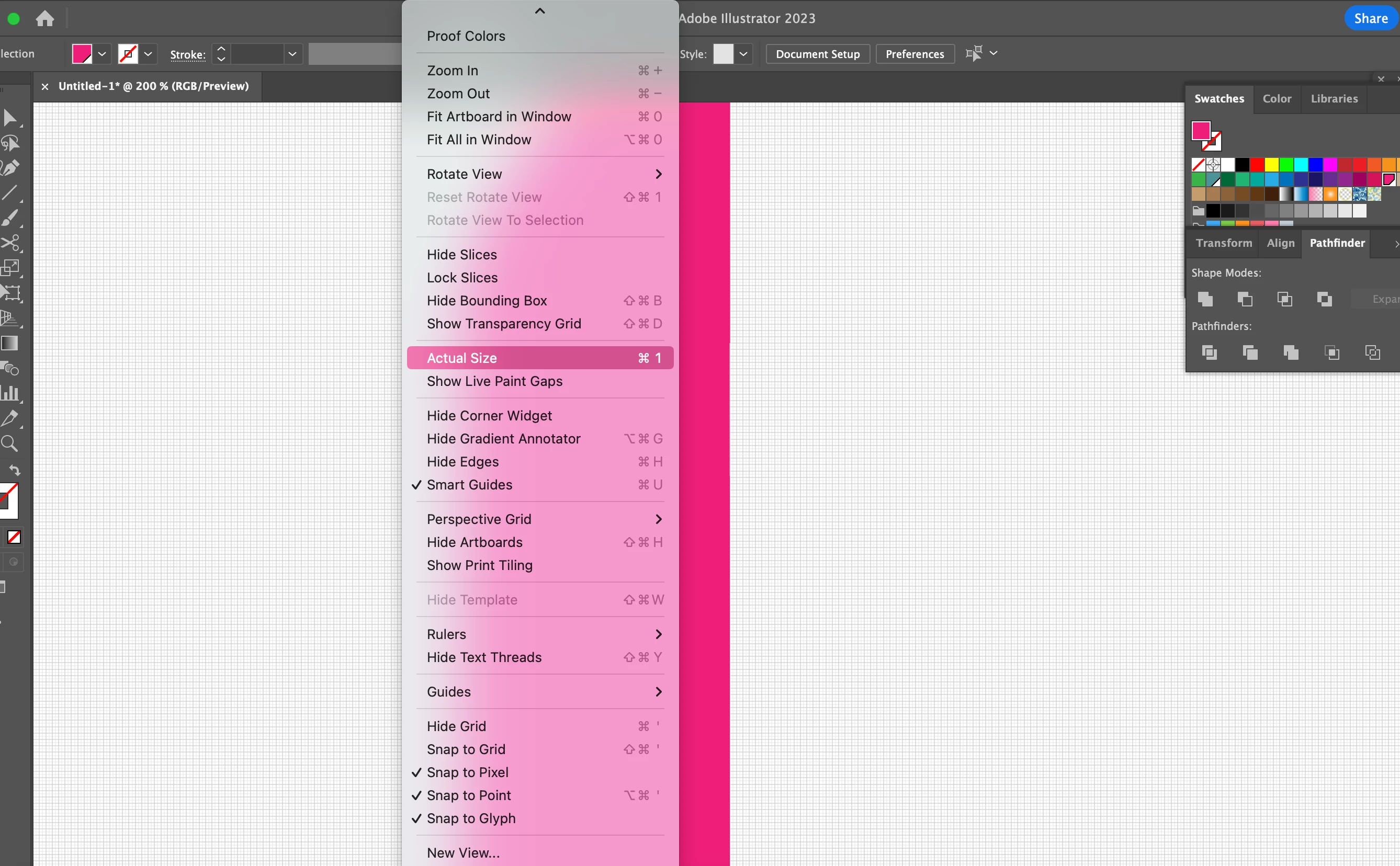
I am trying to use the smart guides and snap to pixel functions to align two objects perfectly, however it isn't working. The object won't scale down perfectly to fit the bottom object, and there is a slight space between objects. I have attached a screen recording and a screen shot of the snap to settings. Can someone please help me out?
Video of screen : https://www.loom.com/share/49a0f119243a4334b0ba0b3395e2fc7b?sid=63c5376e-6de4-44bb-8778-4be4ace68c6d
Copy link to clipboard
Copied
it will be hard to align the top piece to the bottom piece by dragging with the mouse, use the align panel instead
https://helpx.adobe.com/illustrator/using/moving-aligning-distributing-objects.html
it will be equally difficult to scale the top object to match the bottom by dragging with the mouse. Use the Transform panel to key the specific width instead
https://helpx.adobe.com/illustrator/using/scaling-shearing-distorting-objects.html
Copy link to clipboard
Copied
hi! thank you for replying, I am following this tutorial and at 1:07:20 he is positioning the piece using smart guides and I assume by mouse. It seems to work for him, however I am having a challenge replicating. https://www.youtube.com/watch?v=YycxaAK2MZ4
Copy link to clipboard
Copied
Neither side of yours is lined up. In the video he lines up one side, then tugs on the corner holding shift to align the other side. Yours is reversed - the top is larger, where his is smaller. He has way more experience with subtle mouse movements (I'm assuming). I suggest you try the accurate method Carlos has suggested. You don't know if the video guy actually has his lined up perfectly, it just looks like it is. You want the widths to match and be exact - look in the transorm panel or the tranform area of the properties panel.
Copy link to clipboard
Copied
thank you!
Get ready! An upgraded Adobe Community experience is coming in January.
Learn more