Participating Frequently
April 21, 2022
Answered

SolidWorks 3D Font won't convert Ariel to Illustrator Ariel

  • April 21, 2022
  • 1 reply
  • 2447 views

Hello,

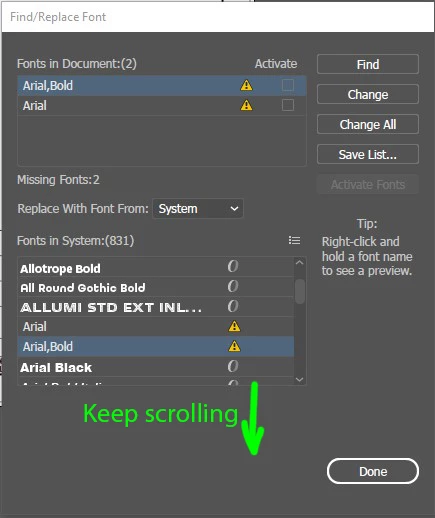
for the past few months, I was able to convert PDF Solidworks 3D files Ariel font directly into Adobe Illustrator Ariel Font with no issues using the font replace dialog box. Now for some reason when I import PDF files from  SolidWorks 3D, it will not convert the font, Ariel, by replacing the font dialog window in Illustrator no matter how many times I click it or match the document fonts. (See Attached) I really need this to work again because it affects my production of drawings. Can anyone please help me with this issue?

Thanks ~mfortney
This topic has been closed for replies.
Correct answer Brad @ Roaring Mouse

You need to scroll down further in the list. DO NOT select the ones with the alert as those are the fonts you are trying to replace.

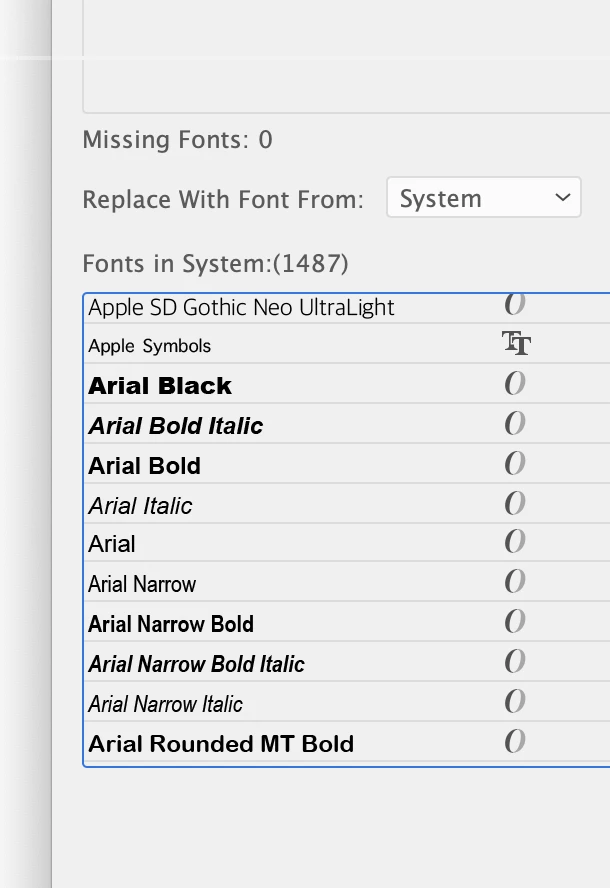
Assuming it's installed correctly in your system (nothing to do with Illustrator) Arial lists in an odd order. Arial Black will appear first followed by Arial Bold Italic, etc, etc. You might even have a bunch of Arial Hebrew in the list before Arial (Regular) appears.

1 reply

Brad @ Roaring Mouse
Community Expert
Community Expert
April 21, 2022

You need to pull down the menu "Replace with Fonts From" to "System" instead of "Document"

mmfortneyAuthor
Participating Frequently
April 22, 2022

Thanks, Brad, 

I attempted this and switched to system fonts as you recommended. Unfortunately, I could not get Illustrator to replace the fonts after clicking. Possibly some updates could be causing this to happen, I would assume. *See Attached. For these PDF SolidWorks 3D drawings, I imported them into Illustrator for print reproduction; I opened them in Acrobat Pro under Print Production>Prefilght>PDF Fixups> Convert fonts to outlines.*see attached. This technique at least gives me consistent font-weight in the rendered drawing and a successful conversion workaround. I think from now on; I will do this instead of trying to convert the fonts in Illustrator. Thanks.

~mmfortney

Brad @ Roaring Mouse
Community Expert
Brad @ Roaring MouseCommunity ExpertCorrect answer
Community Expert
April 22, 2022

You need to scroll down further in the list. DO NOT select the ones with the alert as those are the fonts you are trying to replace.

Assuming it's installed correctly in your system (nothing to do with Illustrator) Arial lists in an odd order. Arial Black will appear first followed by Arial Bold Italic, etc, etc. You might even have a bunch of Arial Hebrew in the list before Arial (Regular) appears.