Participant
April 13, 2018
Answered

spine in blend tool for outlines

  • April 13, 2018
  • 3 replies
  • 2238 views

hey

I blended two lines in illustrator (with no fills only strokes), and i do not see the spine, i want to have a spine as usual because i want to change its angle and apply the align to path option in the blend options, but now i am screwed.

(i noticed that if i expand the lines, than i get a spine, but that is not a good solution, because the blend steps become thick and widen throughout the blend steps, and that is not what i want, i want steps of lines with no fills).

so how can i have a spine when blending two outlines?

any help will be much appreciated
    This topic has been closed for replies.
    Correct answer Mike_Gondek10189183

    Expand your artwork and start with step 3. (below is how you do from scratch)

    1. make blend as you always do
    2. draw a spline
    3. select all
    4. object >> blend >> replace spline

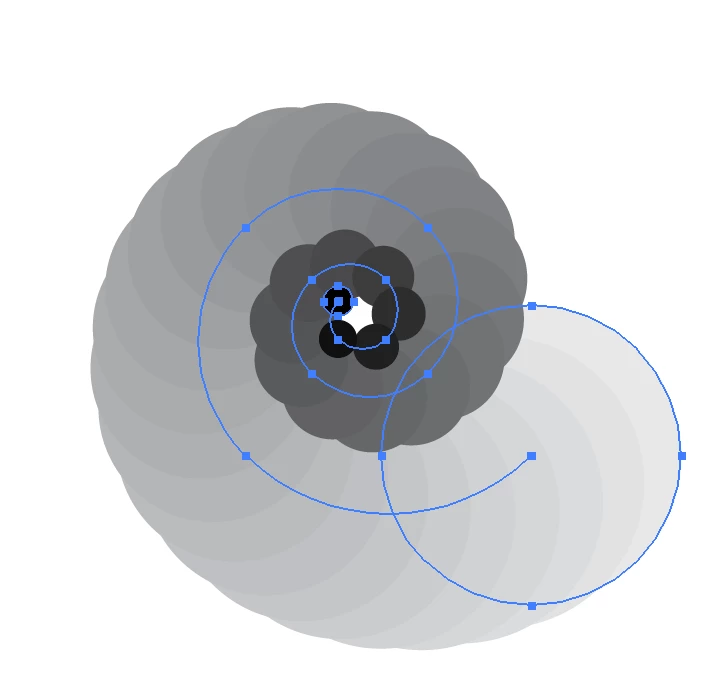
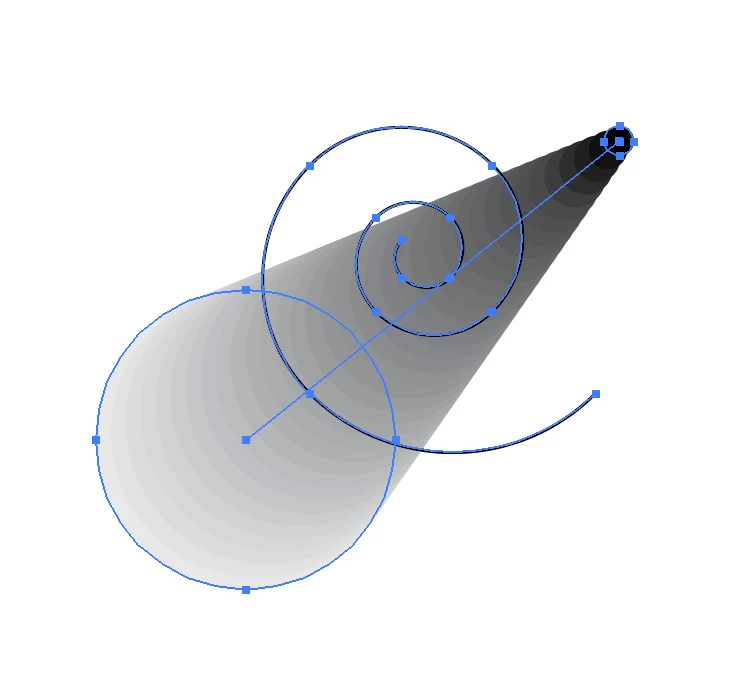
    Anyone know how to adjust the speed of  blend, if for example I want more tighter spacing on circles in center?????? Like adjusting easing in After Effects.

    3 replies

    kphotopage
    Legend
    April 15, 2018

    I blended two lines in illustrator (with no fills only strokes), and i do not see the spine, i want to have a spine as usual because i want to change its angle and apply the align to path option in the blend options, but now i am screwed.

    yt46646205

    Kurt Gold
    Community Expert
    Community Expert
    April 13, 2018

    Are you talking about two straight line segments?

    Such as: I and I

    Participant
    April 16, 2018

    Replying To:

    Re: spine in blend tool for outlines
    Kurt Gold

    Are you talking about two straight line segments?

    Such as: I and I

    yes

    I have already figured out with the first answer

    Kurt Gold
    Community Expert
    Community Expert
    April 16, 2018

    There is at least one further answer.

    If you want to make the spine appear immediately after you create the blend, there has to be at least one straight stroked line that is closed.

    That is, select one line, hit Cmd-J to make a closed path, then select all lines and create the blend.

    Mike_Gondek10189183
    Community Expert
    Mike_Gondek10189183Community ExpertCorrect answer
    Community Expert
    April 13, 2018

    Expand your artwork and start with step 3. (below is how you do from scratch)

    1. make blend as you always do
    2. draw a spline
    3. select all
    4. object >> blend >> replace spline

    Anyone know how to adjust the speed of  blend, if for example I want more tighter spacing on circles in center?????? Like adjusting easing in After Effects.

    tromboniator
    Community Expert
    Community Expert
    April 13, 2018

    As far as I know, the only way to adjust the speed in a controllable way is to break the shape into a series of blended  segments with spines of two points. A bit tedious, perhaps, but we’ve all dealt with worse. This allows you to control the number of steps between anchor points, as well as the spacing as controlled by the handles.

    Mike_Gondek10189183
    Community Expert
    Community Expert
    April 13, 2018

    Thanks Trombinator, excellent screenshots!

    Another way less tedious but does not allow you to ease: Grouping a rectangle of none colors and a circle, then applying transform to group.