Participant
January 31, 2017
Answered

Spot Color Monotone linked images from Photoshop change CMYK values in Illustrator

  • January 31, 2017
  • 4 replies
  • 5352 views

Ok, let me try to articulate this to the best of my ability. I am creating spot color background textures in photoshop using Pantone Color Bridge Spot Color (Pantone CP). When I choose the spot color in the photoshop monotone window, I can see that the CMYK color values match the values shown in my Pantone Color Bridge book. When this image is placed as a link in Illustrator and the spot color swatch is added to my swatch palette it is using the LAB value not the CMYK value. I need Illustrator to recognize and preserve the CMYK values not the LAB values as these two numbers are different. The end result is the RIP unit for our digital press is not printing the image accurately because the CMYK values of the background are being shifted somehow. Please respond with any advice how to reconcile this difference. It is important that the press operator not have to change/edit spot colors in the RIP.

See attached images below.

Photoshop creating monotone image:

Monotone image placed in photoshop as a link, spot color is recognized:
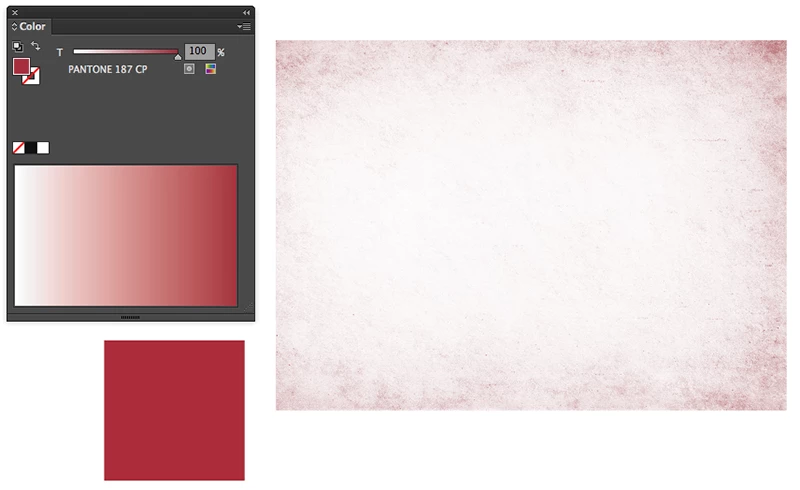
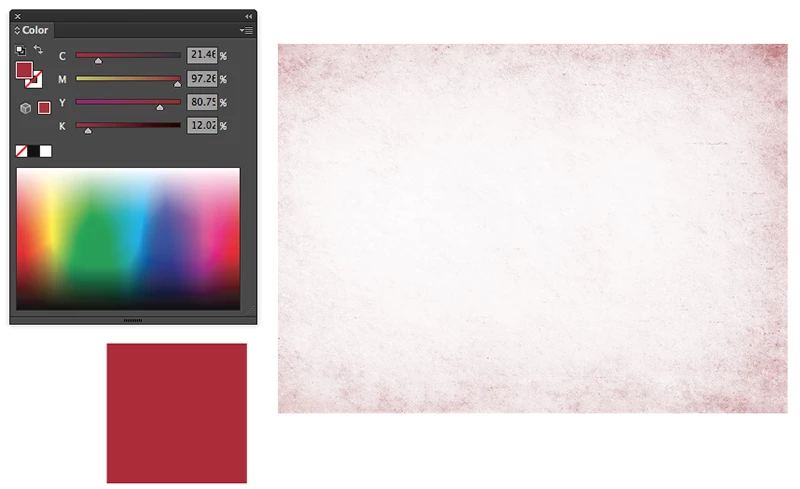
When I click to convert spot color to CMYK (just to check values) values are not the same as in first image.

This is the CMYK values that my RIP is also seeing, where the values should be 7, 100, 82, 26.
Any help is greatly appreciated,  thanks all!!
This topic has been closed for replies.
Correct answer GraphicsGirl56

1. Select the color swatch in the swatch pallette

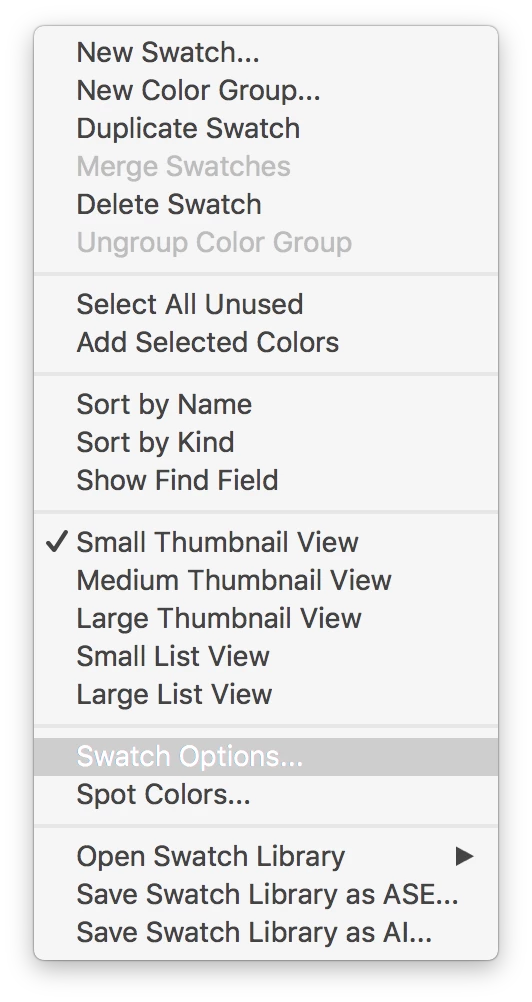
2. Swatch panel drop down menu (top right corner)

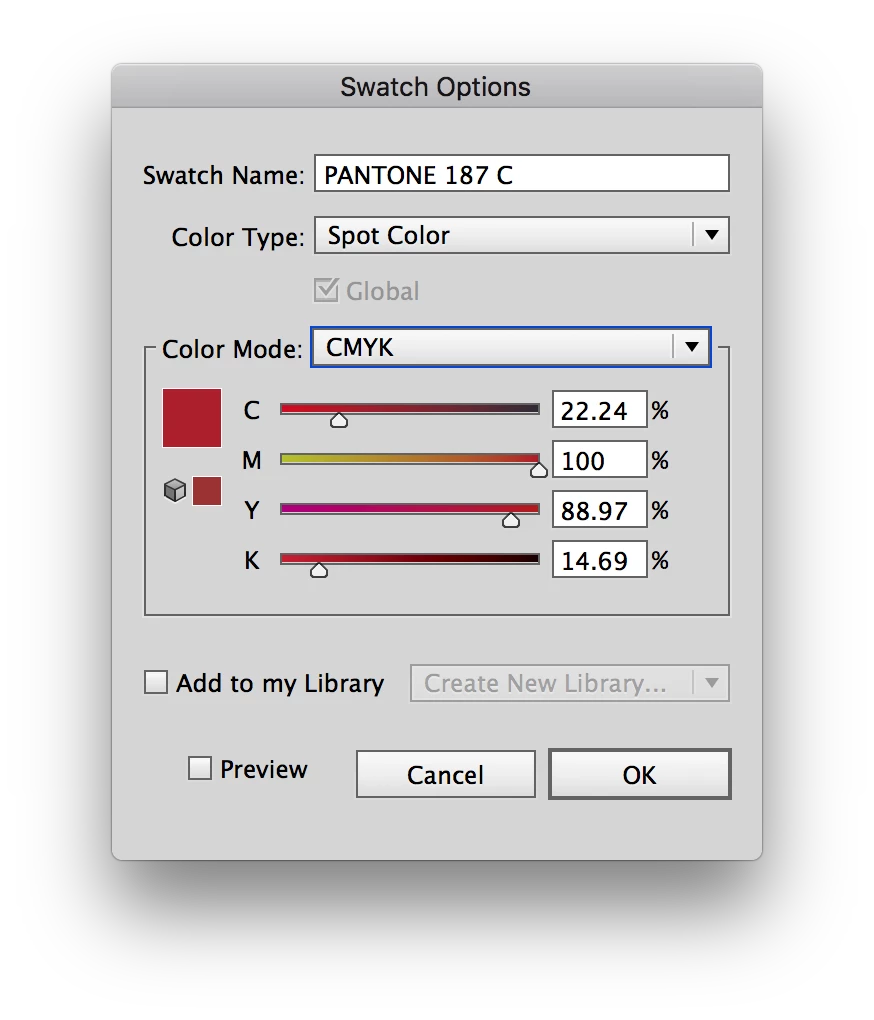
3. Swatch options

4. Change color mode from LAB to CMYK

5. Set CMYK values to desired values.

4 replies

Jason_G2Author
Participant
January 31, 2017

Thanks so much!! I haven't tested this through the RIP unit yet but I believe this should be the fix. Thanks again!!

GraphicsGirl56
Participant
January 31, 2017

Just be sure that the colour name matches the colour name in your link file so that it sees it as the same colour separation in your RIP software.

GraphicsGirl56
Participant
January 31, 2017

PS - Glad I could help!

GraphicsGirl56
GraphicsGirl56Correct answer
Participant
January 31, 2017

1. Select the color swatch in the swatch pallette

2. Swatch panel drop down menu (top right corner)

3. Swatch options

4. Change color mode from LAB to CMYK

5. Set CMYK values to desired values.

Inspiring
January 31, 2017

Make a copy of the spot color image file in PS > covert to CMYK (  Image > Mode > CMYK ); save using a different name > place the CMYK file in Illustrator ( instead of the spot color file ). 

Mike_Gondek10189183
Community Expert
Community Expert
January 31, 2017

If your final  intent is to do spot color separations, does not matter what the CMYK values are as that will use the spot ink when printing, expect for before you go to final and are printing for example color laser prints. If you do not like the LAB values edit the swatch in Illustrator.

If you have more questions you need to let us know exactly what inks/plates this job is printing to, and if indeed you are doing spot colors,  or using spot colors for global colors for CMYK printing. Even if you are printing to a large format Hi-Fi color, you need not worry about what the CMYK breakdowns are.