Known Participant
June 20, 2017
Answered

Strange gradient behavior

  • June 20, 2017
  • 2 replies
  • 456 views

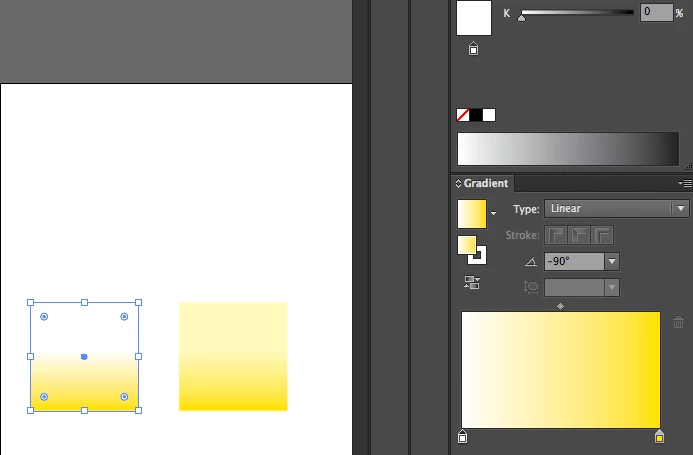
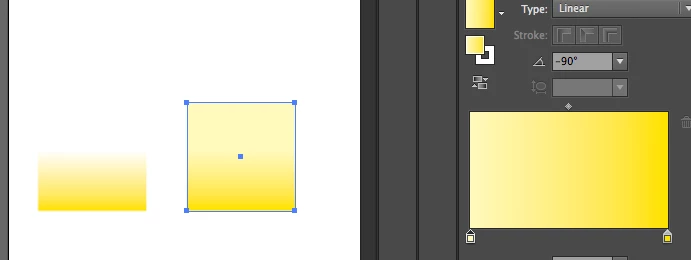
I have two shapes with appearances that should be identical, yet they are displaying a gradient in two different ways. Both are non-compound, non-grouped paths with the same gradient attributes. I've spent about a half-hour on this and I can't figure it out. Any ideas?

    This topic has been closed for replies.
    Correct answer Mike_Gondek10189183

    The other reason is you gradient stops are not the same color. I us both the color palette and gradient palette shown simulateously to troubleshoot that. I have the left gradient stop selected in each of the screenshots below. hard to tell but the roof of the house looks black to tell you which gradient stop  is selected.

    Yo can option click on swathes to gill a selected gradient stop. Many people love this feature, so wanted to share that. If you use global colors then you will have great management over your color design.

    2 replies

    Mike_Gondek10189183
    Community Expert
    Mike_Gondek10189183Community ExpertCorrect answer
    Community Expert
    June 20, 2017

    The other reason is you gradient stops are not the same color. I us both the color palette and gradient palette shown simulateously to troubleshoot that. I have the left gradient stop selected in each of the screenshots below. hard to tell but the roof of the house looks black to tell you which gradient stop  is selected.

    Yo can option click on swathes to gill a selected gradient stop. Many people love this feature, so wanted to share that. If you use global colors then you will have great management over your color design.

    Mike_Gondek10189183
    Community Expert
    Community Expert
    June 20, 2017

    Looks like the speed of the gradient has been adjusted by the gradient tool. I suggest to show the gradient annotator.

    The gradient annotator can be difficult to get to show so will list all you need to do.

    1. View >> Show Gradient annotator
    2. Select an item with a gradient. Make sure the gradient is in focus. Don't select a group, or have the stroke in focus when you need the fill. Use your appearance palette to help as you can highlight a gradient there if you are struggling.
    3. Select the gradient tool

    To correct this, first elect the item you wish to edit. You can then use the eyedropper to click on an item that has this correct. If that does tho work, then use the gradient tool and try to redraw the gradient annotator.

    Known Participant
    June 20, 2017

    That's it! I forgot about that tool because I almost never use it. Thanks!!

    Mike_Gondek10189183
    Community Expert
    Community Expert
    June 20, 2017

    For my part you are welcome.