
Inspiring
September 26, 2025
Answered

Stray lines in cannot be found, selected, or deleted

  • September 26, 2025
  • 2 replies
  • 350 views

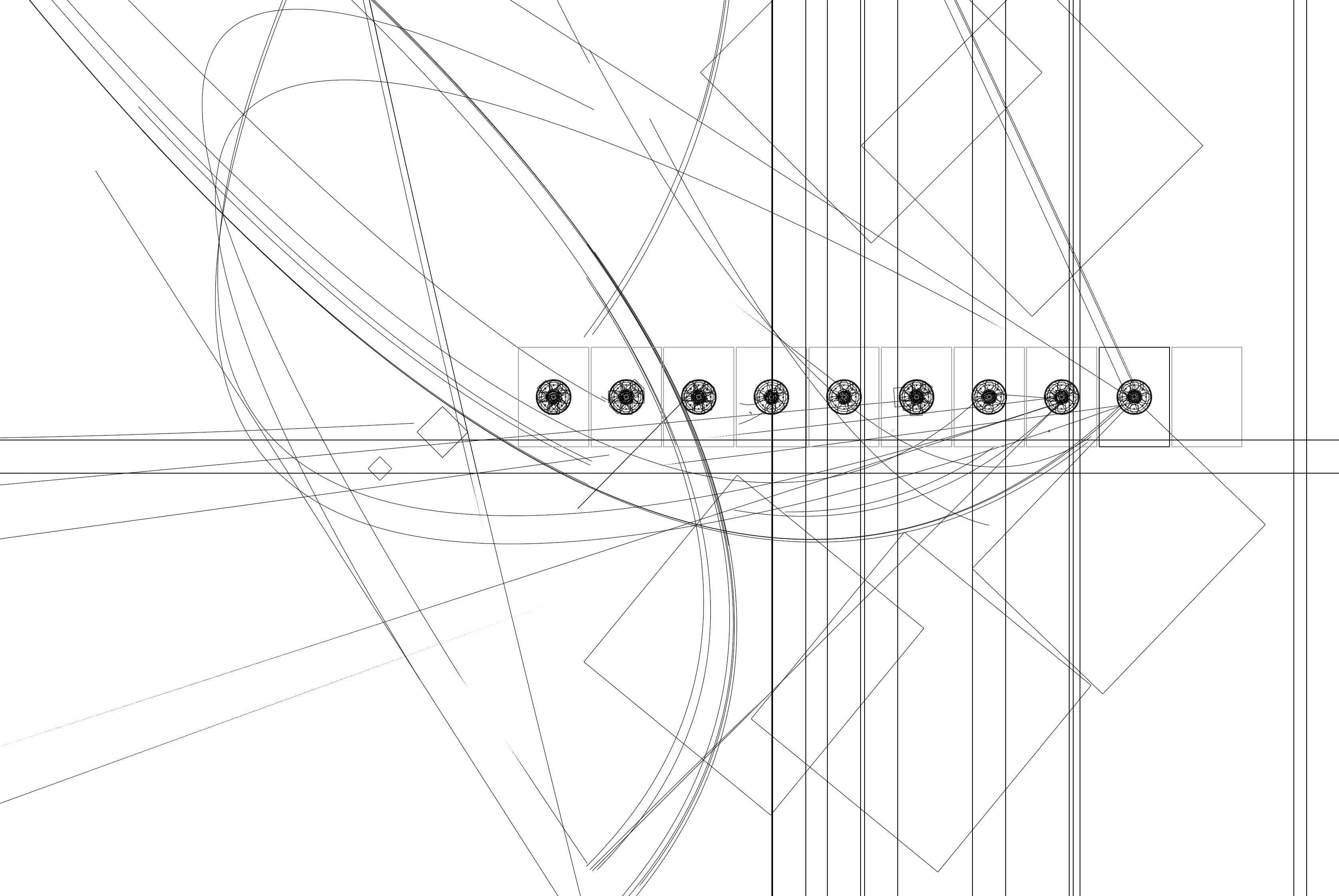
In my attached image, viewing from outline mode, you can see my 10 artboards with round objects in nine of them, and then there are these very large stray lines and squares going everywhere. I've been copying/pasting from another .ai file into this one. And only when in outline mode can I see them. Some are just wild-looking, while others appear to have been guides. Searching for stray points from 'Select/Object/Stray Points' doesn't find them either. Maybe something from my other file got copied over.
There are clipping masks in my artwork but it would seem you can still search for odd lines within clipping masks in the Layers panel, right? Don't know how to get rid of these. 


I have Illustrator 29.8.1
Running MacOS Sequoia 15.5


Correct answer nmycps

To update, after being more meticulous in the Layers panel, I did find this time that there were some stray points and <Image> objects with no content, that were the problem. In my file, I had purposely placed some single points as placement references for objects. Knowing that I didn't need them now, I eliminated those using the Select-Object-Stray Points, then most of the strays dissapeared. Also, some of the unselectable vertical lines that looked likes guides (even though turning guides off and on showed them appearing and reappearing), were eliminated.
Then,  I found some <Image> objects within clipped groups that were showing up as very large squares, but had no contents. So I removed those. Now it seems to have been cleaned up. 
Though it is puzzling why all these stray lines and images were not directy selectable. This is one issue that needs improvement in Illustrator when dealing with clipped groups and the contents. Because you have to rely on the Layers panel to select certain objects directly.
Thank you for the tips Kurt!

2 replies

Kurt Gold
Community Expert
Community Expert
September 26, 2025

Now the image appeared.


The suspicious objects could be (possibly locked) guides, clipping paths, completely transparent objects or something else.


Have you already carefully inspected the Layers panel and are you sure none of the unwanted objects can be located there?


What happens if you hide or delete all guides in the View menu?

nmycpsAuthorCorrect answer
Inspiring
September 27, 2025

To update, after being more meticulous in the Layers panel, I did find this time that there were some stray points and <Image> objects with no content, that were the problem. In my file, I had purposely placed some single points as placement references for objects. Knowing that I didn't need them now, I eliminated those using the Select-Object-Stray Points, then most of the strays dissapeared. Also, some of the unselectable vertical lines that looked likes guides (even though turning guides off and on showed them appearing and reappearing), were eliminated.
Then,  I found some <Image> objects within clipped groups that were showing up as very large squares, but had no contents. So I removed those. Now it seems to have been cleaned up. 
Though it is puzzling why all these stray lines and images were not directy selectable. This is one issue that needs improvement in Illustrator when dealing with clipped groups and the contents. Because you have to rely on the Layers panel to select certain objects directly.
Thank you for the tips Kurt!

nmycpsAuthor
Inspiring
October 6, 2025

There's still a bug with stray lines and empty images in clipped groups. I thought I had solved the problem. But after viewing another Illustrator file, and after having selected and remove all stray points, there are still remnants of lines and images with no content. I can see this when 'Outline' mode is on.
In the first image, I have selected three objects. The two boxes circled with red are empty. The green image has content in it.  I can only select these empty boxes directly inside the Layers panel and delete them. 
In the second image, I have selected the entire clip group, yet the empty boxes, though they are selected in the Layers Panel, are not actively selected. Is this by design? Unfortunately if you have empty boxes inside clipped groups, you cannot tell which group they actually belong to until you go through the Layers. Not even selecting the actual clip group object using the mouse can you also select these empty boxes. It seems a hassle to have to rely on the Layers Panel.

Kurt Gold
Community Expert
Community Expert
September 26, 2025

Unfortunately, there is no attached image in your post.


Can you perhaps share the original Illustrator file instead?

Harshika Verma
Community Manager
Community Manager
September 26, 2025

Hi nmycps


Thank you for reaching out. In addition to what our expert has requested, could you please share the details of your operating system and the version of Illustrator installed on your machine?


We will be happy to assist you further.


Thanks,

Harshika