
Participating Frequently
March 28, 2023
Answered

Striped line down middle of lines - how get rid of?

  • March 28, 2023
  • 3 replies
  • 1286 views

Hello:

I have lines which have a striped line down the middle. The line was originally green and I changed it to a gray. Now the gray line (not a rectangle or any other shape) has a green center.

I am all for ideas like finding a cream center in confections, but any time I use the pen tool to extend these lines, the green-within-gray-line is added, not just the gray I selected.

I tried to isolate it and change the opacity and other trick to minimize the effect, but I just need to rip it out somehow.
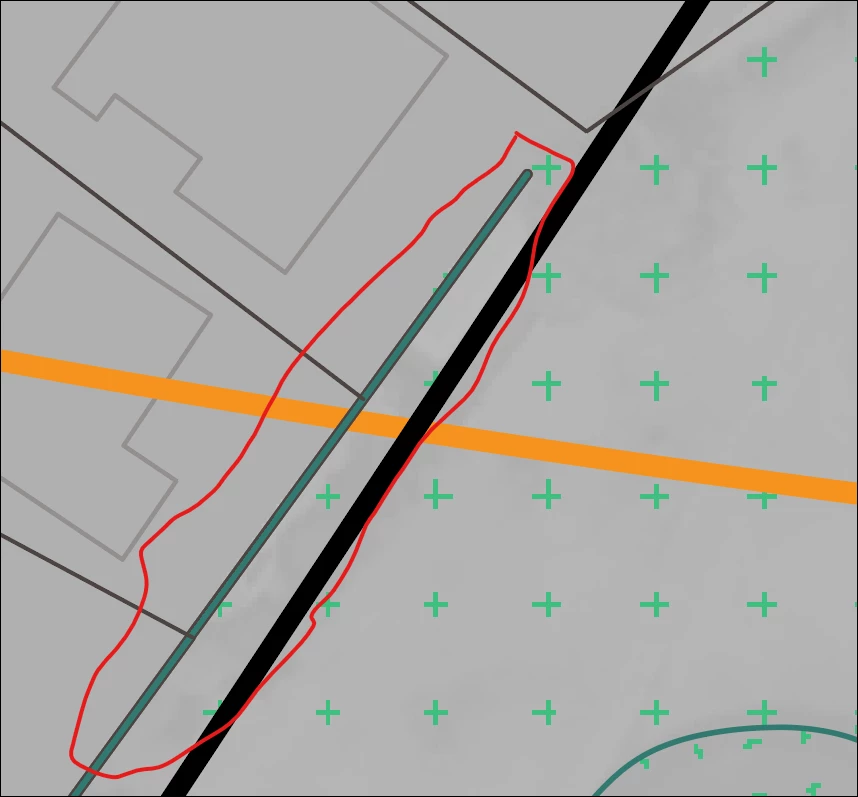

Any ideas as to what is going on with these lines?

Any ideas as to how to correct without just deleting all such affected lines and redrawing?

Thank you!

This topic has been closed for replies.
Correct answer Monika Gause

Here's a tutorial how to check it out: https://www.youtube.com/watch?v=YZooJyG2UT4

3 replies

Monika Gause
Community Expert
Monika GauseCommunity ExpertCorrect answer
Community Expert
March 28, 2023

Here's a tutorial how to check it out: https://www.youtube.com/watch?v=YZooJyG2UT4

edsagerAuthor
Participating Frequently
March 29, 2023

Perfect! I understand now. Thank you.

Monika Gause
Community Expert
Community Expert
March 29, 2023

Glad this solved it for you.

Ton Frederiks
Community Expert
Community Expert
March 28, 2023

Have a look at the Appearance panel, it could be another stroke added to the layer (select the layer to check that).

edsagerAuthor
Participating Frequently
March 29, 2023

I checked the Appearance panel and also selected the different layers on which was found these lines.


Unfortunately, I do not remember whether the Appearance panel showed me anything other than that the opacity would not work on these lines and some other ones.


I am still interested to know what people think here because I am afraid it will happen again, but I do have to admit that I decided to just delete all of the offnding lines and redraw them.


One thing that may or may not matter is that these lines were brought in from Rhino3D. They were green when they arrived and then had the green center after trying to change them to gray.

Monika Gause
Community Expert
Community Expert
March 29, 2023

If it actually was a stroke applied to a layer, then this couldn't have been imported from Rhino. That is just not possible.

But what is actually possible is that you or someone else followed some bad advice. There are still a lot of tutorials telling you to click ton the circle in the layer in the layers panel in order to select everything on the layer. But when you use that in order to apply strokes or fills to the object, that tip is a recipe for desaster.

https://www.youtube.com/watch?v=jMDpnI5i7M0

sishamIAGD
Community Expert
Community Expert
March 28, 2023

Looks like you have a green fill with grey stroke..? What does your fill and stroke panel look like..?

edsagerAuthor
Participating Frequently
March 29, 2023

No fill. That was one of the first things I checked. I also checked whether I could alter it using the "Draw Inside" feature, but no luck.