
Participating Frequently
November 26, 2023
Answered

Striped pattern appearing glitchy

  • November 26, 2023
  • 2 replies
  • 683 views

Why are the striped patterns appearing like that and how can it be fixed? It's a zoomed in image of a big map. It's slightly visible in Illustrator, more visible when exported as PNG and still visible when printed on paper as a PDF. It remains the same in Illustrator 2021 and 2023.  Thanks in advance.
This topic has been closed for replies.
Correct answer Ton Frederiks

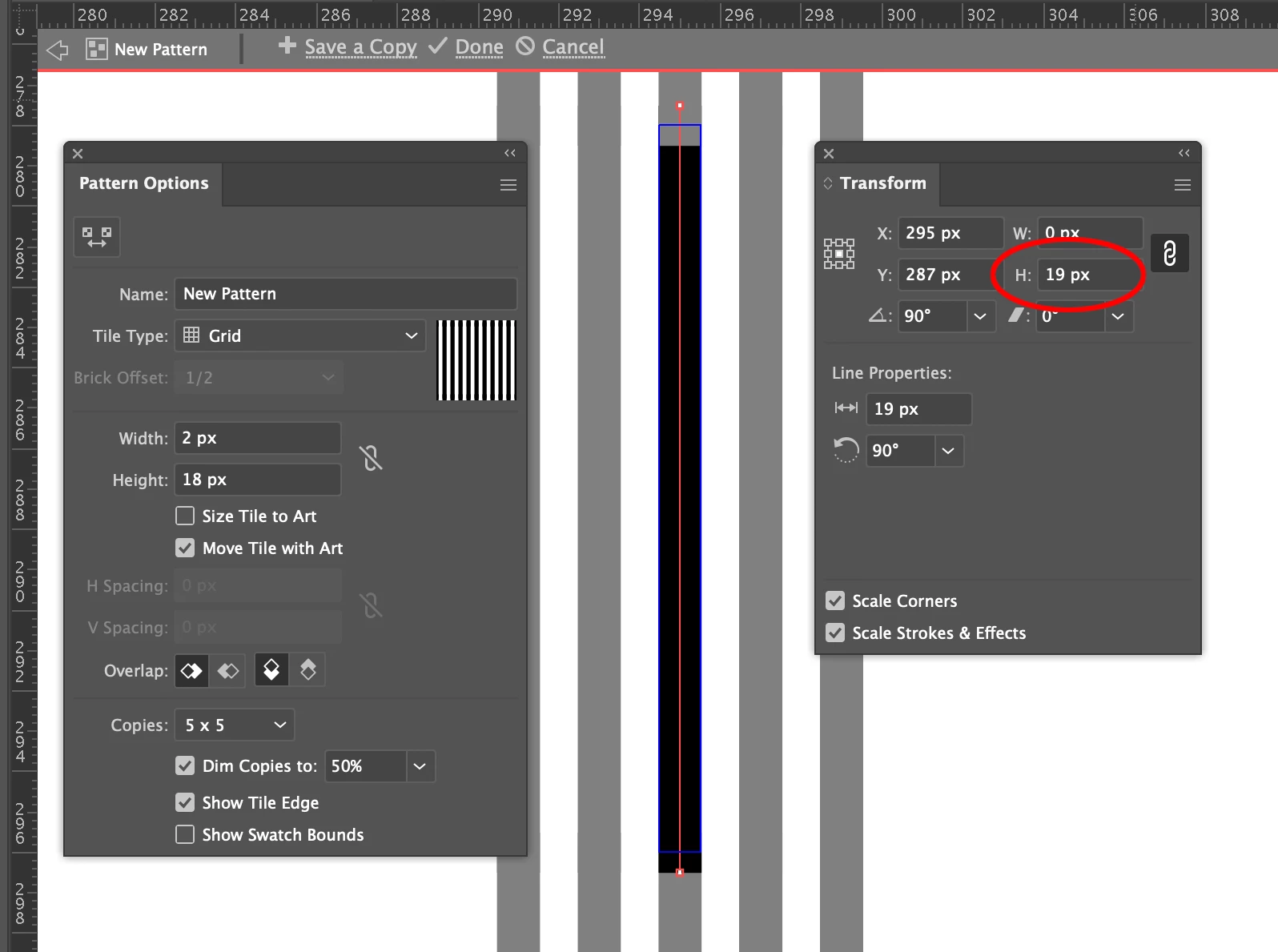
That is because you only changed the height of the pattern tile.

Try changing the length of the line first, maybe to something larger than your pattern tile.


2 replies

Ton Frederiks
Community Expert
Community Expert
November 26, 2023

The lines occur at the top and bottom of your pattern stripe.

It can be an anti-aliasing problem.

It is better to work in point or pixels for the size and avoid fractions.

6,0185 mm converts to 17,0603 px, 18 or 17 px would have been a nice rounded figure.

For the display you could try if CPU and GPU Preview make a difference.


Participating Frequently
November 27, 2023

Having 18 px height made it look like this (green stripes): 

Ton Frederiks
Community Expert
Ton FrederiksCommunity ExpertCorrect answer
Community Expert
November 27, 2023

That is because you only changed the height of the pattern tile.

Try changing the length of the line first, maybe to something larger than your pattern tile.


Monika Gause
Community Expert
Community Expert
November 26, 2023

Did you check the pattern itself?

This does not look like it's caused by anti-aliasing.


Double click the pattern in the swatches panel to get into pattern editing mode.

Participating Frequently
November 26, 2023

Yes, the pattern options are on my third attached image. I have tried changing those settings with no difference.

Monika Gause
Community Expert
Community Expert
November 26, 2023

So when you reduce the height it doesn't get better?

Then does it get better when you turn off anti-aliasing in the Preferences > General.


I only looked at the first 2 images. Can you please embed them in your post - much easierr to compare them then.