Inspiring
August 25, 2022
Answered

Stroke color wont match the fill color although they are the same

  • August 25, 2022
  • 2 replies
  • 6438 views

Hello,


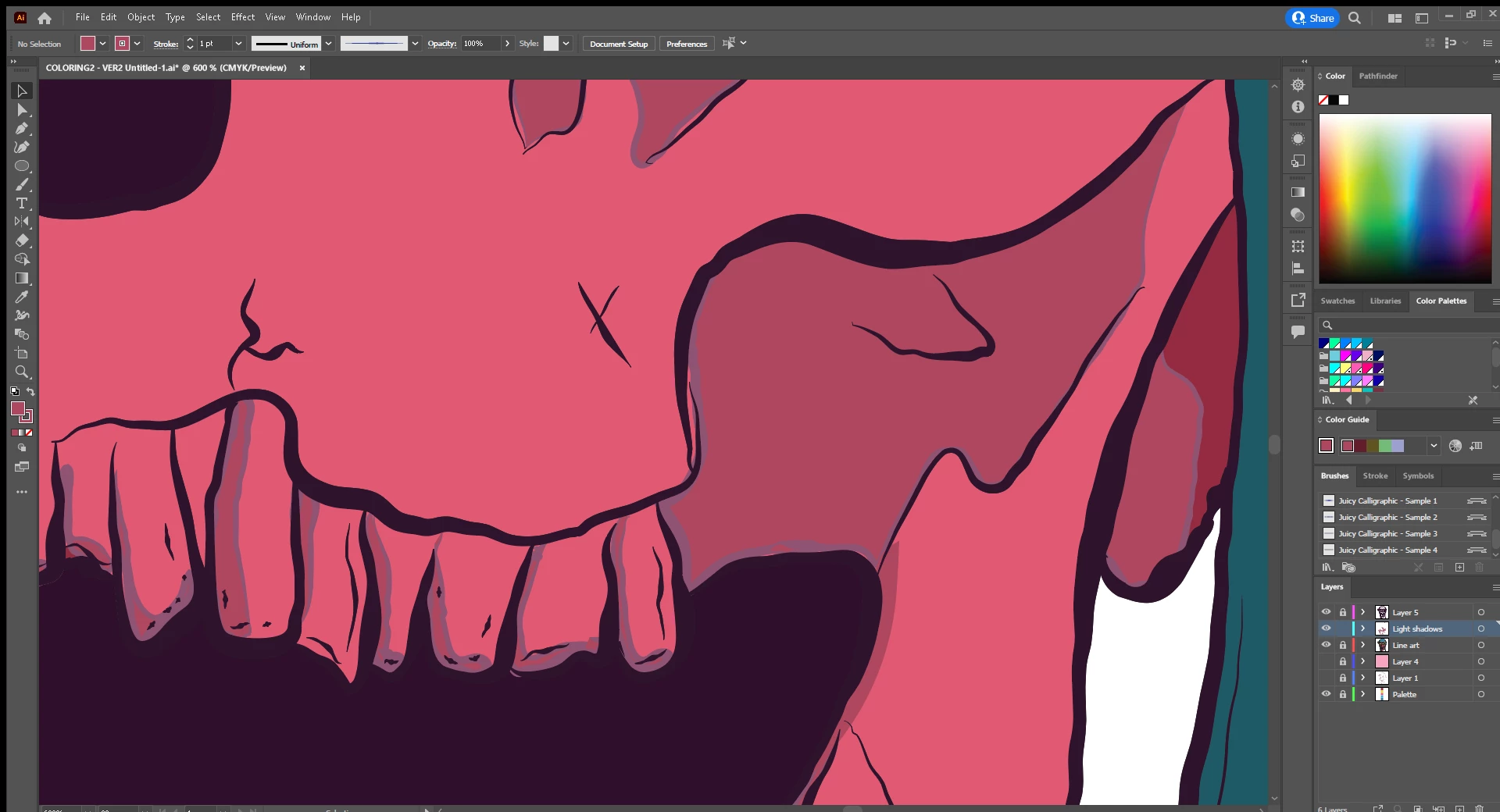
I am having an issue with the stroke color not matching the fill color, although they are the same color. As you can see in the image, the stroke appears more grey in the shadows, which I am trying to make right now.

I came back to Illustrator after quite some time, so maybe I am just missing something but I cannot find the solution neither come up with one, so I am asking for your help. I am using the brush tool if that matters.


I thank you in advance.
 

This topic has been closed for replies.
Correct answer Monika Gause

So I tried to do this but when I change the color of the brush to black, it looses its shape 😕😕


quote

So I tried to do this but when I change the color of the brush to black, it looses its shape 😕😕


By @Farynn


Please show screenshots of what exactly you are doing. And the result.


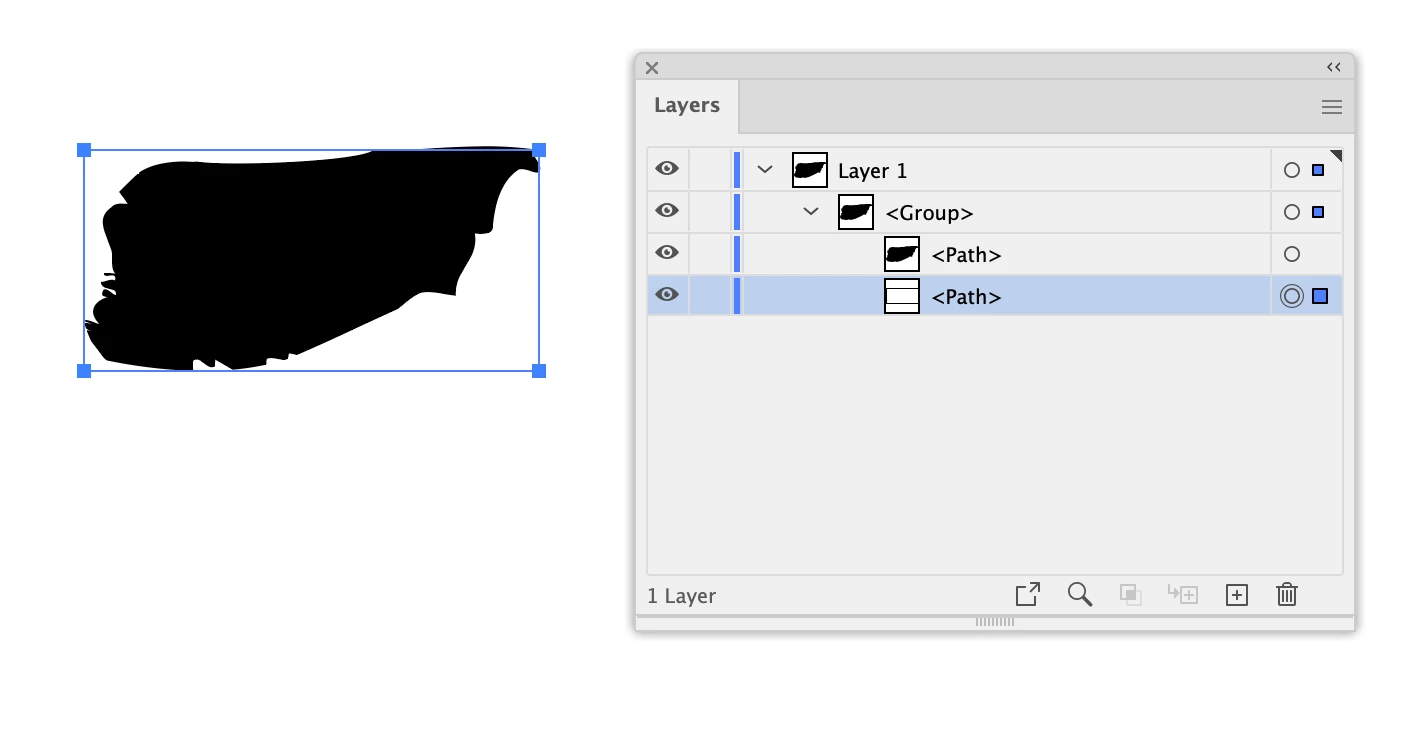
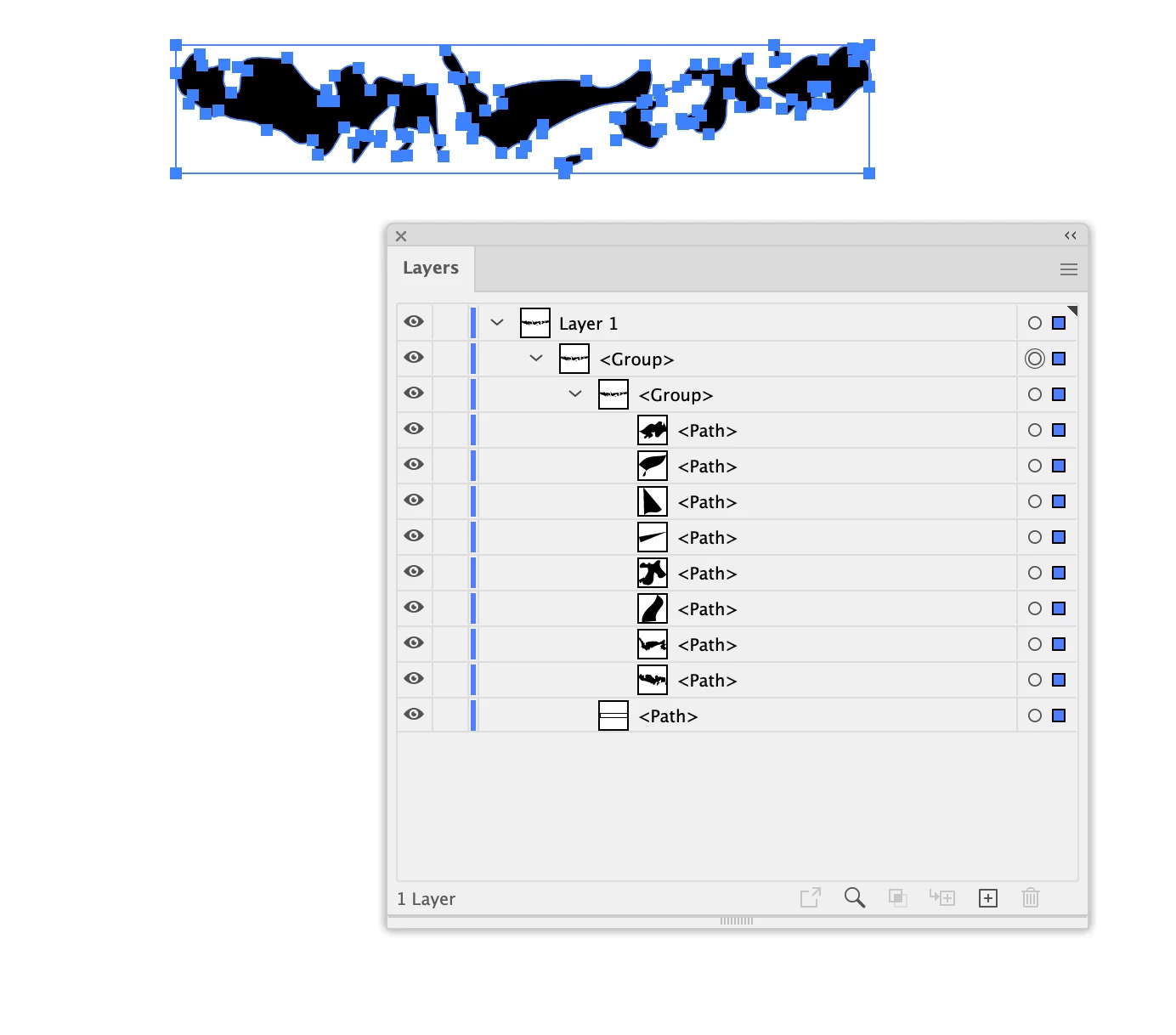
After dragging the brush out of the brushes panel, inspect it in the layers panel.

There's an invisible rectangle at the bottom. Don't touch! Just change the other stuff.


Brush that has one shape:


Brush that has several shapes:

Just change those black shapes.

2 replies

Mike_Gondek10189183
Community Expert
Community Expert
August 25, 2022

Hard to say as your screenshot does not show a path selected, nor the settings I would look at. Not  sure what you are referring to.  Maybe you have a blend mode or reduced transparency.  Draw a new shape, on a new layer, does this happen?


Click on the radio button to right of your layer name to select the whole layer, then look in your layer palette for a blending mode or there and delete.


Thats a nice illustration so far, are you familiar with the work of https://en.wikipedia.org/wiki/Pushead


FarynnAuthor
Inspiring
August 25, 2022

So i took screenshots of the appearance panel, which you have mentioned. I do not think there is any blend mode, or at least I have not found any. It happens on a new layer aswell.

I think it is gonna be a problem with the custom brush, as the Illustrator defaults are without this issue. It seems that the stroke is always a bit more dark even when the color of the stroke and fill is completely same. Do you have any idea which setting of the brush might do this?


I was not familiar with him as of yet, but his work surely is very inspiring! 🙂

Ton Frederiks
Community Expert
Community Expert
August 25, 2022

To see the appearance of the brush you need to twirl down the arrow in the Appearance panel.

It can also be baked into the brush. Like Monika suggested, drag it out of the Brushes panel, be sure to direct select only the brush shape and check for transparency/blend modes.

Ton Frederiks
Community Expert
Community Expert
August 25, 2022

Can you check the brush you used for the stroke?

FarynnAuthor
Inspiring
August 25, 2022

I took a screenshot of the art brush options, aswell as options of brush tool itself if that is what you mean.

They are custom brushes, which I have bought but I did not have any problems with them up to this point. But after trying a regular brush this issue does not occur. Also on some of the other custom brushes the stroke color is automatically green. So I assume there is some option which dictates the color of the stroke? If that is the case, is there a way to disable that? I assume it is not the "key color" in the art brush options as the stroke color is more "grey"?


Monika Gause
Community Expert
Community Expert
August 25, 2022

You could drag the brush out of the brushes panel and then change its color to black (RGB 000)

Then drag it back into the brushes panel (you could replace the existing brush) and set the colorization method to "Tints"