
Participating Frequently
January 3, 2025
Answered

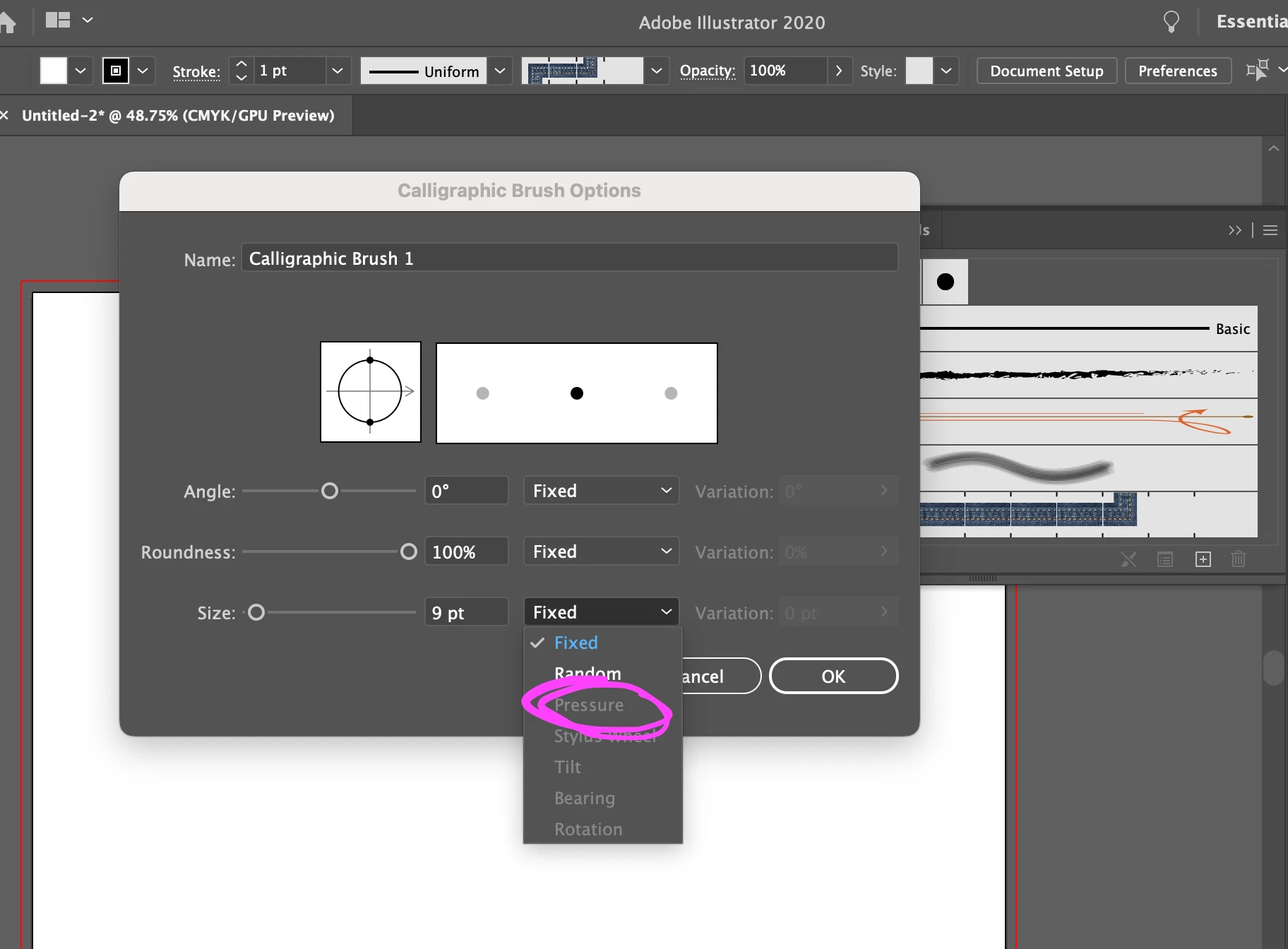
Struggling to create a pressure brush tool

  • January 3, 2025
  • 3 replies
  • 1098 views

Everyone I look at on the internet gives me the same process to create a pressure sensitive brush tool.  Go to Brushes, click New Brush, switch the size to Pressure.  Simple enough.  Except that when I go to do that, every time I reach the part where I have to change the Size to Pressure, I can't click it.  It's not available.  Is there a way to turn it on?  I'm looking at people who have the same version of Illustrator as me and theirs is perfectly functional.
Correct answer Jess23776396suor

I don't know if you found your solution, but I was having a similar issue with my Cintiq. I fixed it by going into Illustrator Edit>Preferences>Devices. Under Devices mine had a check box option to "Enable Wacom". As soon as I checked the box, all the options became available. Yours might say "Enable Huion" (or whatever device you're using).

3 replies

Jess23776396suorCorrect answer
Participant
May 16, 2025

I don't know if you found your solution, but I was having a similar issue with my Cintiq. I fixed it by going into Illustrator Edit>Preferences>Devices. Under Devices mine had a check box option to "Enable Wacom". As soon as I checked the box, all the options became available. Yours might say "Enable Huion" (or whatever device you're using).

MomNatureAuthor
Participating Frequently
May 16, 2025
Thank you!
Community Expert
January 5, 2025

If your computer is running a version of the Windows OS it might be necessary to turn on Windows Ink in the graphics tablet's driver in order to get pressure sensitive options and functions to work in Adobe applications. That's certainly the case with Wacom's graphics tablets. But turning on Windows Ink may lead to all sorts of other aggravating problems. Either way, make sure "Enable Wacom" is checked on in Illustrator Preferences.

MomNatureAuthor
Participating Frequently
January 8, 2025

My computer is a Mac, not a Windows.  Do you know anything about that version?  I will check the 'Enable Wacom' though.

Community Expert
January 8, 2025

Turning on the "Enable Wacom" setting and making sure the tablet driver is up to date should be enough to get the tablet working properly.


Windows Ink is definitely a very negative drawback to using a PC rather than a Mac. I have to leave Windows Ink disabled in the Wacom tablet driver (and do without pressure sensitive functions in the pen) because when it is enabled it makes quickly lose my temper. Windows Ink is one of the very worst things ever bundled into that OS. Worse yet, Microsoft has done nothing to fix the problems after years of complaints. I have an iPad and Apple Pencil as a backup for when I need to do any pressure sensitive drawing work.

Monika Gause
Community Expert
Community Expert
January 3, 2025

Which graphic tablet are you using?

Does it work in other apps such as Photoshop?

MomNatureAuthor
Participating Frequently
January 4, 2025

I'm using a Huion tablet.  I believe it's compatible with Photoshop, but I personally do not use Photoshop on a regular basis, so this is just based off a Google search.

Monika Gause
Community Expert
Community Expert
January 4, 2025

THere are some premade brushes in the library: the 6D Wacom brushes. Do those work for you?