
nathanr89637549
Participant
January 23, 2019
Answered

SVG Color export ( fill: currentColor; )

  • January 23, 2019
  • 2 replies
  • 11098 views

Hi,

Im a designer working on some icons for a website and the developer has requested them to be sent as SVG's...

The problem is they want the color in the SVG code to be specified as fill: currentColor; but I cant find a way to set that either in the export or in the illustrator file.
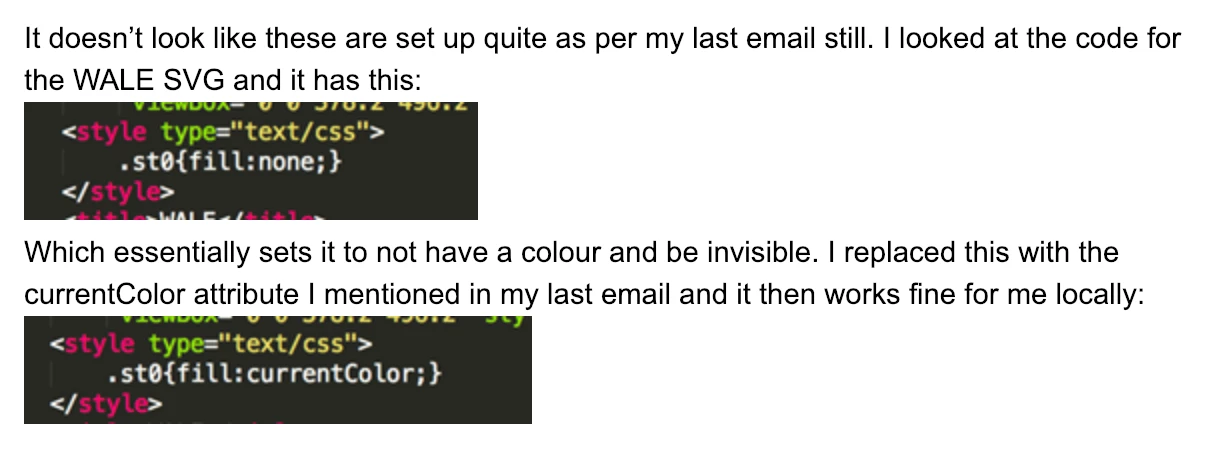
Is there a way to export a svg file in illustrator so that in the SVG file code the colour is specified as fill: currentColor;

There are over 100 icons so I really don't want to do this manually, hopefully there is a way.

Thank You

This topic has been closed for replies.
Correct answer nathanr89637549

The only solution I managed to find was this:

1. Export the SVG as normal

2. Change the file extension to a .txt ( filename.svg to filename.txt )

3. Open the file in text editor, change the necessary code ( {fill:#231f20;} to {fill:current color;} ) and save.

4. Then change the file extention back to .svg ( filename.txt to filename.svg )

Hopefully things evolve so designers don't have to deal with code

2 replies

nathanr89637549
nathanr89637549AuthorCorrect answer
Participant
January 31, 2019

The only solution I managed to find was this:

1. Export the SVG as normal

2. Change the file extension to a .txt ( filename.svg to filename.txt )

3. Open the file in text editor, change the necessary code ( {fill:#231f20;} to {fill:current color;} ) and save.

4. Then change the file extention back to .svg ( filename.txt to filename.svg )

Hopefully things evolve so designers don't have to deal with code

Monika Gause
Community Expert
Community Expert
January 31, 2019

You don't need to chage the file extension in order to open it in a text editor.

In case it's Text Edit you're using, you just need to set it to Text in its preferences and then it will open everything as text and not try to render it.

AEC JPM
Participating Frequently
June 27, 2022

And you can make batch edits on multiple files with Notepad++ (free coding/text editor:

https://superuser.com/questions/1003790/how-to-find-and-replace-lines-in-multiple-files-using-notepad


This tutorial is simpler and even better for your needs!
https://community.notepad-plus-plus.org/topic/17284/multiple-file-search-replace

Monika Gause
Community Expert
Community Expert
January 23, 2019

You might need to do this using a text editor with a decent Find&Replace function.

Please post feature requests to http://illustrator.uservoice.com

nathanr89637549
Participant
January 31, 2019

Thanks, Yeah manually doing it in a text editor unfortunately seems to be the only solution!