
Inspiring
August 16, 2022
Answered

Text Boxes In Illustrator, changing text color

  • August 16, 2022
  • 2 replies
  • 2880 views

Hello community. 


I followed the instructions here to successfully create a box around my text:


https://graphicdesign.stackexchange.com/questions/19824/illustrator-auto-sized-text-box-with-shaded-background


I'm able to change the text box color with ease. I'm not sure how to change the type fill color without affecting the text box color.


Appreciate the help, tried to look it up but didnt find an answer.
Correct answer Ton Frederiks

It can be for you. Met1 suggested to select using the text tool which worked for me. 


Would be great if I can change the text color in the appearance panel once the effect is applied. Let me know if it doesnt make sense.


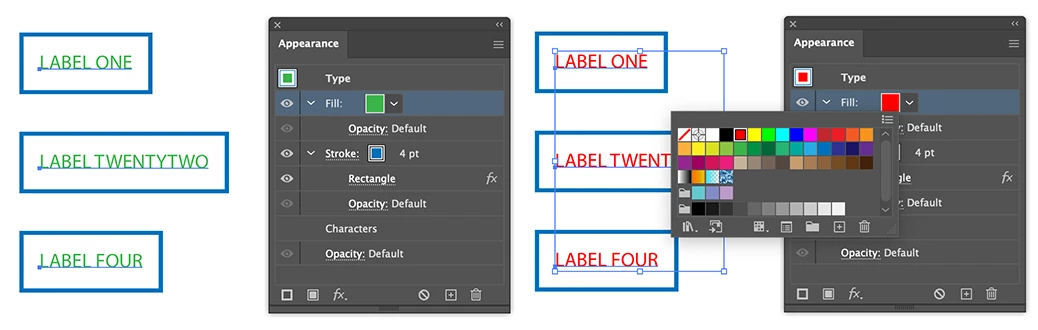
Delete the text color and add a new fill color in the Appearance panel.

Add a new stroke an convert to Rectangle.

You can select all the boxed text items and change the color in the Appearance panel.


2 replies

Dave Creamer of IDEAS
Community Expert
August 16, 2022

Use the Type tool to create your area-type frame.

Color the type as desired. 

Use Area Type Options to indent the text.

With the Direct Selection tool, click on the border (path) of the text frame.

Color the text frame.

David Creamer: Community Expert (ACI and ACE 1995-2023)
Inspiring
August 16, 2022

I'm not sure how to 'batch recolor' text once this appearance is applied to text. I would prefer not to use the type tool and select each text using that method to change the color. 

Dave Creamer of IDEAS
Community Expert
August 16, 2022

Your original post didn't say anything about batch processing. That changes things...


Create your text frame and color text.

In the Appearance panel, add a new fill.

Move the fill below the characters in the panel.

Apply the Conver to Shape effect to the fill.

Adjust as needed.

Save as Graphic Style.

David Creamer: Community Expert (ACI and ACE 1995-2023)
Met1
Brainiac
August 16, 2022

Select using the Text tool?

Not sure I understand the problem...

Inspiring
August 16, 2022

Thanks.


This does work thank you.  However if I have a large amount of text labels with boxes accross my document, I don't see an easy way to change them all at once without selecting the text on each one.


I was hoping there was an appearance attribute. That way when I select all of the texts with boxes around them, i can just do a quick change in the appearance window and it would apply to all.

New Participant
March 31, 2025

Delete the text color and add a new fill color in the Appearance panel.

Add a new stroke an convert to Rectangle.

You can select all the boxed text items and change the color in the Appearance panel.


I'm wondering if it's possible to add multiple texte color (like two or more fill color for text) and then add a background box filled color? What I want to acheive is 3 different text color (like green, yellow, blue) on a white background box. I tried but it won't work.