

TenTin
Known Participant
April 17, 2023
Question

Thin Black Outline!

  • April 17, 2023
  • 1 reply
  • 2183 views

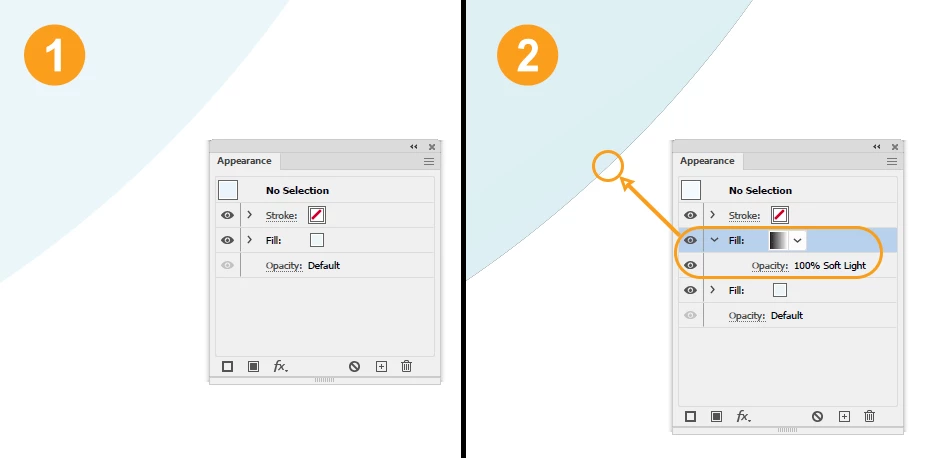
Why Ai adds a thin black outline to the shape (with a solid fill colour) after adding a gradient fill (Appearance Panel) to it!

I have a shape with a fill (solid) colour (img 1), adding a gradient fill (blending mode: softlight) to it (img 2), then it adds a thin black outline to the shape!

I add a gradient (black and white, softlight) to change only the fill colour not the gradient attributes (if I decide to change the shape's colour, the shade is fixed, the fill colour changes). 
 

This topic has been closed for replies.

1 reply

Monika Gause
Community Expert
Community Expert
April 17, 2023

Does that stay when you go to View > Preview on CPU?

TenTin
TenTinAuthor
Known Participant
April 17, 2023

Yes. At first I thought it's the GPU glitch (as always in Ai), but no! The problem is when you bring it in Ps and make it larger (as Smart Object) it gets worse.

Ton Frederiks
Community Expert
Community Expert
April 18, 2023

"I don't get a line when placing into PS at 300ppi or 72ppi."

But I get! 


"Why scale it in PS when you can change the size in Illy and import at 100%..."

Because I work on a project as small as I can (about 1 inch in Illy), then import it in Ps (sometimes for mockups or a raster effect). This thin line appears in Illy (that's my main problem, I don't have any problem with Ps). I think the engineers invented (!) SO (Smart Object) for such an easy solution (every time working on a project in Ps, you don't need to open Ai to change the size).


I found something more interesting! Ai export as PNG doesn't have this thin line, but export as JPG has!!! Thanks for such masterpiece and epic software engineering 👏🥴


Probably because PNG supports transparency and JPEG doesn't.

But why create a simple gradient in such a complicated way?

A simple gradient and changing the Hue in Recolor Artwork will keep your shade and change the color.