
Known Participant
January 3, 2020
Answered

thin white lines/boxes appearing when saving as PDF in X-1a:2001 or X-3:2002 format for book printer

  • January 3, 2020
  • 3 replies
  • 9788 views

Hey there,


Newbie here. I managed to create a book cover in Illustrator, get it uploaded to Amazon KDP print (massive thanks to you guys helping me with last problem!!!!) and, after a fine proof copy, hit publish on Amazon. So far so good. Reader copies look nearly as good as the proof, so I know my original file can create a satisfactory printed cover.


However, when I try to create a PDF of the cover for Ingram Spark (the necessary second printer for bookstores and libraries) the file suddenly gets very thin white lines/rectangles around many of the images, esp along the spine. Presumably, these will show up on the final book cover if they're in the PDF. Question is: how do I get rid of them?


Ingram Spark requires the PDF be either X-1a:2001 or X-3:2002, so that's what I'm selecting when I save a copy as PDF in Illustrator. If I save it as Illustrator Default PDF, the file is fine--no lines/boxes.


Here's a screenshot of the PDF with the lines. You might have to look at your screen from the side to see them.
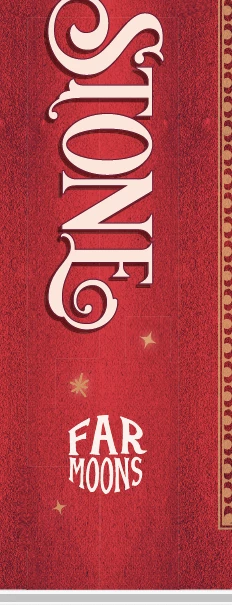
Some of the outlined objects have glow effects, but it also runs along some areas where there's a hidden seam (like where I mirrored and joined the red leather background together) or where multiple objects meet. If I flatten the transparencies before I export, the problem is even worse.  Note: the background images are overlapped so it's not gaps between them. 


The color mode is CMYK which is what the printer requires and here is a pic of the color settings:
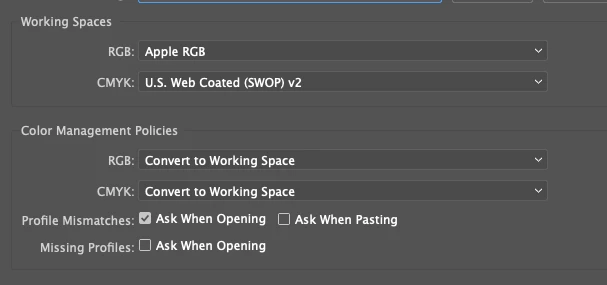
 

Here's a pic of the Ai file looking fine before trying to save as the PDF X-1a:2001 or X-3:2002:
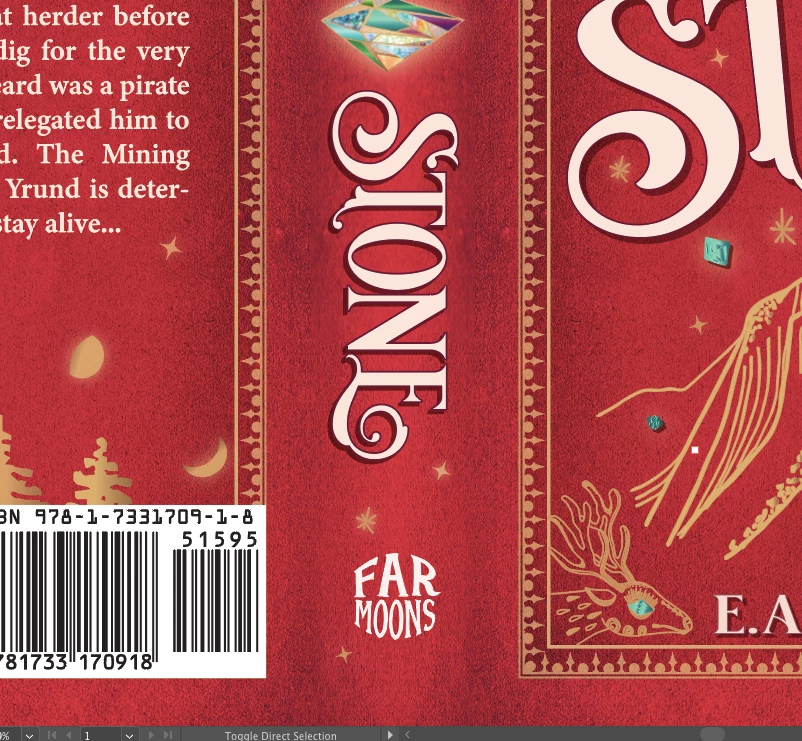


Anybody have some advice?


My setup:

MacBook Air running Mojave 10.14.6

Intel HD Graphics 6000 1536 MB

Ai 2020 updated two weeks ago


Thank you!


EA 

Correct answer Monika Gause

Stitching artefact. Should not produce issues in commercial printing. Have they asked for this type of PDF in their specs?

Please read the Adobe PDF on transparency. http://67.227.198.33/~ghp/wp-content/uploads/2011/05/Transparency_DesignGuide.pdf

3 replies

Trystero
Known Participant
August 13, 2024

In your pictures I see many errors:

"Apple RGB" is a very old color space from the time of fixed resolution displays with Gamma 1.8 and MacOS9, not in use anymore. It is still available only for compatibility when opening old works.

In these days, in Photoshop and other Adobe Apps you must select a preset like Europe Prepress or North America Prepress, and  sRGB or AdobeRGB as RGB color space (Gamma 2.2).

The thin white boxes appears in PDF X1 or X3 if the compatibilty is with Adobe Acrobat 4. If you choose 5 or 6 those boxes disappear.

Monika Gause
Community Expert
Community Expert
August 13, 2024

@Trystero  schrieb:


The thin white boxes appears in PDF X1 or X3 if the compatibilty is with Adobe Acrobat 4. If you choose 5 or 6 those boxes disappear.


This is an old thread.

If you had read it, you would have found that that was the requirement by the printer. A lot of printers will also accept PDF/X-4, but you will have to discuss it with them.

finnh55468497
Participant
April 4, 2022

I think you are using Acrobat 4 (PDF 1.3)-compatibility when you export from Indesign. Switch to Acrobat 5 (PDF 1.4) (in general - on the upper right). I had the same issue. I think its because the older standard cannot handle transparancy well.


I know the post is old. But if it helps anyone ...

Monika Gause
Community Expert
Community Expert
April 4, 2022

Generally before exporting (or even before starting the project): contact the printing servioce about their file spedifications. Yes, many (if not most) can handle PDF/X-4. But not all of them.

finnh55468497
Participant
April 4, 2022

Thanks. I know. But Im being practical here. I use PDF-X3 for most of my work. But sometimes you get material you haven't produced that behave strangely. Then its better to have a good dialog with your printer, and solve it in a practical manner, rather then use hours to solve something that really isn't a problem...

Monika Gause
Community Expert
Monika GauseCommunity ExpertCorrect answer
Community Expert
January 3, 2020

Stitching artefact. Should not produce issues in commercial printing. Have they asked for this type of PDF in their specs?

Please read the Adobe PDF on transparency. http://67.227.198.33/~ghp/wp-content/uploads/2011/05/Transparency_DesignGuide.pdf

sand_roseAuthor
Known Participant
January 3, 2020

Thank you! That seems to be the problem exactly. Just reading through the guide you included now, but it seems like there are already several things suggested in there that I can do to fix this if it doesn't go away during the commercial printing process.


Regarding the printer's file specs--here's what they said they require:


  • 300 ppi
  • CMYK
  • Required file format:
    • 180 PDF (.pdf) file on LS cover template (template dimensions vary by trim size)
    • SIMPLEX: 1-page PDF
    • DUPLEX: 2-page PDF (Perfect Bound ONLY, limited trim sizes)
  • Required PDF producer:
    • Acrobat Distiller–PDF/X-1a:2001, PDF/X-3:2002
    • Export from InDesign–PDF/X-1a:2001, PDF/X-3:2002
  • PDF COMPLIANCE:
    • Files must be PDF/X-1a:2001 or PDF/X-3:2002 compliant. The PDF/X-1a:2001 setting is found in the Professional versions of Adobe Acrobat 6 or above (listed as PDF/X-1a in Acrobat 6 Professional). The PDF/X-3:2002 setting is found in the Professional versions of Adobe Acrobat 7 or above.


I'll finish reading the guide, implement those suggestions, print a local test proof and post back if the issue doesn't resolve.


Thanks again. Your assistance is much appreciated.


EA

Monika Gause
Community Expert
Community Expert
January 3, 2020

OK, they want a flattened PDF.


If the proof still shows the lines, what you can do is the following: separate any glows or soft shadows from text or graphic elements (by expanding the appearance) and then flatten all that stuff and the structured background into pixels, so that you have one large pixel image in the background, then the detailed graphics on top and the text on top, which will stay vector, if that makes sense.