
Inspiring
December 1, 2019
Question

Transparent object in PDF bigger than transparent object in AI

  • December 1, 2019
  • 2 replies
  • 2991 views

Hi,

I'm not sure whether this post belongs in Illustrator or Acrobat but I'll start here since it starts in Illustrator.

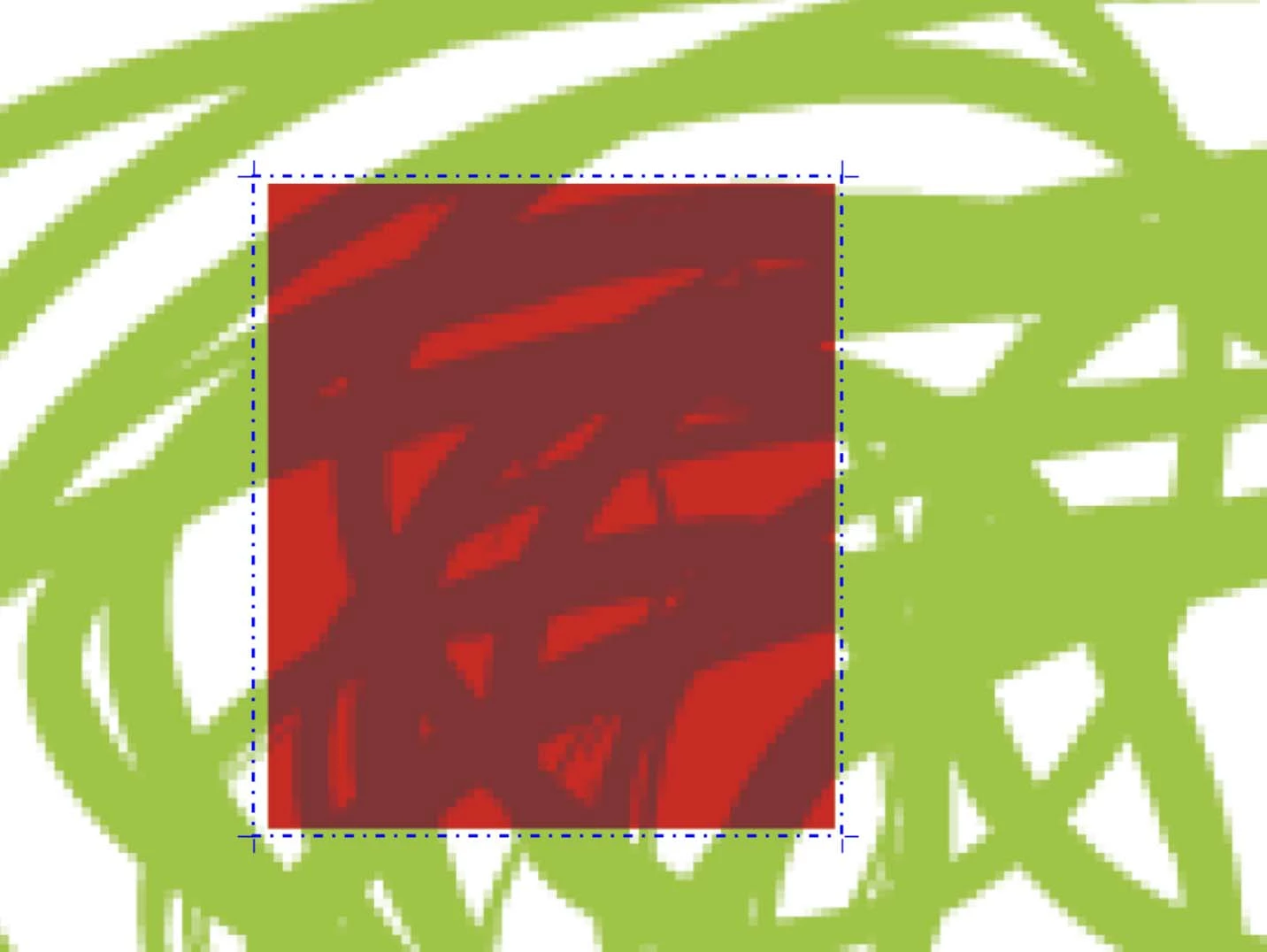
I have a green rasterised stroke in the background (so, we will consider that as a picture). On top of that picture, I have placed a red rectangle (vector), for which I have set the Blending mode to 100% Multiply. I then Saved as PDF from Illustrator (PDF 1.3) and view the resulting file in Acrobat. In Acrobat, I also run Preflight. I have attached a picture of what I observe in Preflight for the red object. The red object, along with the green background right beneath it, involve transparency and are therefore flattened and result in an image object in PDF. What I don't understand is why the border of this new object, indicated by the blue dashed line in Acrobat (this blue line is provided by Preflight), is now slightly bigger than the area involving transparency, which is only limited to the red rectangle.

Can somebody explain why that is and if there is something I can do within Illustrator or the flattener settings when saving to PDF to make sure the resulting object in PDF is exactly the size of the red rectangle?

This is for CS4. Thanks.
This topic has been closed for replies.

2 replies

Ton Frederiks
Community Expert
Community Expert
December 1, 2019

Monika and Mylenium are right.

Anti-aliasing makes the image larger.

The width and height of your red rectangle contain fractional pixels (if you look at the pixel size) and the X/Y coordinates contain fractional pixels too. This and a resolution other than 72 will give additional pixels.

Monika Gause
Community Expert
Community Expert
December 1, 2019

But shouldn't matter when you flatten transparency with the option "Clip complex regions"

sPretzelAuthor
Inspiring
December 1, 2019

The flattened object that results just takes those 1-2 pixels from the background image, in addition to the red rectangle. It doesn't alter the image in any way. That's not anti-aliasing (the background picture does have anti-aliasing however, before the flattening in PDF).

I tried Clip complex regions (but I have to lower vector percentage in transparency flattener options below 100% otherwise that option is grayed out, if I recall correctly). It made no difference. Does it change anything for you Monika? Does it keep the rasterised object the same size as the rectangle?

Mylenium
Legend
December 1, 2019

Image objects may contain padding to accomodate antialiasing and of course account for overprinting. Nothing wrong there. You can of course turn this stuff off when generating and viewing the PDF and see if it makes a difference at the risk of getting a less printer-friendly file that may show issues.


Mylenium

sPretzelAuthor
Inspiring
December 1, 2019

Hi Mylenium. The red rectangle, which is the only transparent object here, is a vector and is therefore not subject to anti-aliasing. There is no overprinting at work here.

"You can of course turn this stuff off when generating and viewing the PDF". How? The only setting that is relevant in the Illustrator Save as PDF menu is the Transparency flattener options and I always end up with this flattened object in PDF being bigger than the red rectangle, no matter what I've tried.


Monika Gause
Community Expert
Community Expert
December 1, 2019

If those vertical and horizontal lines don't fall exactly on the pixel grid, then they will be subject to anti-aliasing.