
Participating Frequently
November 19, 2018
Answered

Transparent stroke without using knockout?

  • November 19, 2018
  • 1 reply
  • 2162 views

Trying to make the stroke around the green shapes transparent. But every time I do so, it eliminates the stroke weight and makes it "0". The knockout option doesn't have a shape behind them. I just want to make the stroke transparent without loosing the stroke weight. Thanks!
This topic has been closed for replies.
Correct answer michelew83603738

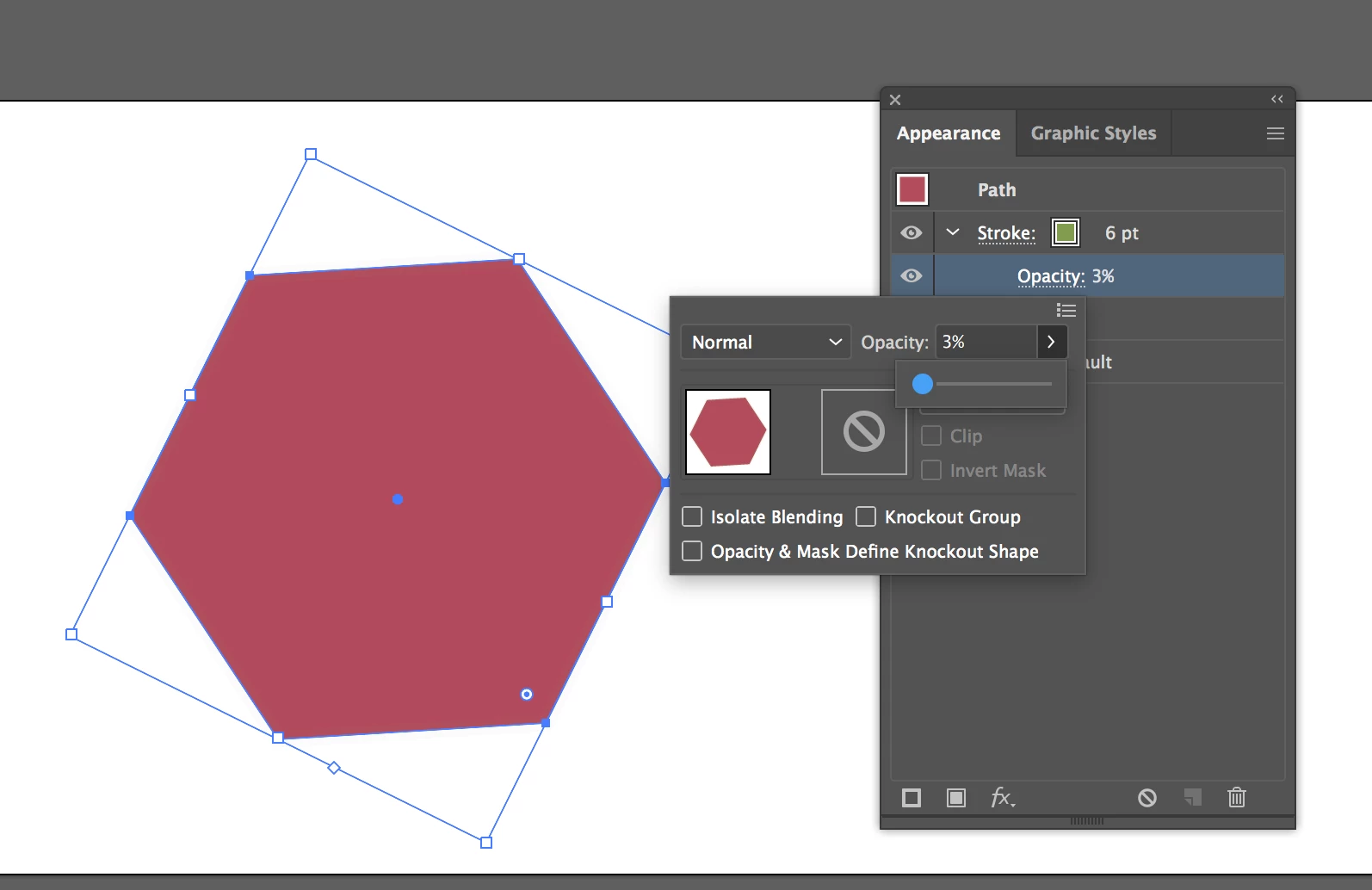
You should be able to go to the appearance panel, toggle open the stroke attribute and take down the opacity to zero without it affecting the weight of the stroke at all. I've have it all the way to 3% here, but when I go to 0, the stroke still remains at 6.

1 reply

michelew83603738
Community Expert
michelew83603738Community ExpertCorrect answer
Community Expert
November 19, 2018

You should be able to go to the appearance panel, toggle open the stroke attribute and take down the opacity to zero without it affecting the weight of the stroke at all. I've have it all the way to 3% here, but when I go to 0, the stroke still remains at 6.

Participating Frequently
November 30, 2018

I did try that and it did change the transparency (on the upper right two shapes). But now, regardless of what I try to make the stroke weight, the thickness stays the same. You can see the difference between the ones on the left that I had not done it too yet. I want it to still have that same weight and be transparent. Thanks again for any and all help.

Participating Frequently
November 30, 2018

You can't achieve this by using your method. It won't work.

Instead: set the stroke to "None"

Then use Effect > Path > Offset path with a negative value.

Before exporting the file and sending to the client: Object > Expand appearance


Tried this, the appearance of the object still stays the same. aka: It still appears as though there is no stroke in between objects like the picture I posted in my previous reply