
Transparent strokes in Live Paint object
Hi everyone! I've been troubleshooting this issue for over a week now, and am posting in a desperate attempt to see if anyone new sees a solution before I completely give up and start all over from scratch. I created the following image by placing a state outline onto my artboard and using the pen tool to draw the interior paths (several intersect each other and all intersect with the state outline). Then I grouped the paths, made them into compound paths, and filled in the colors with the live paint tool. (I was told grouping/making them compound was unnecessary at that point, and I don't know if I made an error even then, but I could not for the life of me to get live paint to work until after I did so.) Applying live paint made the lines a little wonky, so I applied round corners.

Everything was going swimmingly until I took it off the white background and realized that all the strokes are permanently white (seemingly) instead of transparent, which of course looks daft. I'll use a black background here just to demonstrate:

I really, really need to turn all those white lines into transparent ones. After receiving one recommendation, I tried expanding the live paint group and selecting object-->path-->outline strokes. As you can see, this altered parts of my shapes already (see upper lefthand corner with a big chunk missing).
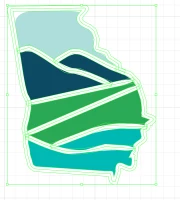
Then I merged the shapes, which restored the paths a bit, although the corners lost their roundness. At this point, I was told I should be able to select the strokes individually and delete them, but as you can see from the selection, I'm unable to do anything but grab onto the shape as a whole. I can only leave the strokes white and delete the colored shapes within. 
If I skip the last step (pathfinder merge), I am able to delete the outside path:
 but when I try to delete the paths criss-crossing the state, they just leave colors behind rather than a transparency:
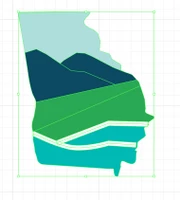
It almost feels like Illustrator is only letting me delete the outlined part of the stroke, and won't let me delete the stroke itself. Or perhaps it's another problem entirely...I'm absolutely lost. Has anyone been in a similar pickle before who could help me out? Maybe I'm missing a crucial step above, or there's a completely different solution I could try? Thank you in advance!
 AdChoices