
Participating Frequently
February 15, 2024
Question

Trapezoidal Panels to Form a Curved Display

  • February 15, 2024
  • 2 replies
  • 849 views

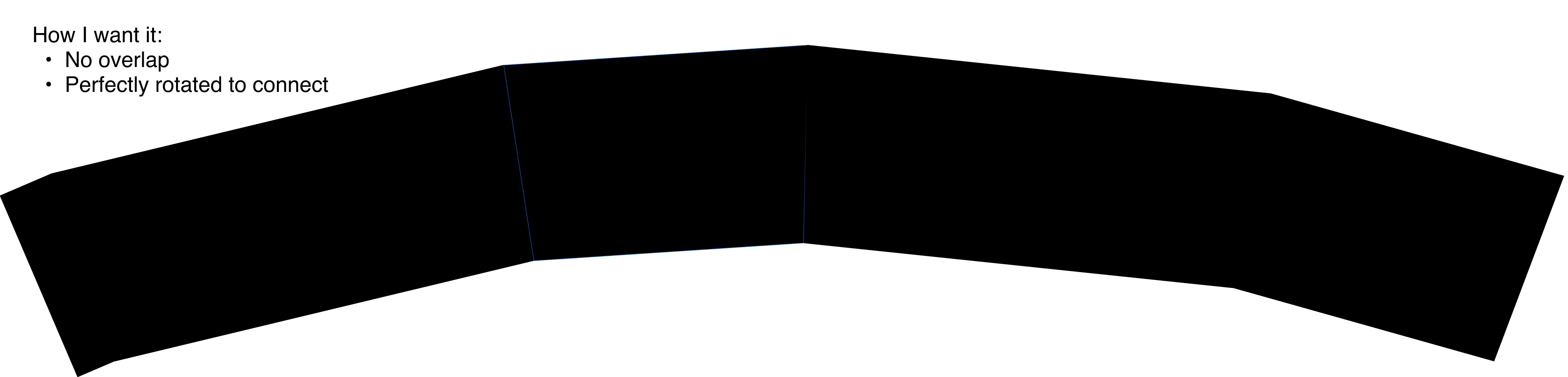
I'm working on a project where I need to arrange four trapezoidal panels in a circular pattern to create a curved display. Some of the panels have different sizes in width (see image for ref), and they should fit together without overlapping. The panels are meant to connect at their sides, forming a smooth curve with each panel being rotated around a central point. I have the dimensions and the internal angle for each trapezoid.

1. How do I get exact rotation angle for each panel?
2. How do I connect them perfectly without overlapping?

Attached are the desired outcome (black curve) and dimensions and angles for reference.

Thank you for your help!



This topic has been closed for replies.

2 replies

Jacob Bugge
Community Expert
Community Expert
February 15, 2024

Jens,


With the difference in widths and the same angle between panels there is no way to have them follow a circle/have one common centre (of rotation).


So there is only the way Kurt suggests with a certain inherent irregularity, and an inevitable final rotation of the whole set to have it appear reasonably symmetrical, so you may as well make the mutual rotations in an easy way.


When you have distributed them all and have coinciding top Anchor Points, you can can start from either end and rotate the panel(s) from that end round the next coiniciding top Anchor Point and use snapping for the bottom ones, Smart Guides being your friends. Once you have the whole set with the last panel still horizontal, you can ShiftClickDrag horzontally with the Line Segment Tool from the first/lower end bottom Anchor Point and then rotate round that to snap the last/higher end bottom Anchor Point to the line and thereby have as much (apparent) symmetry as you can get.


I hope this was sufficiently unintelligible.


Kurt Gold
Community Expert
Community Expert
February 15, 2024

Have you already tried using the Rotate tool while Smart Guides are turned on?

Participating Frequently
February 15, 2024

Yes both of them! I got the rotation perfect. However I can get them to connect perfectly @Kurt Gold  any ideas? 

Kurt Gold
Community Expert
Community Expert
February 15, 2024

Hello, here you go. Thank you for being so helpful.


OK, this sample file obviously contains the objects after you've rotated them. There are gaps for some reason.


It would probably be better to share a file that shows the initial situation (unrotated, as per the upper part in your screenshot above).