Exit
  • Global community
    • Language:
      • Deutsch
      • English
      • Español
      • Français
      • Português
  • 日本語コミュニティ
  • 한국 커뮤니티
0

Trouble cutting text from background

Community Beginner ,
Jan 19, 2020 Jan 19, 2020

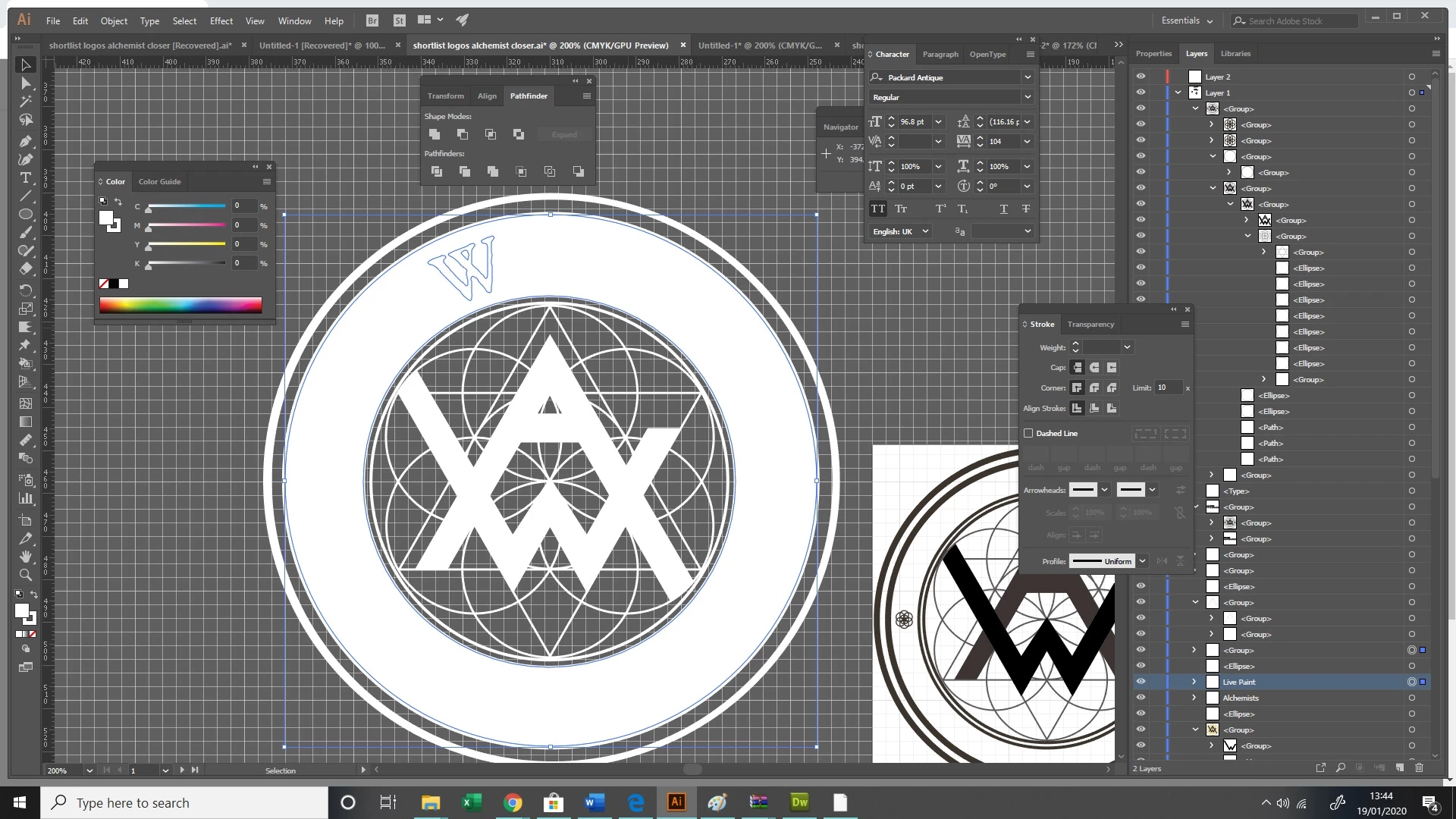
Hi everyone, i'm trying to cut text 'word' out of the white ring in this design.


Ive converted the text to outlines, made sure the text is above the white ring and yet I still cant get it to work 😞


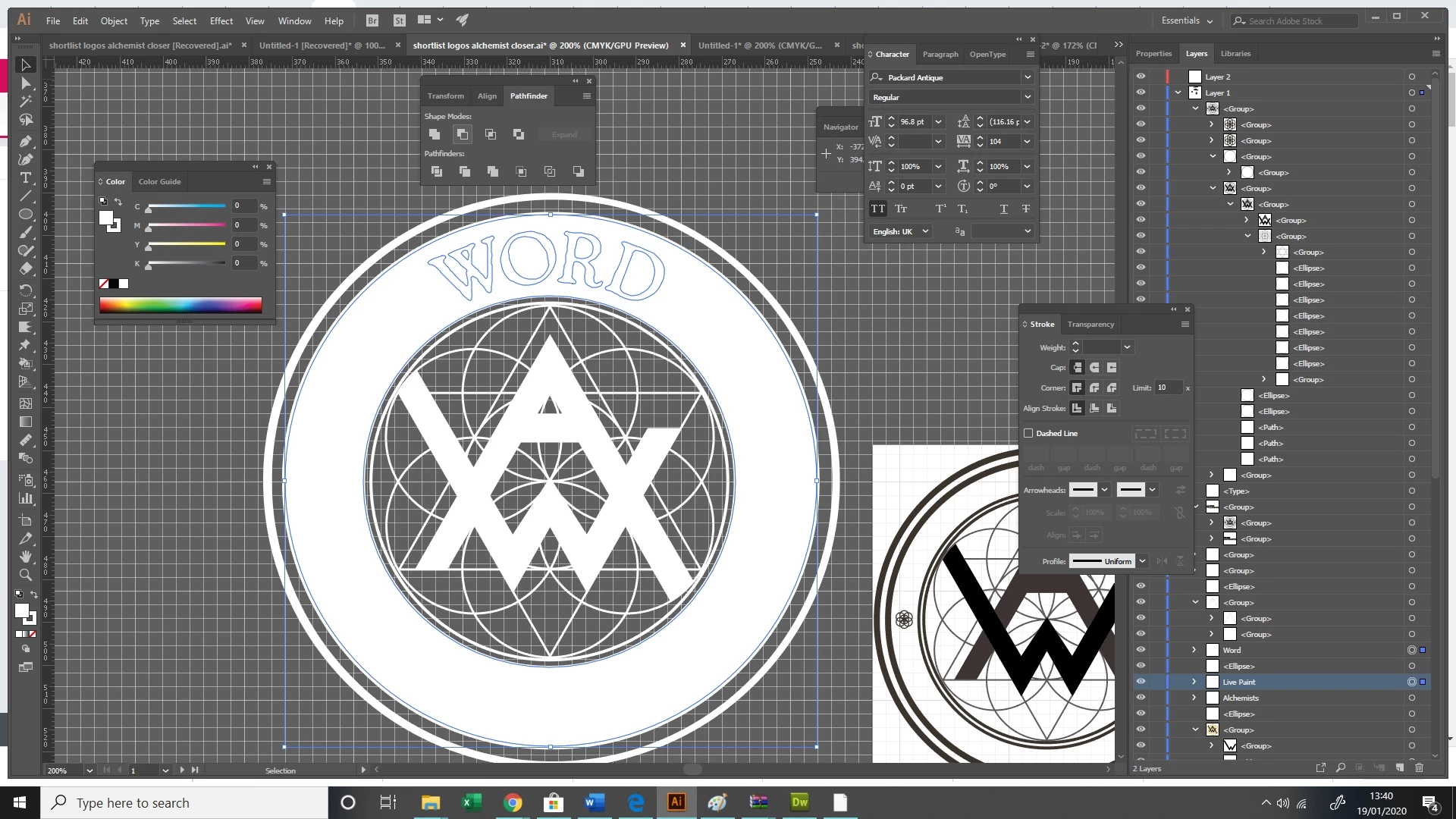
It works if i try and 'minus front' the text from a circle, but if i try and do it on this white ring, it doesnt work - it just results in the blue outlines around the letters o, r and d disapearing (see second pic below) and nothing being deducted from the white ring.


I suspect it is something to do with the ring having originally been created by using live paint to fill the space between two different sized circular paths, but ive no idea how to fix.


Please help!
 

log.jpglog3.jpg

TOPICS
Draw and design , Tools
326
Translate
Report
Community guidelines
Be kind and respectful, give credit to the original source of content, and search for duplicates before posting. Learn more
community guidelines
Adobe
Community Expert ,
Jan 19, 2020 Jan 19, 2020

So I assume the ring is also outlined and not a stroke anymore

Select the ring and the letters and then make a compound path.

You might need to check the fill rule in the attributes panel and set it to even-odd

Translate
Report
Community guidelines
Be kind and respectful, give credit to the original source of content, and search for duplicates before posting. Learn more
community guidelines
Community Expert ,
Jan 19, 2020 Jan 19, 2020

Molly,


The most convenient way(s) depend(s) on what you wish/need.


It is unclear whether you wish to cut out the whole letters or only the strokes of the letters (in the former case, the letters may just as well just have the (original) fill).


Whichever the structure you can use an Opacity Mask, and you can keep the WORD as Live (editable) Type.


Keep/make the WORD black, or have the stroke black and the fill white if you only wish to cut out the former (to have the WORD white as the rest of the ring, only surrounded/shown/enhanced by the background colour corresponding to the stroke), then also select the white ring (whichever path(s) cmaking it), then in the Transparency palette click Mask with both Clip and Invert Mask unticked (you can use white Type, then tick Invert Mask).


Translate
Report
Community guidelines
Be kind and respectful, give credit to the original source of content, and search for duplicates before posting. Learn more
community guidelines
Community Beginner ,
Jan 19, 2020 Jan 19, 2020

Hi Jacob


thanks. 


I havent had any luck - it's cutting the white background of the ring 😞


Any idea?


log3.jpg

Translate
Report
Community guidelines
Be kind and respectful, give credit to the original source of content, and search for duplicates before posting. Learn more
community guidelines
Community Expert ,
Jan 19, 2020 Jan 19, 2020

Uncheck the "Clip" option.

And please read the documentation: https://helpx.adobe.com/illustrator/using/transparency-blending-modes.html

Translate
Report
Community guidelines
Be kind and respectful, give credit to the original source of content, and search for duplicates before posting. Learn more
community guidelines
Community Expert ,
Jan 19, 2020 Jan 19, 2020
LATEST

Molly,


As Monika said, and as the (un)ticking part of my suggestion said:


"in the Transparency palette click Mask with both Clip and Invert Mask unticked (you can use white Type, then tick Invert Mask)."


Translate
Report
Community guidelines
Be kind and respectful, give credit to the original source of content, and search for duplicates before posting. Learn more
community guidelines