Document Geek
Community Expert
Community Expert
May 13, 2021
Answered

Trying to make a knitted cable stitch using blends or brushes

  • May 13, 2021
  • 3 replies
  • 4192 views

I am trying to make a twisted effect, where two obejcts rotate around each other. The efect that I am trying to acheive is a realistic knitted cable stitch.


I have tried using the blend tool, with two separate blends, but the objects from one blend cannot wrap around the objects of another blend.


I have also tried using the brush tool, but when I cut the path and move the various parts to the front or the back, the edge is harsh and doesn't look correct.


Can anyone assist?


This topic has been closed for replies.
Correct answer kphotopage

Document Greek, Hi.


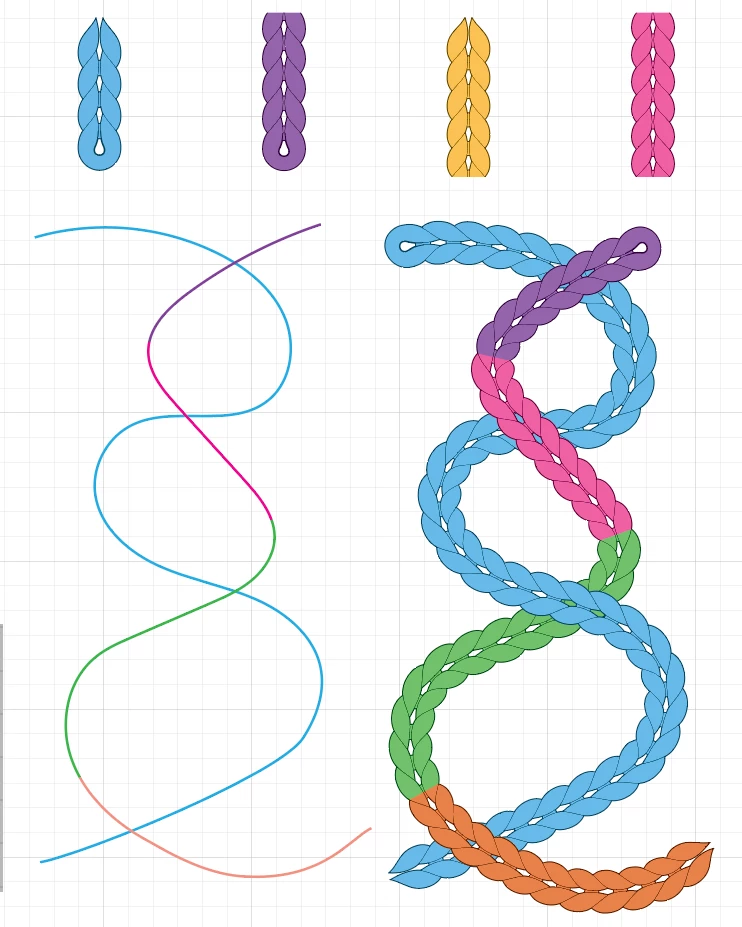
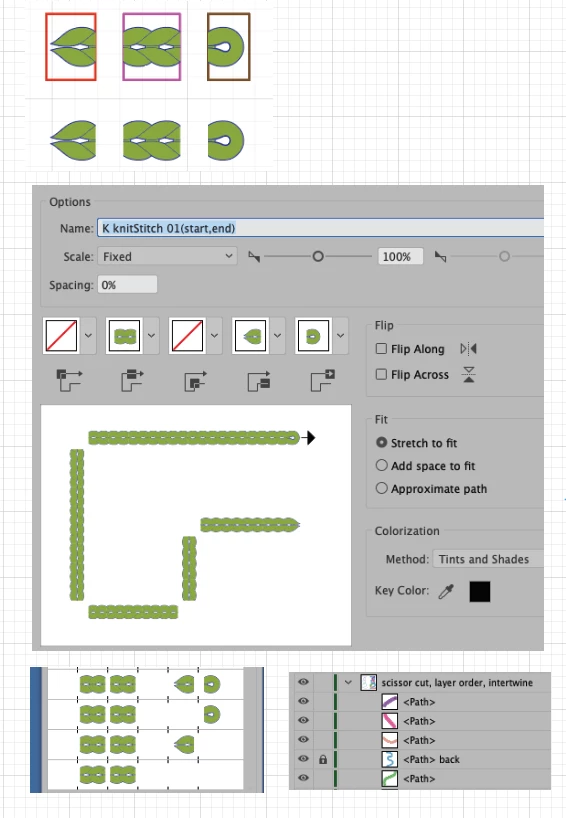
In addition to Doug’s reply, I once created a single KnitStitch single row Pattern brush if anyone is interested.


Actually, I created 4 different versions as you can see.

To intertwine, I used all 4.

I random colored so you can see the scissor cut and Layer order.

No Masking.


K

3 replies

kphotopage
kphotopageCorrect answer
Legend
May 18, 2021

Document Greek, Hi.


In addition to Doug’s reply, I once created a single KnitStitch single row Pattern brush if anyone is interested.


Actually, I created 4 different versions as you can see.

To intertwine, I used all 4.

I random colored so you can see the scissor cut and Layer order.

No Masking.


K

Jeff Witchel, ACI
Community Expert
Community Expert
May 13, 2021

This is the old problem of "how can something be both in front and behind another object at the same time?

Well, as you know Brushes present a huge problem, in that, you can't cut the path without screwing up everything.

Well maybe the answer is a Mask with a Compound Path as the Mask.

  1. Select the Brushed object that's in back.
  2. Copy and Paste in front of everything.
  3. Draw objects with the Pen tool where the overlaps of Brushes need to be.
  4. With all of these objects selected, go to Object > Compound Path > Make.
  5. Select the Compound Path and top Brushed path.
  6. Go to Object > Clipping Mask > Make.

Hope this helps!


Jeff Witchel, ACI
Community Expert
Community Expert
May 13, 2021

Very interested in Doug's response.

Doug A Roberts
Community Expert
Community Expert
May 13, 2021

Please show an example of what you want to achieve. This sort of thing with a pattern brush?

Document Geek
Community Expert
Community Expert
May 13, 2021

I can show you an example of what I tried that doesn't work. I made this using brushes, but when I cut each object to make it sit on top, the edge is wrong and is not realistic.


Here is an exmaple of something I found onle to show how it should look.


Doug A Roberts
Community Expert
Community Expert
May 13, 2021

If that's all you want, you just need to cut the path somewhere away from the crossing point rather than right on it.