
Participant
February 4, 2021
Answered

Type on path not working properly

  • February 4, 2021
  • 1 reply
  • 596 views

Hello,


I'm in the process of making a laser cut birthday card for my son and working on the design.


I have a dinosaur where I want to have some text along the tail of dinosaur following its shape. I click on the Type on a path tool and for some reason it only lets me write text on the hump of the dinosaur and itis upside down. When i then go to type > type on a path > type on a path options > flip. It just moves the text to the dinosaurs head! (images attached).
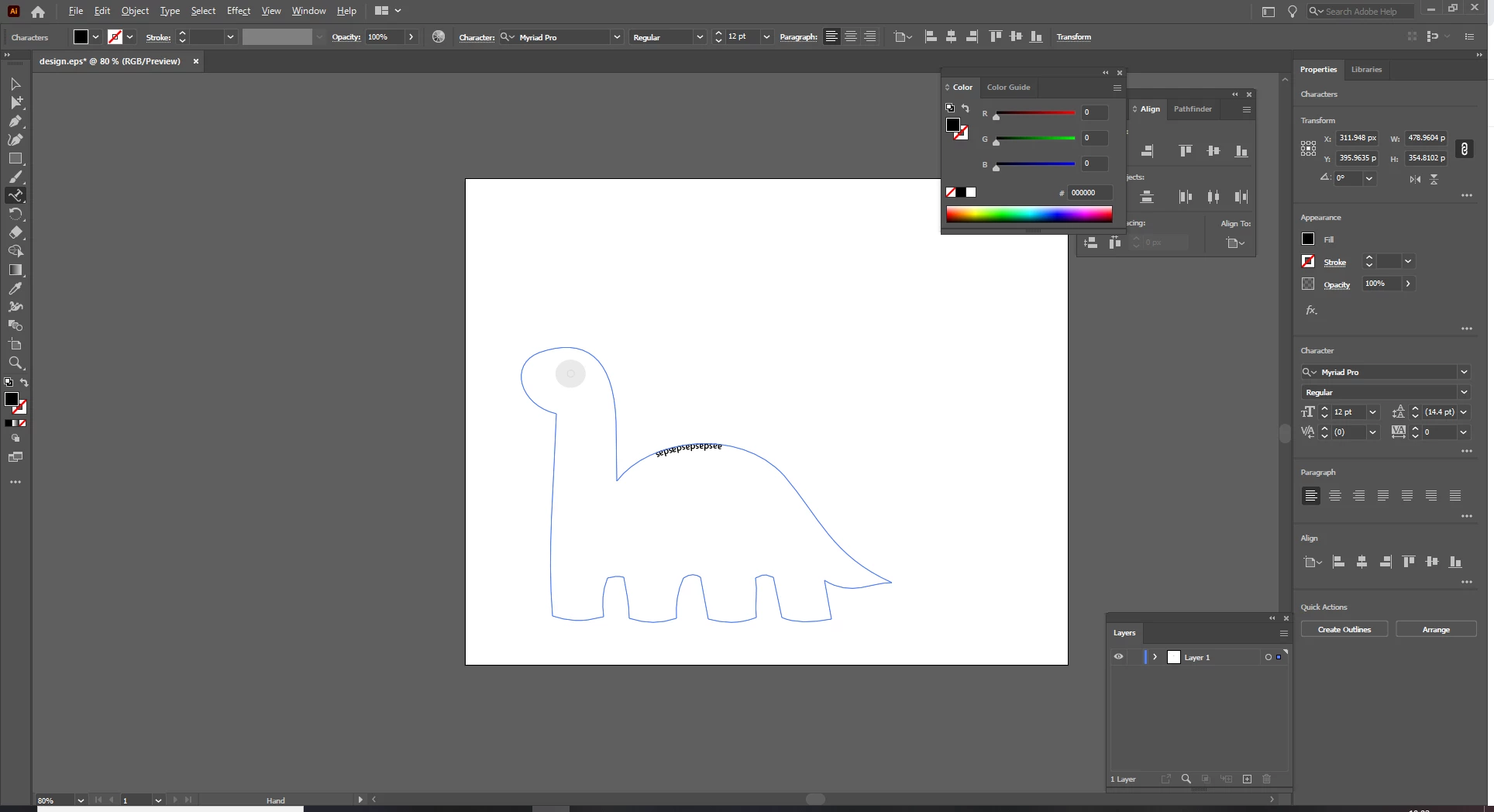
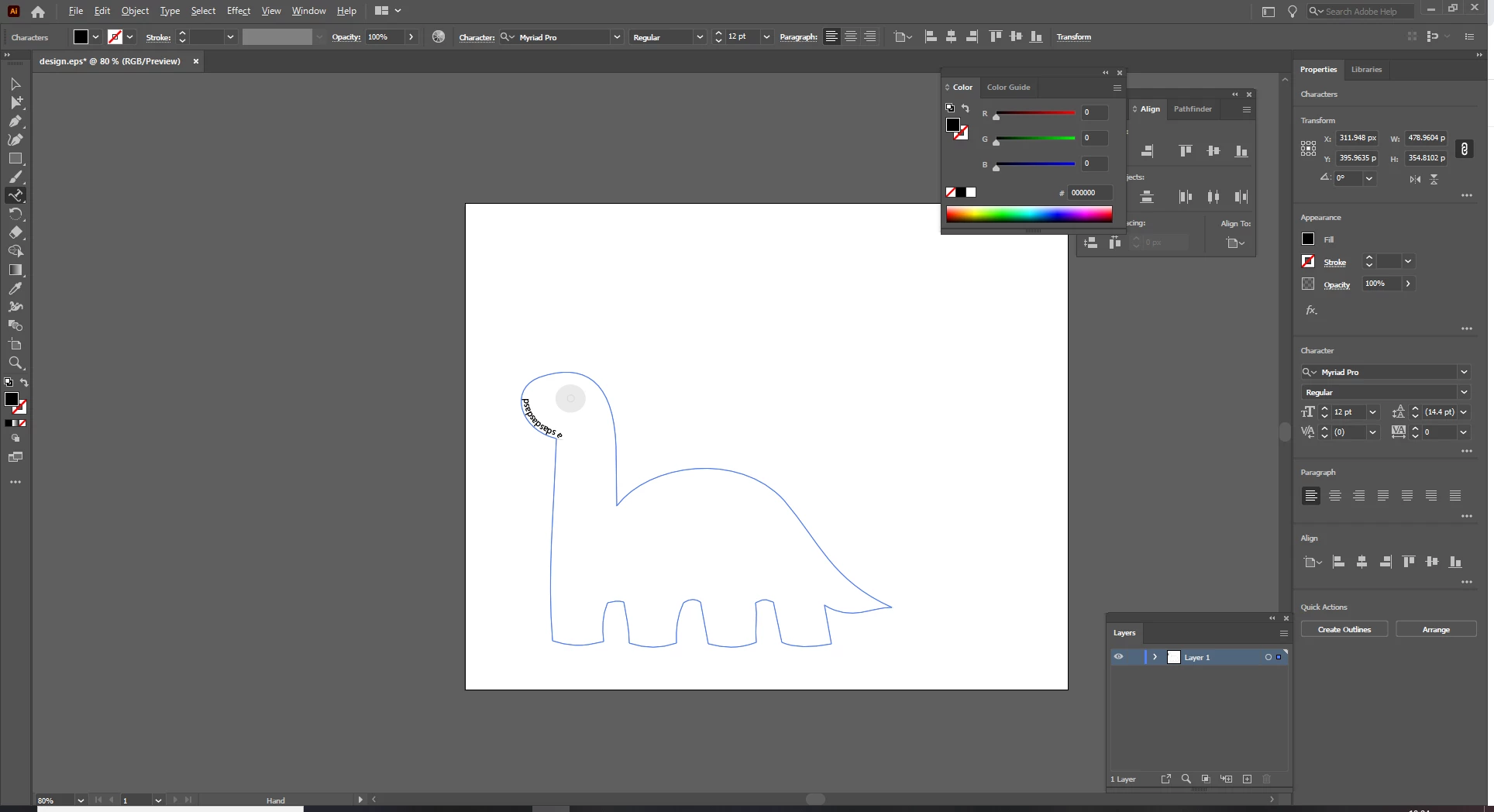


I then thought ok well i'll just press space bar until the text moves to where I want it but after it gets over the brow of the hump on its back the text dissapears!


Its messing with my mind, any help would be much appreciated. Sorry if you find the explanation poor.


Many Thanks


Nathan

This topic has been closed for replies.
Correct answer S_Gans

Hi. Don't use the spacebar for this - it'll make you CRAZY! There are little controls along the path, once you've created your text - 2 handles on each end (one is about shortening the text for text flow, the one at the beginning of the text is about position along your path). Sometimes, these start out bunched together at the end of your path, and need to be separated  - in which case do NOT click the box, but rather the little tail above the box, to move separate them. Use the Direct Select tool (white arrow) to do this. There's also a handle in the MIDDLE of your text, that allows you to move the text inside and outside your shape.

I'll do a demo -but not making a dinosaur! 😄


1 reply

S_Gans
Community Expert
S_GansCommunity ExpertCorrect answer
Community Expert
February 4, 2021

Hi. Don't use the spacebar for this - it'll make you CRAZY! There are little controls along the path, once you've created your text - 2 handles on each end (one is about shortening the text for text flow, the one at the beginning of the text is about position along your path). Sometimes, these start out bunched together at the end of your path, and need to be separated  - in which case do NOT click the box, but rather the little tail above the box, to move separate them. Use the Direct Select tool (white arrow) to do this. There's also a handle in the MIDDLE of your text, that allows you to move the text inside and outside your shape.

I'll do a demo -but not making a dinosaur! 😄


Adobe Community Expert / Adobe Certified Instructor