Participant
April 11, 2023
Question

Unable to join segments

  • April 11, 2023
  • 1 reply
  • 829 views

Hello everyone,

I'm super new to Illustrator and having a hard time making my line segment path into one solid line. When I select between 2 different paths and hit join I get this error.


Any help is appreciated.
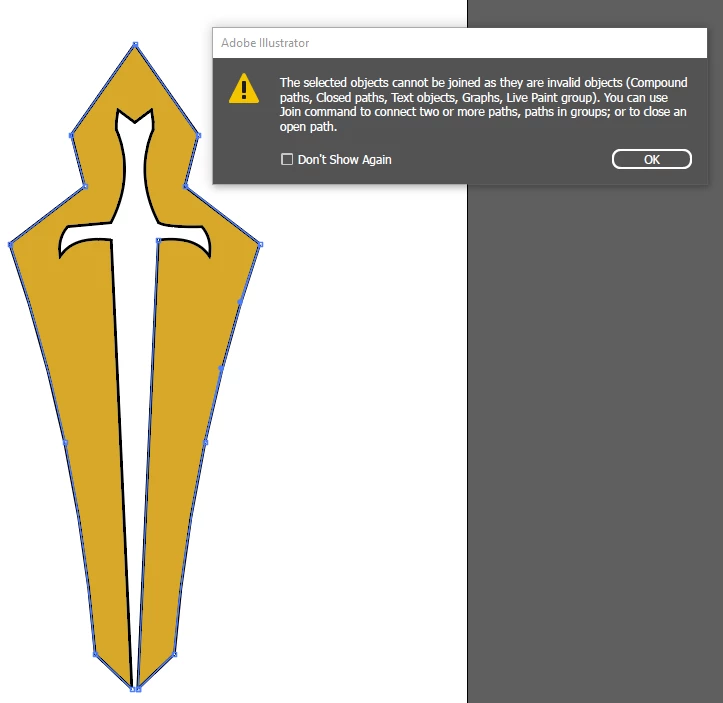
 

This topic has been closed for replies.

1 reply

Jacob Bugge
Community Expert
Community Expert
April 11, 2023

Joshua,


The error message is simply telling you that the Join command fails to work with the kinds of paths you have chosen.


If you make a new screenshot with the Insert Photos and include the expanded layer in the Layers panel, I believe one of us can help you further (maybe the first one that sees it).


Participant
April 11, 2023

As requested, hopefully this is what you were talking about, still barely understand layers etc and the 100s of windows lol.


Jacob Bugge
Community Expert
Community Expert
April 13, 2023

Thanks, Ideally I'd like to combine all the paths, I had this done on another image very similar to this one, used that to make this but for whatever reason I cant get the paths to join. The reason for wanting to join them is I believe its cause the line segment joints arent acting as one creating the type of corner that I want. Seems they are acting as independent. The corners are rounded but should be square or pointed.


Joshua,


As far as I can see, the whole artwork is to become a single (non compound) path, so you ought to be able to simply join the constituent paths, directly or after unentangling them further after expanding the Live Paint group.


Just to make sure, when I wrote expand the Live Paint group I referred to going from the Live Paint group to get to the individual separate parts, rather than just pressing the arrow in the Layers panel.


Depending on the nature of those parts, you (may) need to separate them into individual parts, then Join.


You can see, and hopefully share, the nature of the parts by selecting each and looking at the Appearance panel, or it may be evident from the expanded Layer, once the Live Paint group has been expanded.


The difference seen between the two corners at the bottom of your screenshot seems to indicate that the upper one shows a Miter Join of a continued path and the lower one shows the (overlapping) Round Caps of the coinciding end Anchor Points of two separate paths.
