
Participant
July 7, 2017
Answered

Unwanted Changes to Shape While Resizing an Object

  • July 7, 2017
  • 3 replies
  • 3588 views

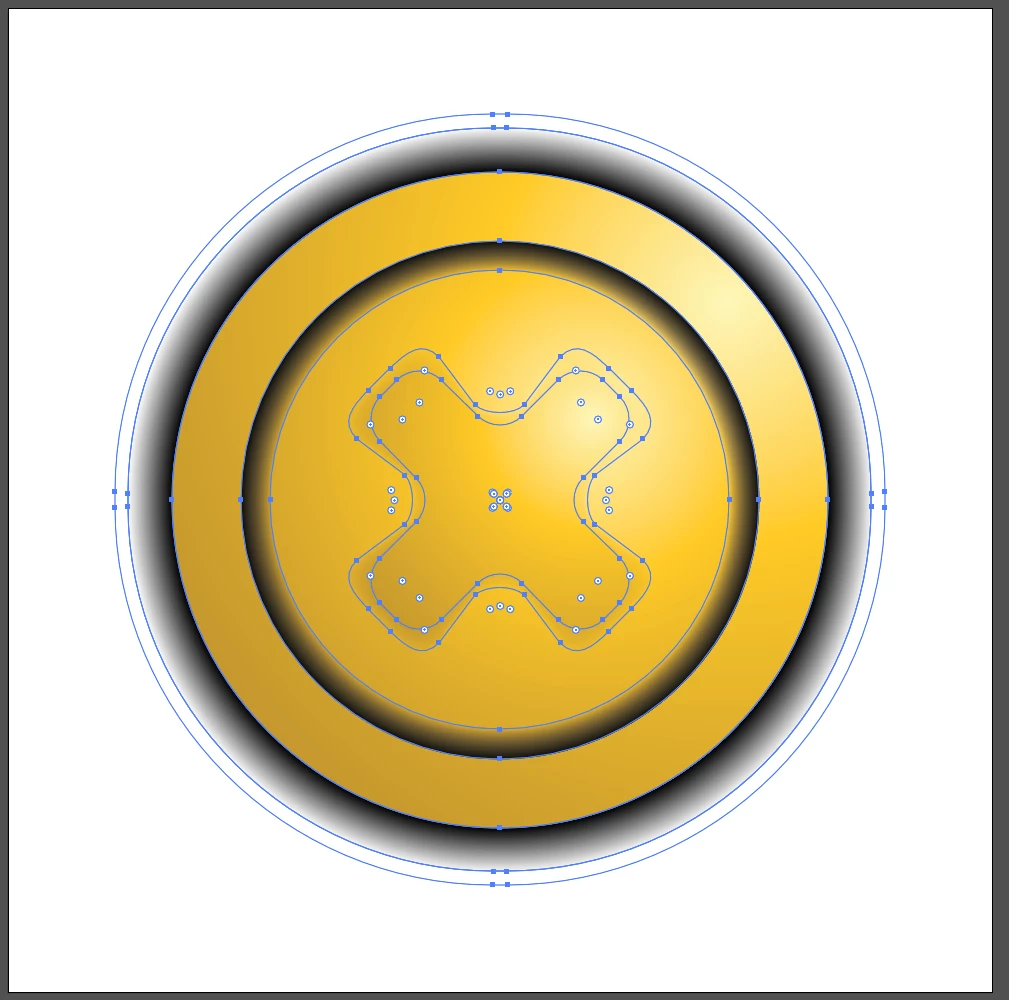
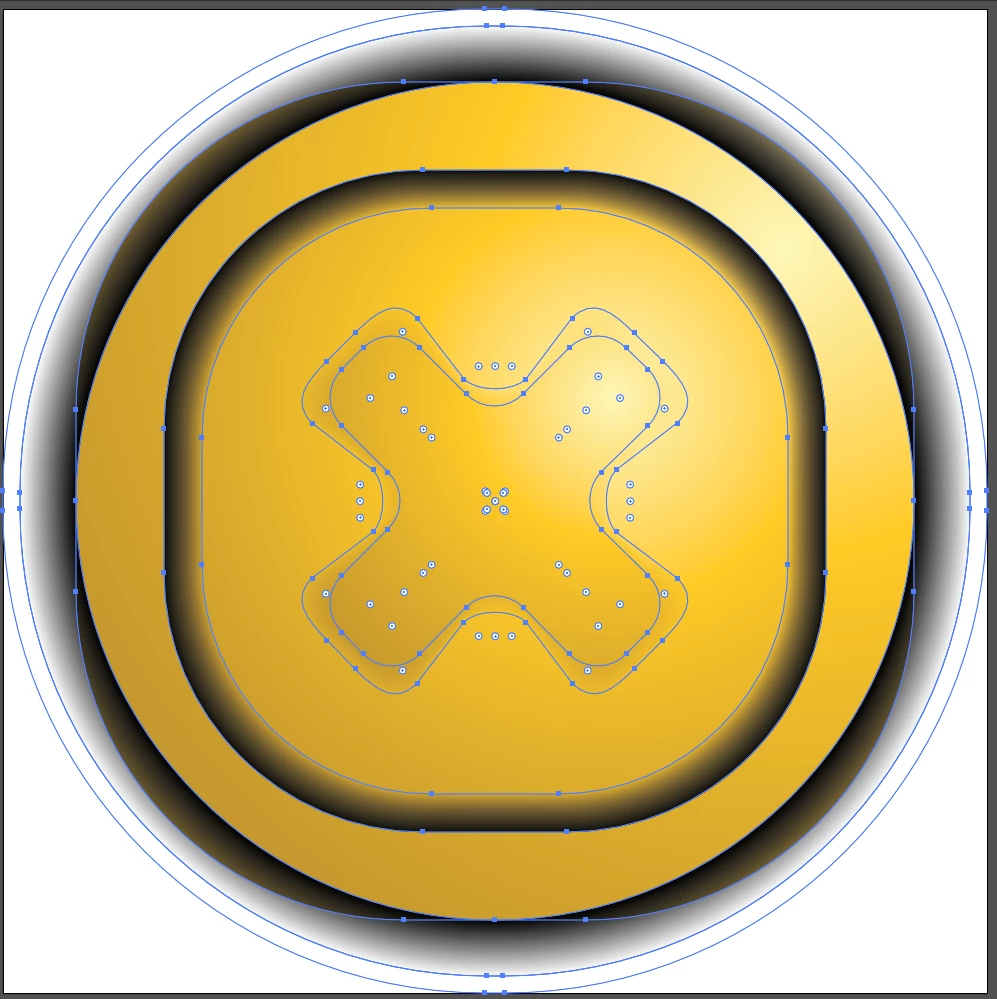
I made an object, but when I resize it, it messes up the geometry.  Note that I don't want to make a finalizing change to the object to fix this issue; I may want to edit it in the future.  Thanks!
    Correct answer Mohammad.Harb

    in the Transform panel window-> Transform

    before scaling, turn on check box :scale rectangle corners

    3 replies

    Michela Di Stefano
    Inspiring
    July 7, 2017

    Also check the Transform Palette option: Scale Strokes & Effects.

    Participant
    February 4, 2025

    Hello, this did not work for me, as when I size up my shape, it doesn't change at first, but it's when I save it and reopen it that the shape has been all messed up. The same goes when I try not to change the size but just use Trim (in Pathfinder).

    Any solution to what I'm doing wrong? Especially since I've been doing this for a while, and it didn’t happen so often. 

    Thank you very much

    Participant
    February 4, 2025

    Do not use SVG as your work file format.


    When exporting to SVG also use a higher Decimals setting.


    well I need to save it  as svg to import it in blender. 

    But it seems that I found some workaround :

    I think this issue has been resolved in newer versions of Illustrator, but this might help users of older versions (ie CC 2018).

    Instead of exporting the artwork via the asset panel, or via the "export for screens" option, try:

    file>export as>save as type>SVG

    In the next dialog, type in 3 as the decimal input. The SVG file type is based on mathematical equations, so the decimal dictates how many decimal points the equation should calculate. That will give the mathematical equation greater accuracy, so you will have a more detailed file.

    You can go higher than 3, but the added accuracy will start producing much heavier files, so 3 seems to be a good balance between detail and file size.

    Expanding artwork and outlining fonts might help as well. If you have created rounded corners by dragging the corner nodes, you need to expand the object before exporting.

    Mohammad.Harb
    Community Expert
    Mohammad.HarbCommunity ExpertCorrect answer
    Community Expert
    July 7, 2017

    in the Transform panel window-> Transform

    before scaling, turn on check box :scale rectangle corners

    wtuckerAuthor
    Participant
    July 7, 2017

    Mohammad's answer worked the best for me, thanks!

    rcraighead
    Legend
    July 7, 2017

    Yes, it works, but Barbara's observation is very important. Using the wrong tool to create the initial object will inevitably lead to issues down the road. You could also greatly simplify your artwork by taking advantage of the Appearance Panel to add multiple attributes to a single stroke.

    barbara_a7746676
    Community Expert
    Community Expert
    July 7, 2017

    It looks like the outer circles were created with the round corner rectangle tool with a large corner radius. Normally a circle would have 4 anchor points, but yours has more than 4 points.

    Use the Ellipse tool instead.

    Shape created with round corner rectangle tool:

    Shape created with ellipse tool: