
Participating Frequently
January 24, 2021
Answered

unwanted dashed line under object

  • January 24, 2021
  • 3 replies
  • 2329 views

I'm just learning. I bought a textbook and I'm working through the exercises.


I'm stuck on creating a small fold in an object. I need to make a triange, and position it underneath the object. This makes it look like it's got a fold. 


The triangle is created with the pen tool, no fill and black stroke. I expect it to disappear when I send it back (under the object). But it doesn't. It's still visible, but now it's a dashed line. Dashed line is not selected. It does go under the object, because I can't get hold of it or move it. 


I can't find anything online that will explain what's happening, or how to correct the issue. Any help would be really appreciated. Thanks!


This topic has been closed for replies.
Correct answer Ton Frederiks

@Ton Frederiks but there also must be a blend mode as you can see thru from the dots to the rectangle's dotted lines (I think they said the dots were on top).


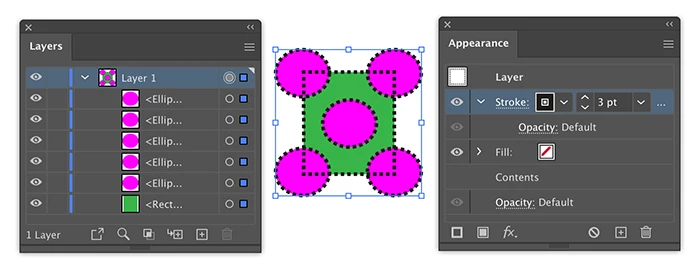
Michele, it can be done without a blending mode when the layer has a stroke and the stroke is above the contents.

3 replies

Ton Frederiks
Community Expert
Community Expert
January 25, 2021

You may need to unlock layer 1 to beable to select them.

Participating Frequently
January 25, 2021

Thanks! I'm not getting notified if there is a reply, so I didn't see this until now. I didn't find the solution to the problem, but made up my own way of creating the same fold-like effect. But I still can't get rid of this dashed line! I'm not selecting it, but it keeps appearing. I'm now trying to get rid of my stroke in a square, but all I get is a dashed line. And when I want the dashed line, it doesn't work! I really don't like this programme. Way too complicated. Do I need to start over again so I can clear whatever unknown mistake I made, or will the programme remember it and keep this dashed line forever? Thanks


Ton Frederiks
Community Expert
Ton FrederiksCommunity ExpertCorrect answer
Community Expert
January 26, 2021

@Ton Frederiks but there also must be a blend mode as you can see thru from the dots to the rectangle's dotted lines (I think they said the dots were on top).


Michele, it can be done without a blending mode when the layer has a stroke and the stroke is above the contents.

michelew83603738
Community Expert
Community Expert
January 24, 2021

Can you upload a snalshot of what you are doing. (4th icon from the right) and a snapshot of expanded layers panerl. It is hard to decipher from nyour description.

Participating Frequently
January 25, 2021

Participating Frequently
January 25, 2021

Thanks for your reply. If you can see on the dress, the triangles that are dashed--they shouldn't be visible. I have sent them to the back, but I can still see them. 


Monika Gause
Community Expert
Community Expert
January 24, 2021

Could you please show us a screenshot?

The screenshot should include the layers panel and please click on the triangle next to the layer so the contents of the layer are visible as well.


Thank you.