Omineus
Known Participant
August 31, 2023
Answered

Use Dieline outline to shape background

  • August 31, 2023
  • 1 reply
  • 1645 views

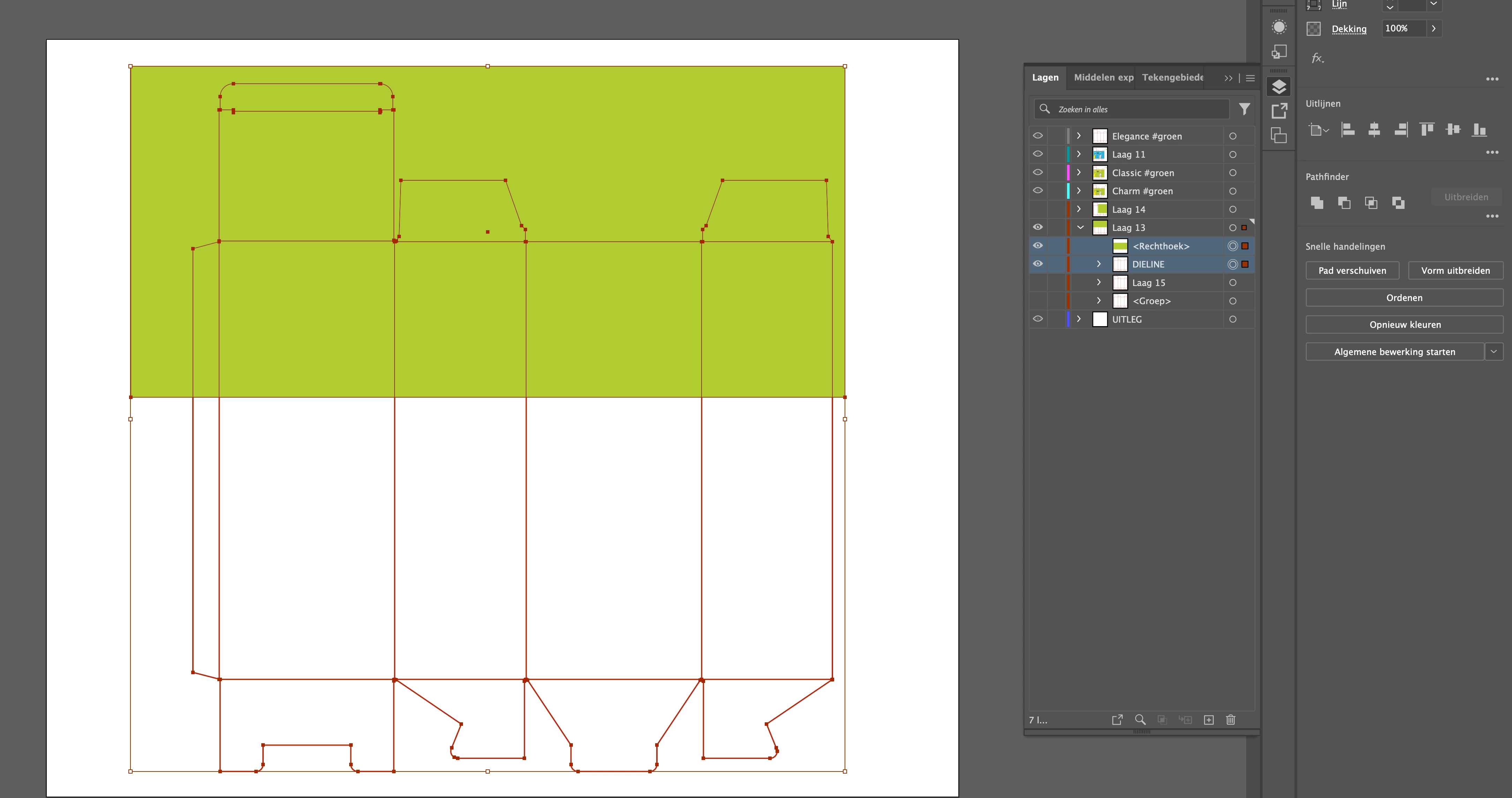
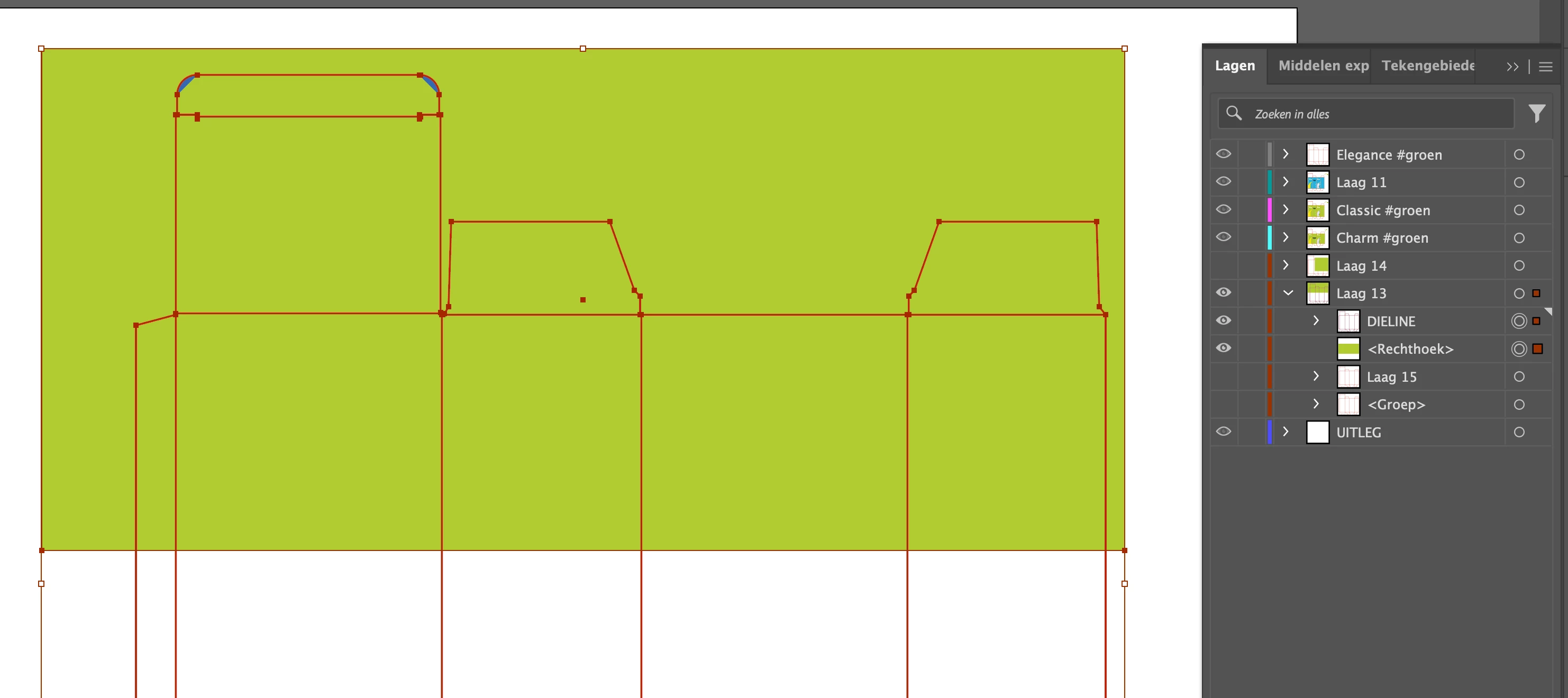
I just can't get it to work.

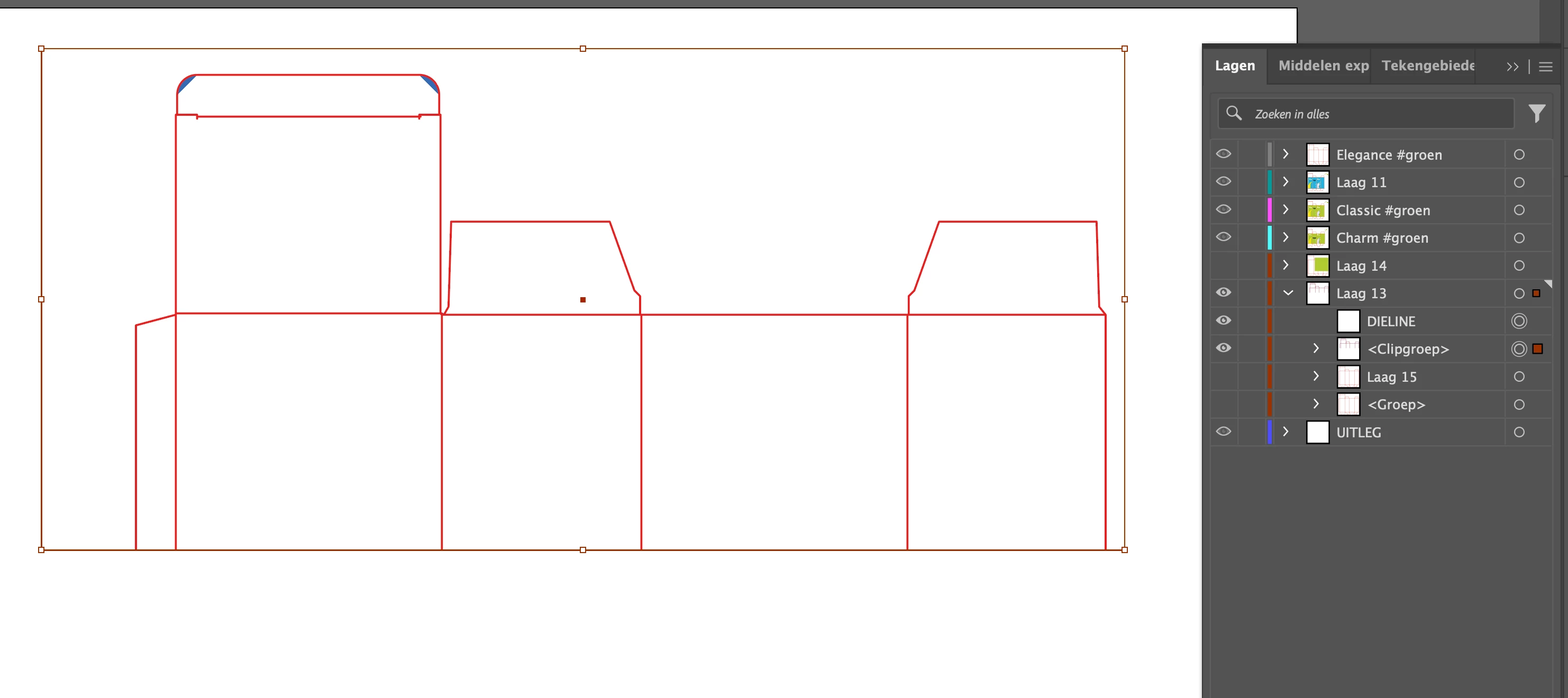
I would like to have the background under my dieline in the outline shapes.

Dieline has no padding (this is not possible) so it only has an outline.


The following steps don't work:

1. Group [Command + G
2. Composite path
3. Create cutout path
 

Correct answer kphotopage

Of course! 

I just uploaded the Ai file via wetransfer. See the link here

I hope that is good too! I am very curious to see if you can solve the problem, as I work with this kind of dieline files more often.


Omineus, Hi.

Thank you for uploading your file.

I see your Laag layer has 70 open paths and 0 closed paths


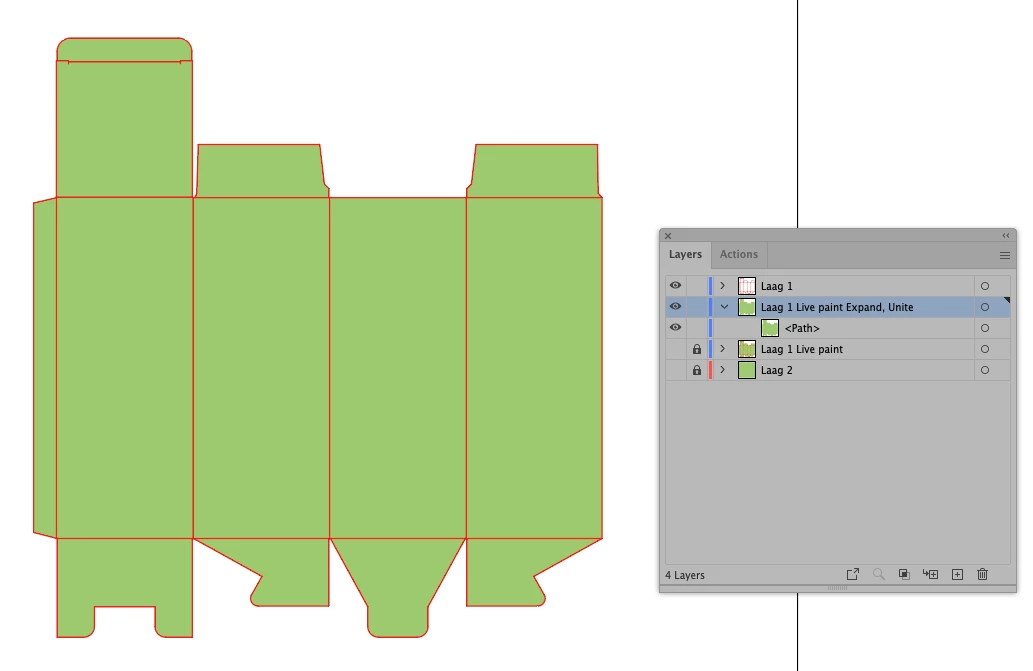
Here I duplicated your Laag layer

Next Object>Live Paint. I used your green to Fill.

Expand Live Paint. Delete the strokes

Pathfinder’s>Unite. Now you have one closed path, green color

Move your original Laag Layer to the top


K

1 reply

Monika Gause
Community Expert
Community Expert
August 31, 2023

Do all those anchors meet precisely? 

In that case: Select all of them and hit the Pathfinder divide (bottom left in the panel.

Ungroup + delete what you do not need and then unite the rest.

Omineus
OmineusAuthor
Known Participant
September 5, 2023

Hi Monika, 


Thanks for your response, excuse me that I reply so late!


Yes all anchors meet precisely. When I select the layers I get this error message: "The filter command gave no result. Select two overlapping paths."


Maybe its because the dieline (outline) is made with multiple layers? 

I work alot with Photoshop, and there we can make a 'Smartlayer' so that its just one layer. 
Maybe its also possible to do this in Illustrator?

kphotopage
Legend
September 27, 2023

Where or when do I need to use the live paint bucket?


Omineus, Hi again.


Here I have some stroked paths.

Select all, then Object>Live Paint make.

I want to fill those areas with colors.

While still selected, switch to your Live Paint Bucket.

Fill with a swatch color of your choice.

Expand Live Paint.

In your Layer’s panel, select the group of strokes. Delete.

Here I now have 7 closed paths.


K