Participant
January 19, 2023
Answered

Using artboards as an archive that is searchable

  • January 19, 2023
  • 3 replies
  • 1154 views

We have created an archive of small icons in Illustrator by putting each on a small artboard. We have named each artboard with its subject matter. The file has gotten large, so searching by eye for the particular icon you need is tedious. Is there a way to search through artboard names?

This topic has been closed for replies.
Correct answer jduncan

So, I hacked some parts out of my Ai Command Palette script but have a working example. Please note, this is not pretty but I had a few minutes to give it a go and it works for me. This is something I'll probably properly implement into Ai Command Palette, so thanks for the idea. Cheers!


P.S. The actual working part of the script is simple, most of the code is for making the filterable dialog box work. If you have lots of artboards you can start typing the name as soon as the dialog box appears to narrow the list. Up and down arrows work for making a selection (as well as clicking), and enter or OK to select an artboard...
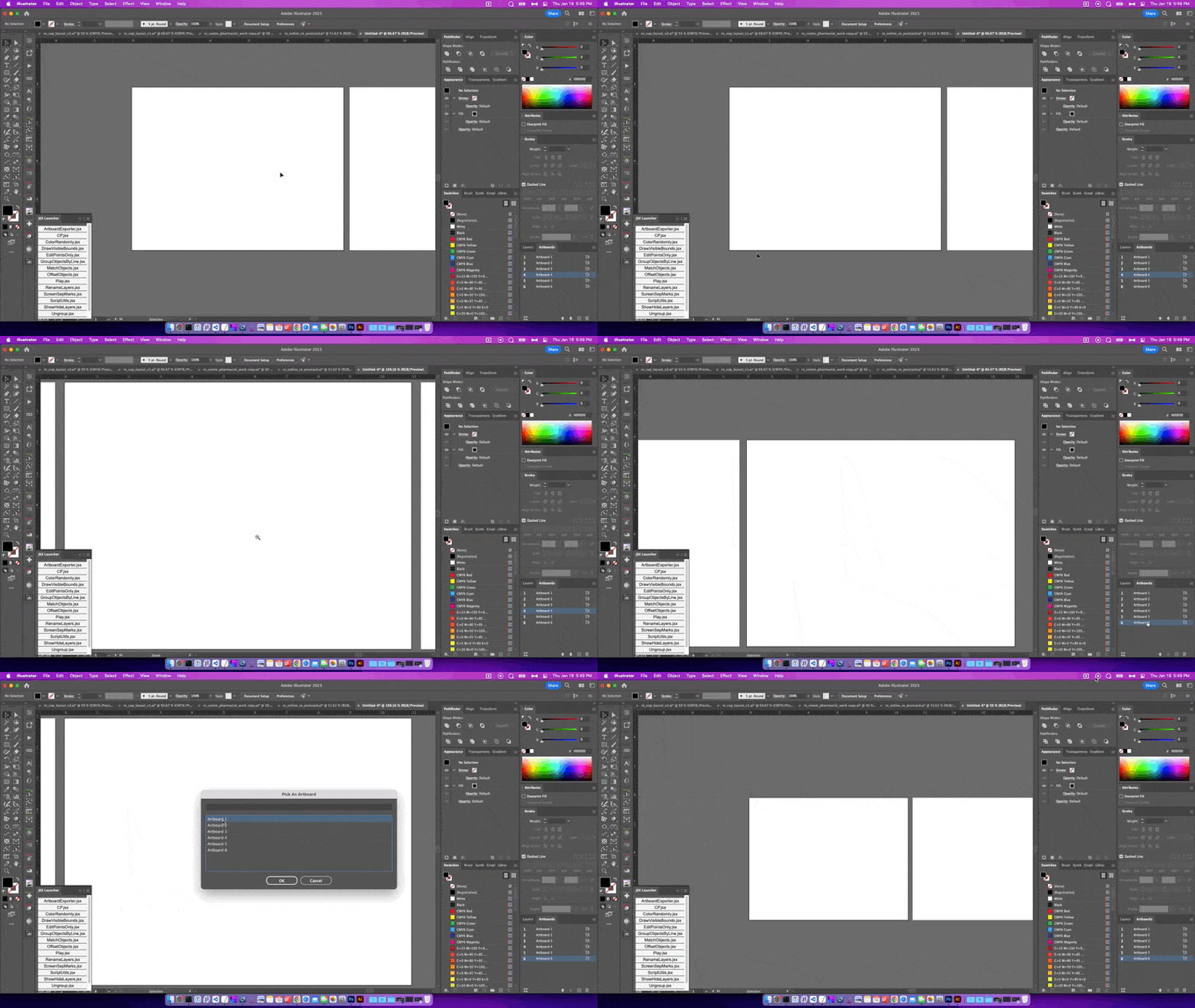


var aiVersion = parseFloat(app.version);
var locale = $.locale;
var os = $.os;
var sysOS = /mac/i.test(os) ? "mac" : "win";
var windowsFlickerFix = sysOS === "win" && aiVersion < 26.4 ? true : false;
var doc = app.activeDocument;

var artboards = {};
var artboardNames = [];
for (var i = 0; i < doc.artboards.length; i++) {
  artboards[doc.artboards[i].name] = i;
  artboardNames.push(doc.artboards[i].name);
}

var result = commandPalette(artboardNames, "Pick An Artboard", [0, 0, 600, 182]);
if (result) {
  doc.artboards.setActiveArtboardIndex(artboards[result]);
  app.executeMenuCommand("fitin");
}

function commandPalette(commands, title, bounds) {
  // create the dialog
  var win = new Window("dialog");
  win.text = title;
  win.alignChildren = "fill";
  var q = win.add("edittext");
  q.helpTip = "Search for commands, actions, and loaded scripts.";

  // work-around to stop windows from flickering/flashing explorer
  if (windowsFlickerFix) {
    simulateKeypress("TAB", 1);
  } else {
    q.active = true;
  }

  // setup the commands listbox
  var list = win.add("listbox", bounds, commands);
  list.selection = 0;

  // window buttons
  var winButtons = win.add("group");
  winButtons.orientation = "row";
  winButtons.alignChildren = ["center", "center"];
  var ok = winButtons.add("button", undefined, "OK");
  ok.preferredSize.width = 100;
  var cancel = winButtons.add("button", undefined, "Cancel", {
    name: "cancel",
  });
  cancel.preferredSize.width = 100;

  // as a query is typed update the list box
  var frameStart = 0;
  q.onChanging = function () {
    frameStart = 0;
    q = this.text;
    matches = q === "" ? commands : scoreMatches(q, commands);
    if (matches.length > 0) {
      temp = win.add("listbox", list.bounds, matches);
      // close window when double-clicking a selection
      temp.onDoubleClick = function () {
        if (list.selection) win.close(1);
      };
      win.remove(list);
      list = temp;
      list.selection = 0;
    }
  };

  if (list.items.length > 0) {
    /*
    Move the listbox frame of visible items when using the
    up and down arrow keys while in the `q` edittext.

    One problem with this functionality is that when a listbox listitem
    is selected via a script the API moves the visible "frame" of items
    so that the new selection is at the top. This is not standard behavior,
    and not even how the listbox behaves when you use the up and down keys inside
    of the actual listbox.
    */
    q.addEventListener("keydown", function (k) {
      if (k.keyName == "Up") {
        k.preventDefault();
        if (list.selection.index > 0) {
          list.selection = list.selection.index - 1;
          if (list.selection.index < frameStart) frameStart--;
        }
      } else if (k.keyName == "Down") {
        k.preventDefault();
        if (list.selection.index < list.items.length) {
          list.selection = list.selection.index + 1;
          if (list.selection.index > frameStart + 9 - 1) {
            if (frameStart < list.items.length - 9) {
              frameStart++;
            } else {
              frameStart = frameStart;
            }
          }
        }
      }
      /*
      If a selection is made inside of the actual listbox frame by the user,
      the API doesn't offer any way to know which part of the list is currently
      visible in the listbox "frame". If the user was to re-enter the `q` edittext
      and then hit an arrow key the above event listener will not work correctly so
      I just move the next selection (be it up or down) to the middle of the "frame".
      */
      if (
        list.selection.index < frameStart ||
        list.selection.index > frameStart + 9 - 1
      )
        frameStart = list.selection.index - Math.floor(9 / 2);
      // move the frame by revealing the calculated `frameStart`
      list.revealItem(frameStart);
    });
  }

  // close window when double-clicking a selection
  list.onDoubleClick = function () {
    if (list.selection) win.close(1);
  };

  if (win.show() == 1) {
    if (list.selection) {
      return list.selection;
    }
  }
  return false;
}

/**
 * Score array items based on regex string match.
 * @9397041   {String} q   String to search for.
 * @9397041   {Array}  arr String items to search for.
 * @Returns {Array}      Matching items sorted by score.
 */
function scoreMatches(q, arr) {
  var word;
  var words = [];
  var scores = {};
  var words = q.split(" ");
  for (var i = 0; i < arr.length; i++) {
    var score = 0;
    for (var n = 0; n < words.length; n++) {
      word = words[n];
      if (word != "" && arr[i].match("(?:^|\\s)(" + word + ")", "gi") != null) score++;
    }
    if (score > 0) scores[arr[i]] = score;
  }
  return sortKeysByValue(scores, "score", "name");
}

/**
 * Sort object keys by their value.
 * @9397041   {Object} obj Simple object with `key`: `value` pairs.
 * @Returns {Array}      Array of keys sorted by value.
 */
function sortKeysByValue(obj) {
  var sorted = [];
  for (var key in obj) {
    for (var i = 0; i < sorted.length; i++) {
      if (obj[key] > obj[sorted[i]]) break;
    }
    sorted.splice(i, 0, key);
  }
  return sorted;
}

/**
 * Simulate a key press for Windows users.
 *
 * This function is in response to a known ScriptUI bug on Windows.
 * You can read more about it in the GitHub issue linked below.
 * https://github.com/joshbduncan/AiCommandPalette/issues/8
 *
 * Basically, on some Windows Ai versions, when a ScriptUI dialog is
 * presented and the active attribute is set to true on a field, Windows
 * will flash the Windows Explorer app quickly and then bring Ai back
 * in focus with the dialog front and center. This is a terrible user
 * experience so Sergey and I attempted to fix it the best we could.
 *
 * This clever solution was created by Sergey Osokin (https://github.com/creold)
 *
 * @9397041 {String} k Key to simulate.
 * @9397041 {Number} n Number of times to simulate the keypress.
 */
function simulateKeypress(k, n) {
  if (!n) n = 1;
  try {
    var f = setupFileObject(settingsFolder, "SimulateKeypress.vbs");
    if (!f.exists) {
      var data = 'Set WshShell = WScript.CreateObject("WScript.Shell")\n';
      while (n--) {
        data += 'WshShell.SendKeys "{' + k + '}"\n';
      }
      f.encoding = "UTF-8";
      f.open("w");
      f.write(data);
      f.close();
    }
    f.execute();
  } catch (e) {
    $.writeln(e);
  }
}

 

3 replies

pixxxelschubser
Community Expert
Community Expert
January 20, 2023

You can try the:

ArtboardsFinder.jsx for Adobe Illustrator
Description: Search and navigate to artboards by name or size
Date: December, 2022
from Author: @Sergey Osokin 

https://github.com/creold/illustrator-scripts/blob/master/md/Artboard.md#artboardsfinder

Ton Frederiks
Community Expert
Community Expert
January 20, 2023

Works fine!


jduncan
Community Expert
jduncanCommunity ExpertCorrect answer
Community Expert
January 19, 2023

So, I hacked some parts out of my Ai Command Palette script but have a working example. Please note, this is not pretty but I had a few minutes to give it a go and it works for me. This is something I'll probably properly implement into Ai Command Palette, so thanks for the idea. Cheers!


P.S. The actual working part of the script is simple, most of the code is for making the filterable dialog box work. If you have lots of artboards you can start typing the name as soon as the dialog box appears to narrow the list. Up and down arrows work for making a selection (as well as clicking), and enter or OK to select an artboard...


var aiVersion = parseFloat(app.version);
var locale = $.locale;
var os = $.os;
var sysOS = /mac/i.test(os) ? "mac" : "win";
var windowsFlickerFix = sysOS === "win" && aiVersion < 26.4 ? true : false;
var doc = app.activeDocument;

var artboards = {};
var artboardNames = [];
for (var i = 0; i < doc.artboards.length; i++) {
  artboards[doc.artboards[i].name] = i;
  artboardNames.push(doc.artboards[i].name);
}

var result = commandPalette(artboardNames, "Pick An Artboard", [0, 0, 600, 182]);
if (result) {
  doc.artboards.setActiveArtboardIndex(artboards[result]);
  app.executeMenuCommand("fitin");
}

function commandPalette(commands, title, bounds) {
  // create the dialog
  var win = new Window("dialog");
  win.text = title;
  win.alignChildren = "fill";
  var q = win.add("edittext");
  q.helpTip = "Search for commands, actions, and loaded scripts.";

  // work-around to stop windows from flickering/flashing explorer
  if (windowsFlickerFix) {
    simulateKeypress("TAB", 1);
  } else {
    q.active = true;
  }

  // setup the commands listbox
  var list = win.add("listbox", bounds, commands);
  list.selection = 0;

  // window buttons
  var winButtons = win.add("group");
  winButtons.orientation = "row";
  winButtons.alignChildren = ["center", "center"];
  var ok = winButtons.add("button", undefined, "OK");
  ok.preferredSize.width = 100;
  var cancel = winButtons.add("button", undefined, "Cancel", {
    name: "cancel",
  });
  cancel.preferredSize.width = 100;

  // as a query is typed update the list box
  var frameStart = 0;
  q.onChanging = function () {
    frameStart = 0;
    q = this.text;
    matches = q === "" ? commands : scoreMatches(q, commands);
    if (matches.length > 0) {
      temp = win.add("listbox", list.bounds, matches);
      // close window when double-clicking a selection
      temp.onDoubleClick = function () {
        if (list.selection) win.close(1);
      };
      win.remove(list);
      list = temp;
      list.selection = 0;
    }
  };

  if (list.items.length > 0) {
    /*
    Move the listbox frame of visible items when using the
    up and down arrow keys while in the `q` edittext.

    One problem with this functionality is that when a listbox listitem
    is selected via a script the API moves the visible "frame" of items
    so that the new selection is at the top. This is not standard behavior,
    and not even how the listbox behaves when you use the up and down keys inside
    of the actual listbox.
    */
    q.addEventListener("keydown", function (k) {
      if (k.keyName == "Up") {
        k.preventDefault();
        if (list.selection.index > 0) {
          list.selection = list.selection.index - 1;
          if (list.selection.index < frameStart) frameStart--;
        }
      } else if (k.keyName == "Down") {
        k.preventDefault();
        if (list.selection.index < list.items.length) {
          list.selection = list.selection.index + 1;
          if (list.selection.index > frameStart + 9 - 1) {
            if (frameStart < list.items.length - 9) {
              frameStart++;
            } else {
              frameStart = frameStart;
            }
          }
        }
      }
      /*
      If a selection is made inside of the actual listbox frame by the user,
      the API doesn't offer any way to know which part of the list is currently
      visible in the listbox "frame". If the user was to re-enter the `q` edittext
      and then hit an arrow key the above event listener will not work correctly so
      I just move the next selection (be it up or down) to the middle of the "frame".
      */
      if (
        list.selection.index < frameStart ||
        list.selection.index > frameStart + 9 - 1
      )
        frameStart = list.selection.index - Math.floor(9 / 2);
      // move the frame by revealing the calculated `frameStart`
      list.revealItem(frameStart);
    });
  }

  // close window when double-clicking a selection
  list.onDoubleClick = function () {
    if (list.selection) win.close(1);
  };

  if (win.show() == 1) {
    if (list.selection) {
      return list.selection;
    }
  }
  return false;
}

/**
 * Score array items based on regex string match.
 * @9397041   {String} q   String to search for.
 * @9397041   {Array}  arr String items to search for.
 * @Returns {Array}      Matching items sorted by score.
 */
function scoreMatches(q, arr) {
  var word;
  var words = [];
  var scores = {};
  var words = q.split(" ");
  for (var i = 0; i < arr.length; i++) {
    var score = 0;
    for (var n = 0; n < words.length; n++) {
      word = words[n];
      if (word != "" && arr[i].match("(?:^|\\s)(" + word + ")", "gi") != null) score++;
    }
    if (score > 0) scores[arr[i]] = score;
  }
  return sortKeysByValue(scores, "score", "name");
}

/**
 * Sort object keys by their value.
 * @9397041   {Object} obj Simple object with `key`: `value` pairs.
 * @Returns {Array}      Array of keys sorted by value.
 */
function sortKeysByValue(obj) {
  var sorted = [];
  for (var key in obj) {
    for (var i = 0; i < sorted.length; i++) {
      if (obj[key] > obj[sorted[i]]) break;
    }
    sorted.splice(i, 0, key);
  }
  return sorted;
}

/**
 * Simulate a key press for Windows users.
 *
 * This function is in response to a known ScriptUI bug on Windows.
 * You can read more about it in the GitHub issue linked below.
 * https://github.com/joshbduncan/AiCommandPalette/issues/8
 *
 * Basically, on some Windows Ai versions, when a ScriptUI dialog is
 * presented and the active attribute is set to true on a field, Windows
 * will flash the Windows Explorer app quickly and then bring Ai back
 * in focus with the dialog front and center. This is a terrible user
 * experience so Sergey and I attempted to fix it the best we could.
 *
 * This clever solution was created by Sergey Osokin (https://github.com/creold)
 *
 * @9397041 {String} k Key to simulate.
 * @9397041 {Number} n Number of times to simulate the keypress.
 */
function simulateKeypress(k, n) {
  if (!n) n = 1;
  try {
    var f = setupFileObject(settingsFolder, "SimulateKeypress.vbs");
    if (!f.exists) {
      var data = 'Set WshShell = WScript.CreateObject("WScript.Shell")\n';
      while (n--) {
        data += 'WshShell.SendKeys "{' + k + '}"\n';
      }
      f.encoding = "UTF-8";
      f.open("w");
      f.write(data);
      f.close();
    }
    f.execute();
  } catch (e) {
    $.writeln(e);
  }
}


msbippyAuthor
Participant
January 20, 2023
Hi Josh, thanks so much for sending this! I have a stupid question: I know
Illustrator, but not good with scripts. Is there a .jsx file that I can
download? Or how do I download your code to try it?
Best,
Marcia
jduncan
Community Expert
Community Expert
January 20, 2023

Not a stupid question at all... To make it easier on you, I copied the code over to a GitHub gist linked here so you can download it via the "Download Zip" button at the top-right of the webpage. That should download a Zip file onto your computer which contains a JSX file of the code. Please note, my code is not a polished script, only a quick example I put together in a few minutes from pieces of other scripts I have. @Sergey Osokin's script linked in this same post is a much more polished solution. Cheers!

Ton Frederiks
Community Expert
Community Expert
January 19, 2023

Maybe a script can do that, search for artboards by name.

To make it more manageable you could create a folder and save each artboard to a separate file (an option you have when saving as .ai).

Open the folder in Adobe Bridge and use the search function of Bridge.