Known Participant
March 19, 2024
Answered

Using eye dropper to change stroke of box

  • March 19, 2024
  • 1 reply
  • 5852 views

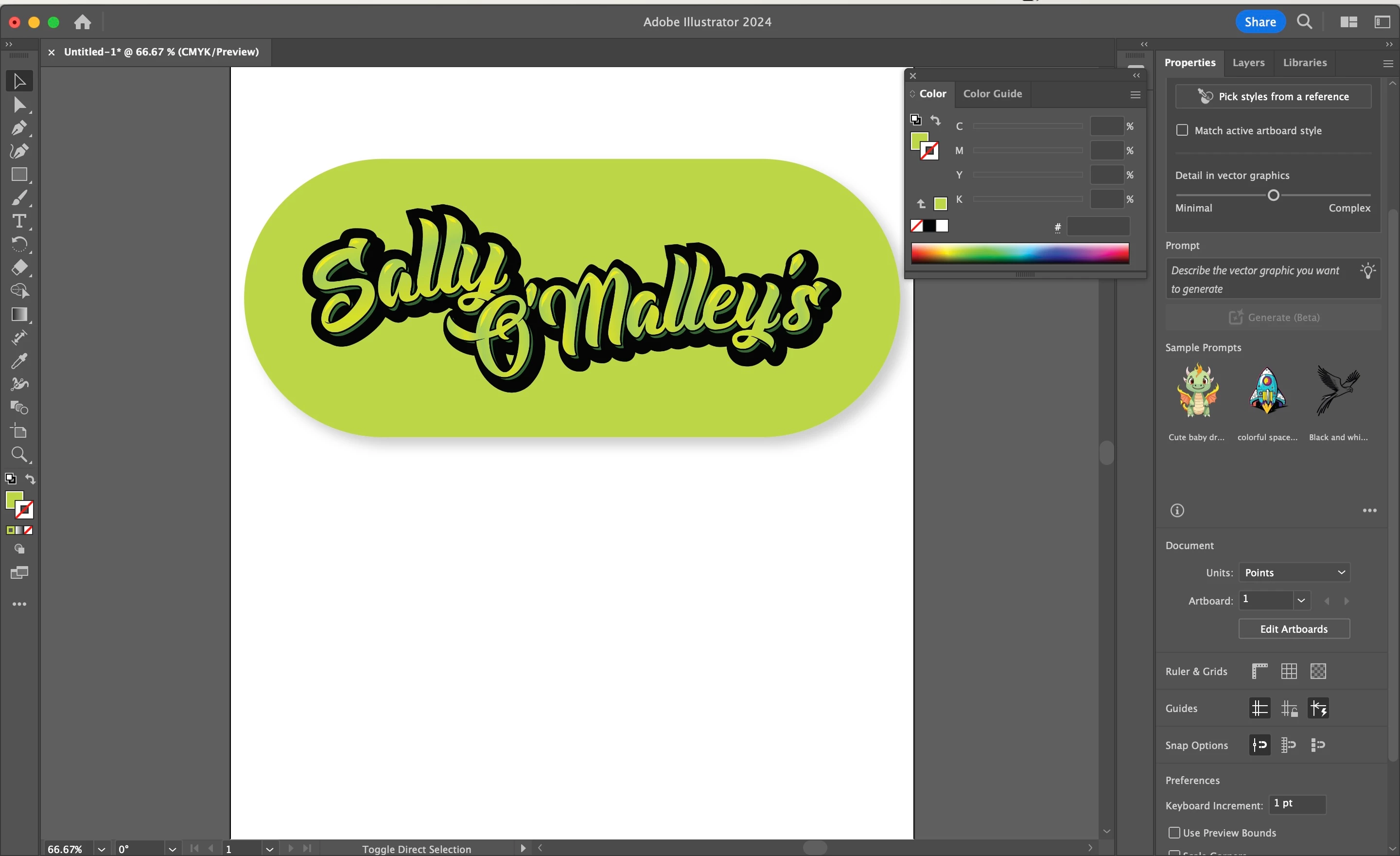
I don't know how else to describe this. I want to change the box stroke to the color of the logo. How do I do it? I can only change the fill of it, not the stroke.

Correct answer tiktoksaverpr0

Whenever I go to use the eye dropper tool and pick up a color from the logo, the color picked is applied to the fill and not the stroke, even if I have the stroke color selected


To ensure the color picked with the Eyedropper tool applies to the stroke and not the fill in Illustrator:

  1. Select the object with the stroke you want to change.
  2. Activate the Eyedropper tool from the toolbar or by pressing "I" on your keyboard.
  3. Hold down the Shift key while clicking on the color in your logo. This action will sample the color and apply it to the stroke color, preserving the existing fill color.

By holding down the Shift key while using the Eyedropper tool, you can control whether the sampled color is applied to the stroke, fill, or both.

1 reply

tiktoksaverpr0
Participating Frequently
March 19, 2024

To change the stroke color of a box to match the color of your logo, you'll typically follow these steps depending on the software you're using:

  1. Select the box: Click on the box or select it using the appropriate tool in your design software.
  2. Access stroke properties: Look for options related to stroke or border properties in your software's toolbar or menu. It might be labeled as "Stroke," "Border," or "Outline."
  3. Choose color: Once you've accessed the stroke properties, there should be an option to choose the color. You can usually select colors from a palette or input specific color values.
  4. Match color to logo: To match the stroke color to that of your logo, you can use an eyedropper tool if available. Click on a part of your logo to sample its color and apply it to the stroke of the box.
  5. Adjust stroke width (optional): You might also have the option to adjust the width or thickness of the stroke. Make any necessary adjustments to align with your design preferences.
  6. Apply changes: Once you've chosen the desired color and adjusted any other stroke properties, apply the changes to see the updated stroke color on your box.
tiktoksaverpr0
Participating Frequently
March 19, 2024

In Illustrator:

  1. Select the box.
  2. Go to the "Stroke" panel or use the Control panel at the top.
  3. Click on the stroke color swatch to open the color picker.
  4. Use the eyedropper tool to select the color from your logo.
  5. Adjust stroke width if necessary.
  6. Apply changes.
11PekoeAuthor
Known Participant
March 19, 2024

Hello, I have these windows open. I don't know where the "stroke color swatch" is to open the color picker. Please advise.