


Using offset path to make a bevel

Copy link to clipboard
Copied
I'm trying to create a bevel effect by using the offset path approach. I looked at the 3D approach but found it difficult to control.
Here is a picture of what I'm trying to achieve:
"That image type is forbidden."
Note the chiseled edges of the bevel.
So i created a path and offset it like so:
"That image type is forbidden."
I then added line segments between the original path and the offset one:
"That image type is forbidden."
I then tried to make an object of the first segment of the path so that I could achieve the chiseled look of the original sample.
I couldn't. All I could select were the anchor points for the 2 line segments and NOT the original path or offset path:
"That image type is forbidden."
How do I add the other paths to my selection or am I trying the wrong approach?
Gary



Explore related tutorials & articles
 10
Replies
10
10
Replies
10


Copy link to clipboard
Copied
Please save your screenshots as PNG or JPEG and upload them via the forum's web interface
Copy link to clipboard
Copied
The first image is JPG and the rest are PNG images. They are each about 100K in size. I couldn't figure out why the error is occurring.
Gary
Copy link to clipboard
Copied
We still can't see them, so you need to upload them via the web interface.
Copy link to clipboard
Copied
I used the web interface. I don't know how to upload any other way.
Copy link to clipboard
Copied
Please open these images in Photoshop and resave them.
You can't use CMYK images on the web and maybe there are issues with 16 bit images.
Copy link to clipboard
Copied
>Please open these images in Photoshop and resave them.
Done. The result is the same: "That image type is forbidden."
Copy link to clipboard
Copied
Monika has made some good guesses, but from here it's impossible to tell what's going wrong with your image upload attempts.
I you're willing to try something else, open in Photoshop, Select All, Copy Merged, and just Paste into the forum post editor (at the cursor/insertion point). Works well here.

Copy link to clipboard
Copied
On Firefox , Windows at least
You can copy/ paste images straight into the reply box, without needing the
insert image icon
Copy link to clipboard
Copied
>You can copy/ paste images straight into the reply box ...
This approach is working. So here is my complete quetion with graphics:
I'm trying to create a bevel effect by using the offset path approach. I looked at the 3D approach but found it difficult to control.
Here is a picture of what I'm trying to achieve:
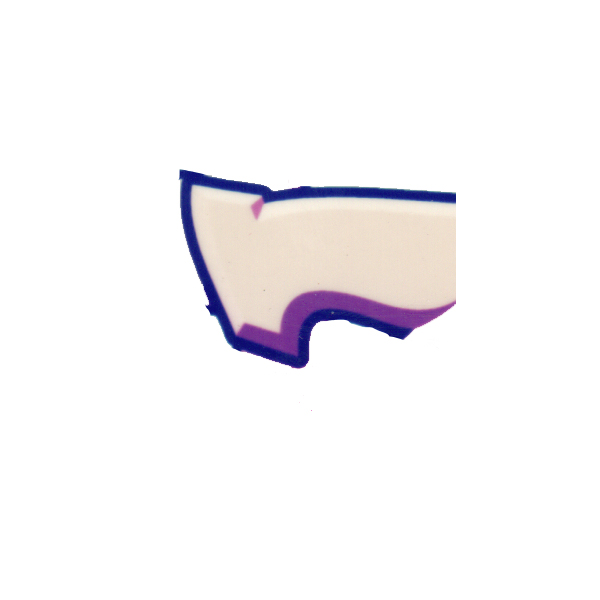
Note the chiseled edges of the bevel.
So i created a path and offset it like so:
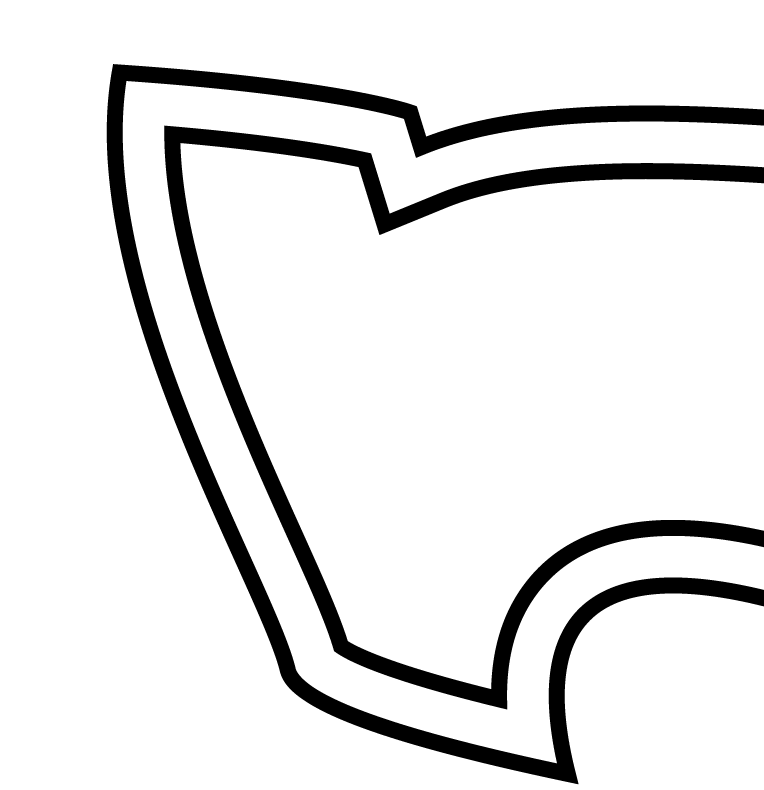
I then added line segments between the original path and the offset one:
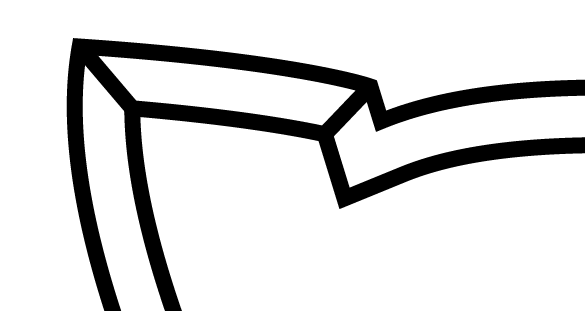
I then tried to make an object of the first segment of the path so that I could achieve the chiseled look of the original sample.
I couldn't. All I could select were the anchor points for the 2 line segments and NOT the original path or offset path:

How do I add the other paths to my selection or am I trying the wrong approach?
Gary
Copy link to clipboard
Copied
Try and select all the paths.
Then use Live paint:
How to create and work with Live Paint groups in Illustrator


Get ready! An upgraded Adobe Community experience is coming in January.
Learn more
 AdChoices