
Inspiring
May 12, 2017
Question

Using the Blend Tool and Then Make a Closed Path

  • May 12, 2017
  • 1 reply
  • 635 views

Hi,

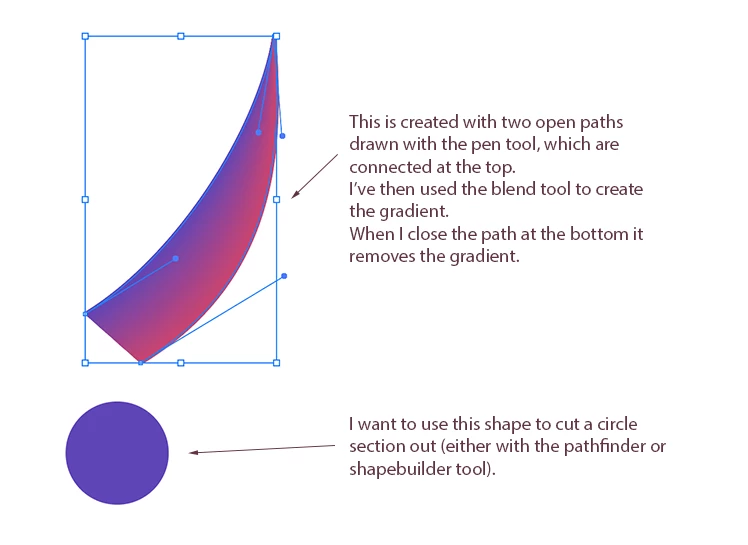
I have a shape I'd like to build - i've created two open paths with the pen tool (each a different color), and then used the blend tool to create a smooth gradient between them.

I would like it so I can now close off the this object and then use either the pathfinder or shape builder tools to cut a chunk out of it.

The problem i have is when I close the path at the bottom of the shape, it removes the blend gradient.  When I expand the blend with Object > blend > expand,  it removes the gradient as well.

How do I achieve the blend that goes smoothly from one path to another, and then make the resulting object a path or shape that I can use with the shape builder or pathfinder tools?

PROBLEM IS ILLUSTRATED BELOW
This topic has been closed for replies.

1 reply

Legend
May 12, 2017

Have you considered using the Transparency Pallet to achieve this?

Color the circle black, and use Make Mask to create your cutout.

Inspiring
May 12, 2017

Hi SJ,

Thanks, I'll have a look at that.  I'm also thinking I could make the initial horn shape, make it a closed path, remove the stroke and try to achieve the gradient using the gradient mesh tool (I've never used this tool, but am researching it now).  Then i can just punch out the circular shape at the bottom?

Paul.

Legend
May 12, 2017

Based on some quick experimentation, it seems like you would have to punch the curve from the bottom before adding gradient mesh.

(When I tried pathfinder on the Mesh object, nothing happened)