

Mr. Met
Inspiring
July 7, 2022
Answered

Vector File contains checked background that is live art

  • July 7, 2022
  • 2 replies
  • 1044 views

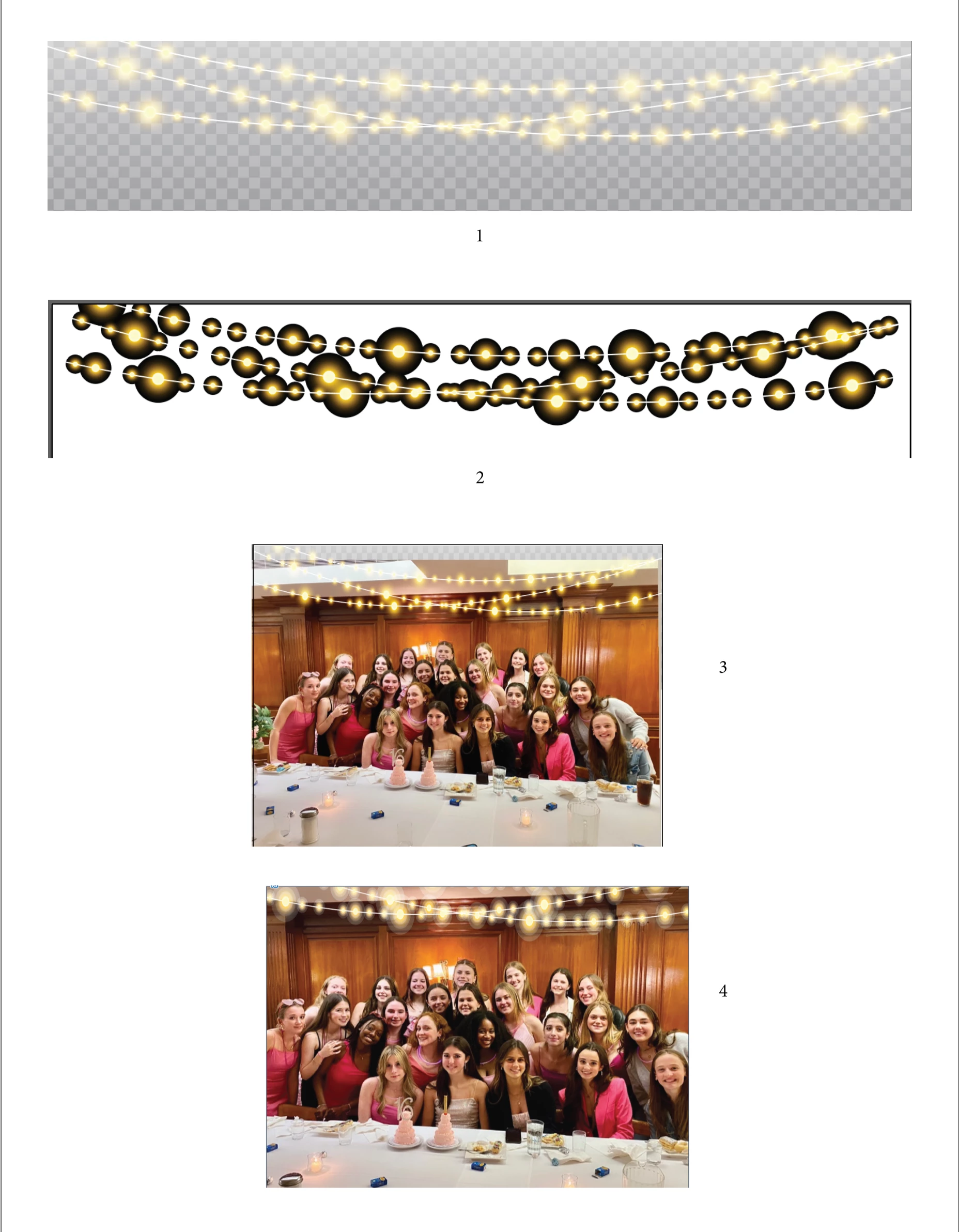
Have to add a string of lights to a photograph so I purchase a vector file. But when I go to used it the checked background is part of live art (#1). I turn off the background and get a mess (#2). So I insert my photo between the background and the lights and it previews fine (#3) but when I print I get a mess with poor gradation in the lights (#4). How does one use a vector string of lights without the checked background which defeats the purpose of the lights. I thought there might be a lighs brush in the brush library but if it exists, I can't find it. Thanks in advance for your help.
This topic has been closed for replies.
Correct answer Anna Lander

The lights have a Screen mode which works when something is placed under them. So you see the mess when nothing is under the lights and a good look when your photo is in its place. But no all printing modules work correctly with the blending modes, so you have this mess on the last image. If you printed it on the usual desktop printer, it was expectable.
So the easiest, fastest, and best way to solve the problem is to follow Monika's recommendation.

Another way is to select all lights, and change their gradient end stoppers to the same color as a start one (or the nearest on the gradient line) and 0% opacity. In this case, you can change the blending mode to Normal. But I'm not sure that you need so deep editing 🙂

2 replies

Anna Lander
Anna LanderCorrect answer
Inspiring
July 8, 2022

The lights have a Screen mode which works when something is placed under them. So you see the mess when nothing is under the lights and a good look when your photo is in its place. But no all printing modules work correctly with the blending modes, so you have this mess on the last image. If you printed it on the usual desktop printer, it was expectable.
So the easiest, fastest, and best way to solve the problem is to follow Monika's recommendation.

Another way is to select all lights, and change their gradient end stoppers to the same color as a start one (or the nearest on the gradient line) and 0% opacity. In this case, you can change the blending mode to Normal. But I'm not sure that you need so deep editing 🙂

Brad @ Roaring Mouse
Community Expert
Community Expert
August 1, 2022

In most of these type of stock art, the gradients are usually the same on many objects (they just repeated objects for brevity's sake), so once you select one of the gradations, it's easy to select a bunch at once by using Select > Same Appearance, then chnaging the gradations en masse.


Monika Gause
Community Expert
Community Expert
July 7, 2022

To improve the printing, can you try and:

- Save this as an PDF (or "PDF comaptibe"), open in Acrobat and print from there

- or export as a JPG (preferable high resolution) and print that


This is how these files work: https://www.youtube.com/watch?v=Tiqm5hdQA5A

Mr. Met
Mr. MetAuthor
Inspiring
July 8, 2022

I did save as a PDF. I'll check the links momentarily.