


Participating Frequently
Jul 17, 2023 7:38 PM UTC
Answered

Vectors scaled down 75% when saving SVGs

For context, I am using migrating from CorelDRAW to Illustrator to create vector drawings for use with a laser engraver. I noticed after a couple tests that every SVG being saved out of Illustrator is coming in at 75% size on my laser cutter. I double-checked this by saving a 10mm x 10mm box as an SVG in Illustrator and opening the SVG in CorelDRAW. It comes in at 7.5mm x 7.5mm.

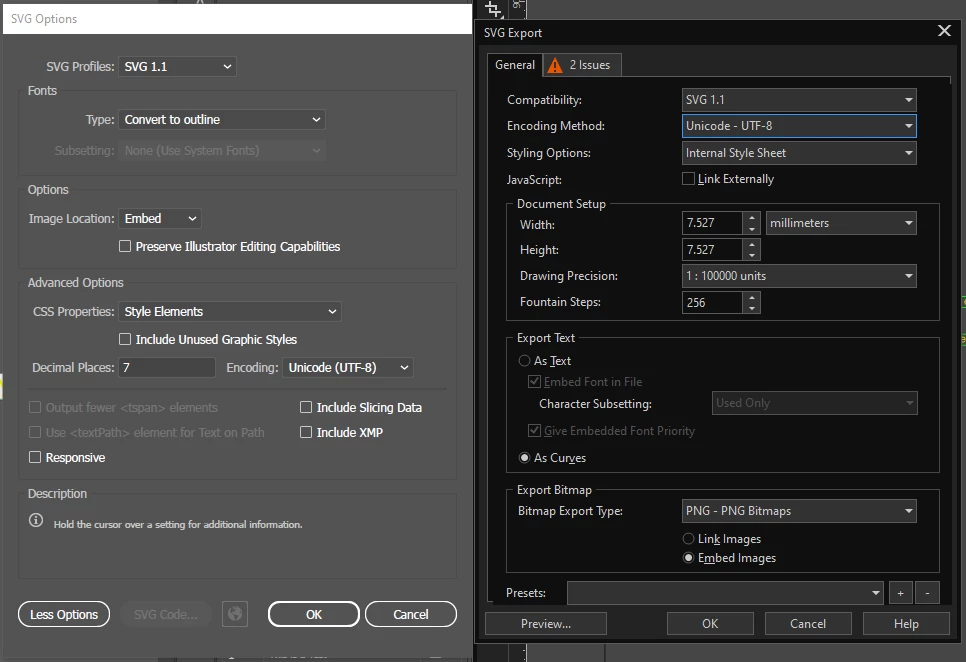
Settings in attached image: Illustrator on the left, CorelDRAW on the right. I think I have the settings as close to identical as I can considering the different options. How can I get my SVGs to save at the correct size in Illustrator?


This topic is closed to new replies. Start a new post to keep the conversation going.
Brad @ Roaring Mouse
Brad @ Roaring MouseCorrect answer
Community Expert
Jul 25, 2023 9:36 PM UTC

"I can't figure out a way to make Illustator bake millimeters as the unit of measure in the SVG files "


You can't.

Illustrator, like any other Postscript-based page description language desktop application is stores objects based on POINTS.

Even if you set your UI to millimetres, all objects will be converted to points.

When you exported your SVG, your selection for Responsive was unchecked. This hard codes the dimensions for display purposes, whereas checking responsive allows it to be scaled in CSS. Illustrator's default display resolution is 72px per inch. Hence, your 10mm object = 28.44 POINTS =  28.44 pixels. This is indicated in that ONE line near the top, and only that line. All other numbers in your file are points, NOT pixels.

So, why the 75%??  SVG's newer versions have since reestablished that the default for display purposes is 96px per inch.

72 divided by 96 = 75%

So, UNCHECK Responsive and try that. You will see in an SVG exported that way the hard-coded px dimension line is missing.

31 replies

Brad @ Roaring Mouse
Community Expert
Brad @ Roaring MouseCommunity ExpertCorrect answer
Community Expert
Jul 25, 2023 9:36 PM UTC

"I can't figure out a way to make Illustator bake millimeters as the unit of measure in the SVG files "


You can't.

Illustrator, like any other Postscript-based page description language desktop application is stores objects based on POINTS.

Even if you set your UI to millimetres, all objects will be converted to points.

When you exported your SVG, your selection for Responsive was unchecked. This hard codes the dimensions for display purposes, whereas checking responsive allows it to be scaled in CSS. Illustrator's default display resolution is 72px per inch. Hence, your 10mm object = 28.44 POINTS =  28.44 pixels. This is indicated in that ONE line near the top, and only that line. All other numbers in your file are points, NOT pixels.

So, why the 75%??  SVG's newer versions have since reestablished that the default for display purposes is 96px per inch.

72 divided by 96 = 75%

So, UNCHECK Responsive and try that. You will see in an SVG exported that way the hard-coded px dimension line is missing.

Translate
Participating Frequently
Jul 26, 2023 12:52 PM UTC

I tried a bit of an experiment. I saved my 10mm box a bunch of different ways to see what happens when I open it in Corel.
Artboard set to 99mm (my laser's maximum working area), responsive checked. 21.808mm
Artboard fit to 10mm box, responsive checked. 208.543mm

Responsive unchecked. 7.5mm
No matter which way I save, the square comes to 8mm in my laser software.
It's not helpful, but it's informative I guess. When you check responsive the artboard is set as the size in the header, and the box is drawn to scale with it. Whatever the size in the header, Corel sets that size to about 208mm and scales the drawing inside to match. Unresponsive just means the box gets rendered at 96ppi.
My laser software doesn't seem to care about any of that and is rendering it at 90ppi.

Since there doesn't seem to be a solution, I'm just going to mark Brad's comment as the correct answer and put in a feature request.

Translate
Participating Frequently
Jul 26, 2023 1:08 PM UTC

For anyone else who finds this in the future, if it isn't fixed please head to UserVoice and chime in.

Translate
Participating Frequently
Jul 24, 2023 6:46 PM UTC

As a workaround, I tried scaling all my files to 133.333% before saving as SVG. (96/72 x X/100) Now the files import into Corel at the correct size, but my laser engraver shows them coming in slightly too large. I am baffled at how poorly Illustrator handles this seemingly simple task.

Translate
Mike_Gondek10189183
Community Expert
Community Expert
Jul 24, 2023 8:11 PM UTC

You never provided the steps of how you are determining your illustrator files are scaling 75%. Hence your post has 10 replies and you have not gone far in solving this.


The only way this would happen in Illustrator is if you were to use File >> Export >> Export For Screens.


Effects >> Document >> Raster Effects settings is where you store your resolution. Illustrator is at industry standard of 72 dpi. Vector files are the resolution to infinity on vector elements, but if you include bitmaps in your .svg then that setting is important. You should avoid bitmaps in .svg if you can. Maybe your files are entirely bitmap and you are wanting the pixel amount for your measurement at 96dpi? Once you go to pixels I belive the width and height appear are not used, just the pixels. Again we cannot see a screenshot of your work so have to guess at how far off you are from the correct workflow.


To change to millimeters. This is where you embed units of measure. You have everything you need in Illustrator, you are just familiar with Corel Draw, so you do not know where everything is.

I have to second guess what you did, but guessing the problem is Corel importing your images at 75%.  Try opening the .svg back in Illustrator and turn rulers and you should see the exact same size before saving.


Translate
Participating Frequently
Jul 25, 2023 7:00 PM UTC

Even though Illustrator beats CorelDRAW in quite a few categories, there are some nice things in CorelDRAW that are hard to give up.


One example: the object alignment and distribution functions in CorelDRAW are so much better. There's automatic key object behavior; the last object added to a selection stays locked in place and other objects align to it. Illustrator requires extra clicks to invoke a key object. I can align/distribute text objects to other objects via their baselines. Illustrator still doesn't have that capability (I've posted feature requests via UserVoice). The keyboard shortcuts (R, L, C, T, B, E) for align functions are very easy to remember and use; add the shift key for distribution functions. You hardly ever have to open an align/distribute palette. I can't come up with a custom keyboard shortcut "recipe" that works nearly as well in Illustrator without it breaking a bunch of things.


That's fair, I managed to add the RLCTBE shortcuts into AI because most of the tools those were previously assigned to weren't too important to my day to day work.
In my day to day, I often have to trace or redraw graphics, signatures, and fingerprints for our clients. Corel frequently has issues rendering graphics when I try to cram too much detail in. Fingerprints in particular are often traced with extraneous points and paths in them that do not display or etch properly. Our signature pieces often have issues where lines drawn with my tablet have jagged corners and loops that don't render properly when outlined. The contour tool is particularly bad for being unable to produce satisfactory results and wasting a lot of time needing cleanup. I also like being able to work with multiple named artboards and export all of my work at the same time. It spares me a lot of save dialog time.
The biggest reason for me trying to change is automation. I find batch processing files with Illustrator actions works much better than Corel's Macros for me. Also I can't stand Corel's strange paste behavior. Everything pastes in place, there is no distinction between pasting into the middle of the workspace and pasting in place.
Either way, it's starting to look like I don't have much choice. I can't find a solution to make Illustrator stop outputting SVG files that are incompatible with my laser software.

Translate
Community Expert
Jul 17, 2023 7:50 PM UTC

This is a dumb question, but I'll ask anyway: if the SVG files you're exporting from Illustrator import into CorelDRAW at 75% of the intended size what happens when you import the SVG files into the laser engraving software application? Is the size still reduced to 75% of normal size? I'm wondering why the SVG artwork has to be brought back into CorelDRAW.

Translate
Participating Frequently
Jul 17, 2023 7:53 PM UTC

"...what happens when you import the SVG files into the laser engraving software application?"

The files import into my laser application at 75%. I noticed this during the tests, and used CorelDRAW to confirm that Illustrator was saving my SVGs at 75% scale.

Translate
Community Expert
Jul 17, 2023 9:10 PM UTC

That's strange. Since you're exporting the SVG files in millimeters I assume the units in your Illustrator document are set up using millimeters too, correct?

Translate