KVH MarCom
Participant
December 22, 2017
Answered

What the heck happened to opacity masks in Illustrator CC?

  • December 22, 2017
  • 2 replies
  • 5453 views

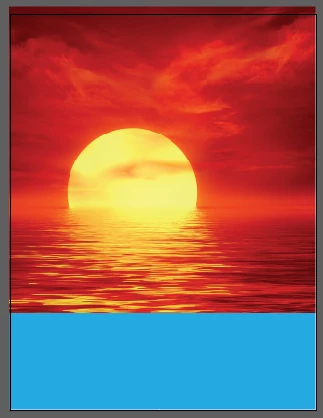
I've wasted a lot of time lately on this with no success. The tools have changed, the effects are different. All I want to do is fade the edge of a photo so that it will softly blend into the solid color background layer. I used this feature A LOT in CS6 and it was easy to do. I can't find a solution to it here, or on YouTube or anywhere else.

Who wants to be a hero and help me out?
This topic has been closed for replies.
Correct answer barbara_a7746676

Starting with a photo on top of a solid color background.

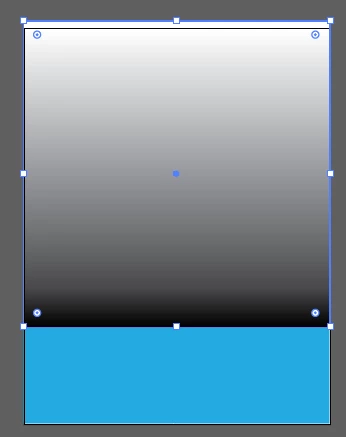
Draw a rectangle over the photo with a white to black gradient fill.

Select the photo and the gradient rectangle (but not the solid background).

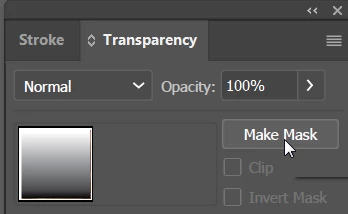
In the Transparency panel, click Make Mask.

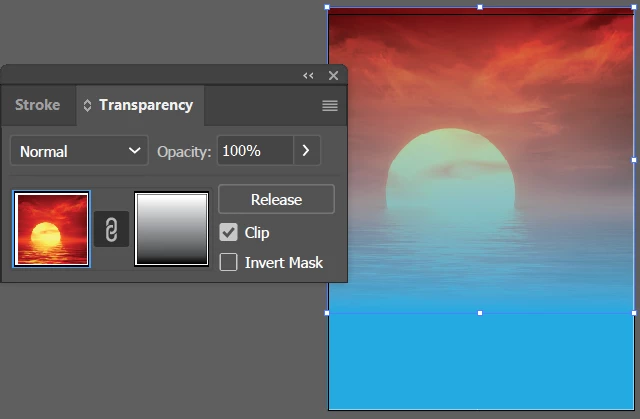
You should end up with this:

2 replies

barbara_a7746676
Community Expert
barbara_a7746676Community ExpertCorrect answer
Community Expert
December 23, 2017

Starting with a photo on top of a solid color background.

Draw a rectangle over the photo with a white to black gradient fill.

Select the photo and the gradient rectangle (but not the solid background).

In the Transparency panel, click Make Mask.

You should end up with this:

Monika Gause
Community Expert
Community Expert
December 22, 2017

They haven't changed.

All you need is a black and white graphic or raster image. Place it on top of your artwork, then in the transparency panel click on "Mask" You might also need to deselect options.

KVH MarCom
Participant
December 22, 2017

Thank you, Monika. I apologize, I should have clarified in my first post. I did do exactly as you say above, and it does not behave in the same manner as CS6.

Used to be able to create the mask for just the affected area, which in my case faded the edge of the image. Now, the "mask" (no longer called an opacity mask - used to be a dropdown that said "create opacity mask" from the transparency menu) simply acts like a clipping mask, which means the "opacity" mask has to fit over the entire image rather than just on the edge you're trying to fade.

In addition, the "white" portion of the gradient now creates a film over the image below. I saw a post about checking for fill colors in the appearance and gradient menus and made sure that was not the issue.

Monika Gause
Community Expert
Community Expert
December 22, 2017

Please show the artwork, the mask and the result.