
ninaaarondesigns
Participating Frequently
October 13, 2021
Question

White Hairline Mark Around Artboard When Export

  • October 13, 2021
  • 1 reply
  • 1924 views

I'm a pattern designer and after creating a repeat pattern (image1).
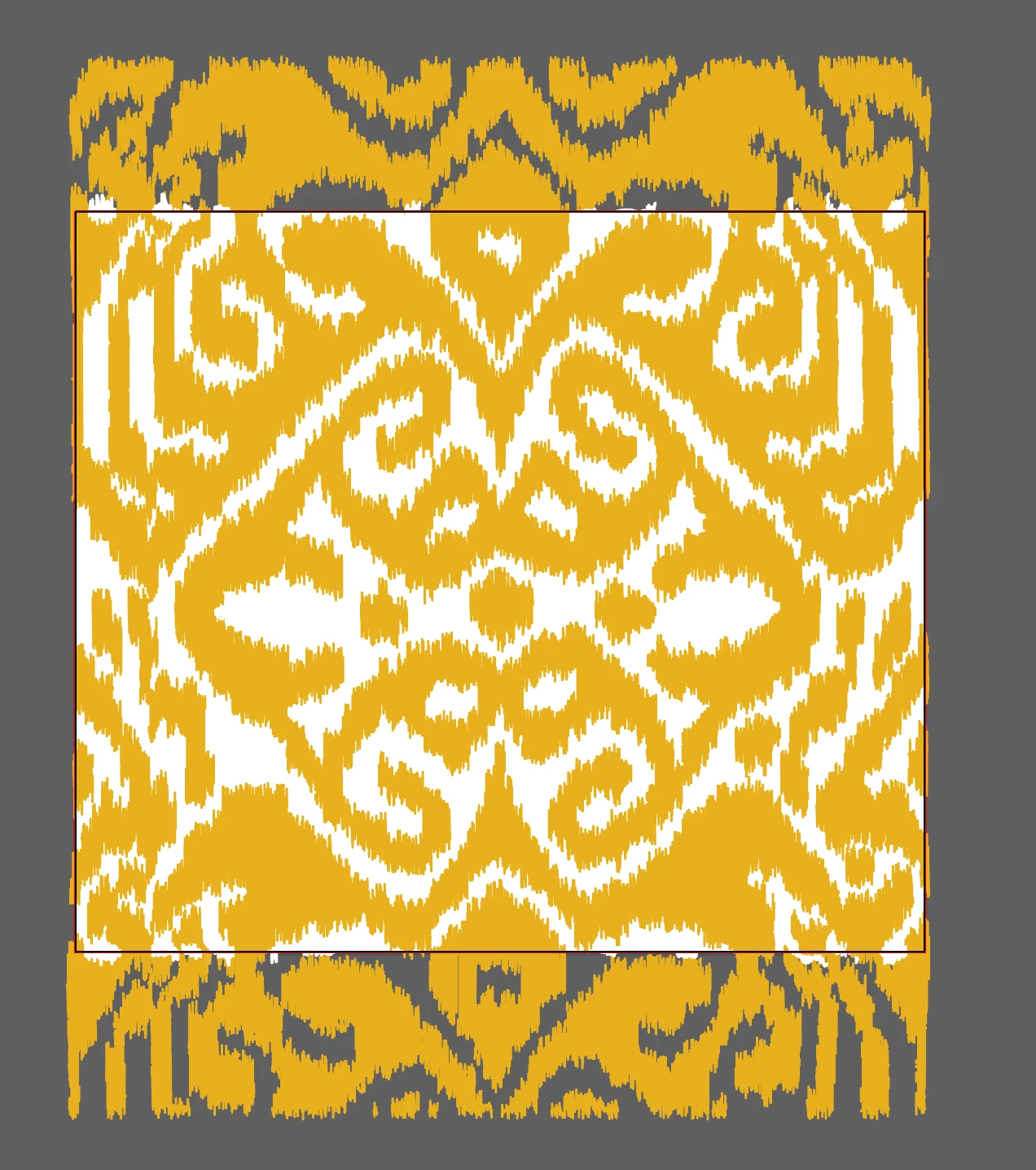


I save as a pdf and export in png and jpeg. When I put it in repeat in Photoshop, there's a white hairline mark around the pattern.
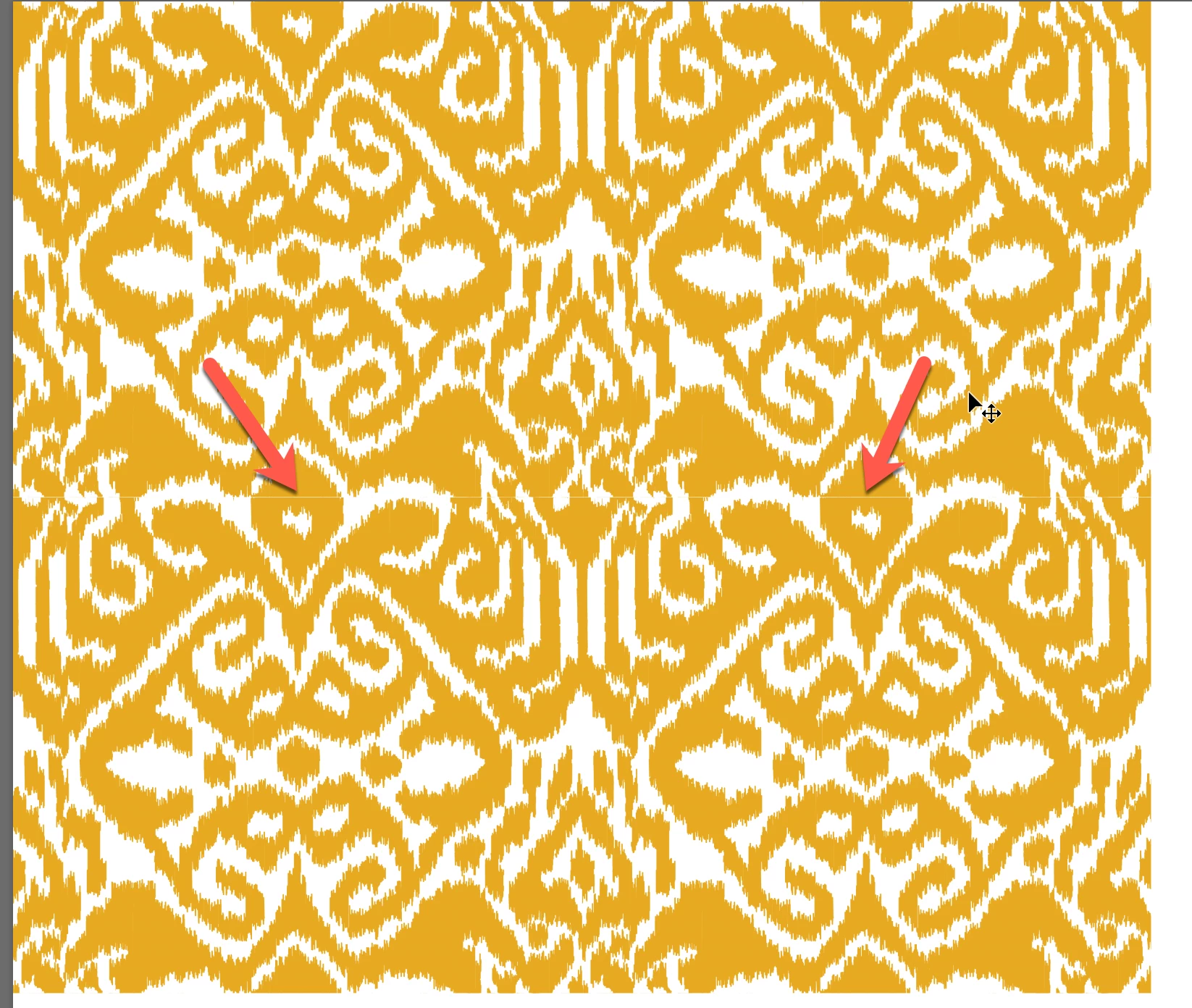
 

No matter what I do, the hairline mark still shows up (either on top/bottom or on the sides. sometimes all sides). How do I get rid of this? Please note, I'm extending the design outside of the artboard as well and it still shows up. I need this hairline to go away to make it as print ready for my clients.

This topic has been closed for replies.

1 reply

Ton Frederiks
Community Expert
Community Expert
October 13, 2021

Nina, thin unwanted lines when exporting an image are usually caused by anti-aliasing.
When the dimensions of an object in Illustrator contain fractional pixels values, they are rounded to whole pixels (a fractional pixel does not exist).
If you want to export as an image, it is better to use pixels (or points) as units instead of centimeters or inches. You can set the units by Ctrl clicking the intersection of the Rulers
That way you can make sure that you don't have fractional pixels in your pattern tile, which can show as lines caused by anti-aliasing.
Double click your pattern in the Swatches panel. This will open the Pattern maker and you can make sure that your Width and Height don't contain fractional pixelvalues.
When you want to save a pattern tile, just drag the pattern swatch from the Swatches panel to an empty space on the artboard.
This should show as a group in the Layers panel.
At the bottom of the group there is an empty rectangle that defines the bounds of the pattern.
Select it and choose Object > Artboards > Fit to Selected Art.
Show Rulers and  double click their intersection to set the 0/0 point in the upper left corner, make sure that the rulers are Global Rulers (this is the case when it states "Change to Artboard Rulers").
Now you can export the tile as an image.
Make sure that Artboards is selected, use Art Optimized for Anti-aliasing and use multiples of 72 ppi (like 144, 288) for the resolution.

ninaaarondesigns
Participating Frequently
October 15, 2021

I've done everything above and the hairline is still showing up. Perhaps I'm missing something? I've tried it 5 times. Here a copy of the original ai file. Perhaps you can jump into it and see what i'm doing wrong? I've attached and included a link.


https://drive.google.com/drive/folders/19D5fhr3QnZnRCnOtWYIn82MVNlccBtHN?usp=sharing

ninaaarondesigns
Participating Frequently
October 18, 2021

I filled an object with your pattern from the swatches panel, cut it and pasted the object in a new document.

I set the units for the document to pixels.

I deleted the object and double clicked the pattern in the swatches panel to open the Pattern Maker.

I adjusted the width and height to rounded values from 872,9568 px X 760,4777 px to 873 px X 760 px

After clicking Done, I dragged the pattern swatch to the artboard.

In the Layers panel I selected the last part in the pattern tile group.

This is an invisible rectangle that defines the size of your pattern tile (in this case 873x780 px)

With the rectangle selected: Object > Artboards > Fit to Selected Art.

Double click the intersection of the rulers to set the upper left X/Y to 0/0

Export the Artboard as Tiff or Photoshop to keep it CMYK and use a custom resolution of 72 or multiples like 144 ppi (I used 288 ppi).

That's it, you can check it in Photoshop with the Filter > Other > Offset and wrap the top/bottom and left right sides to spot unwanted lines.

See: https://shared-assets.adobe.com/link/ff3b9ed4-867f-4455-5c30-ca58229c8245


thanks for the detailed response. i downloaded the file you created and exported it as a tiff with the settings above and there's still a hairline mark when i create repeat in photoshop. i'm using your file and the hairline mark is still there around the border of the pattern. see snapshot.