
Participant
April 16, 2024
Answered

Why are my assets being exported with additional artwork when I export them as SVGs?

  • April 16, 2024
  • 2 replies
  • 1829 views

Whenever I try to save my assets as SVGs, they always end up with additional artwork that's not even on the same file. They look fine when saved as pngs and other files, but when they're saved as SVGs, they have more vector objects than there should be.


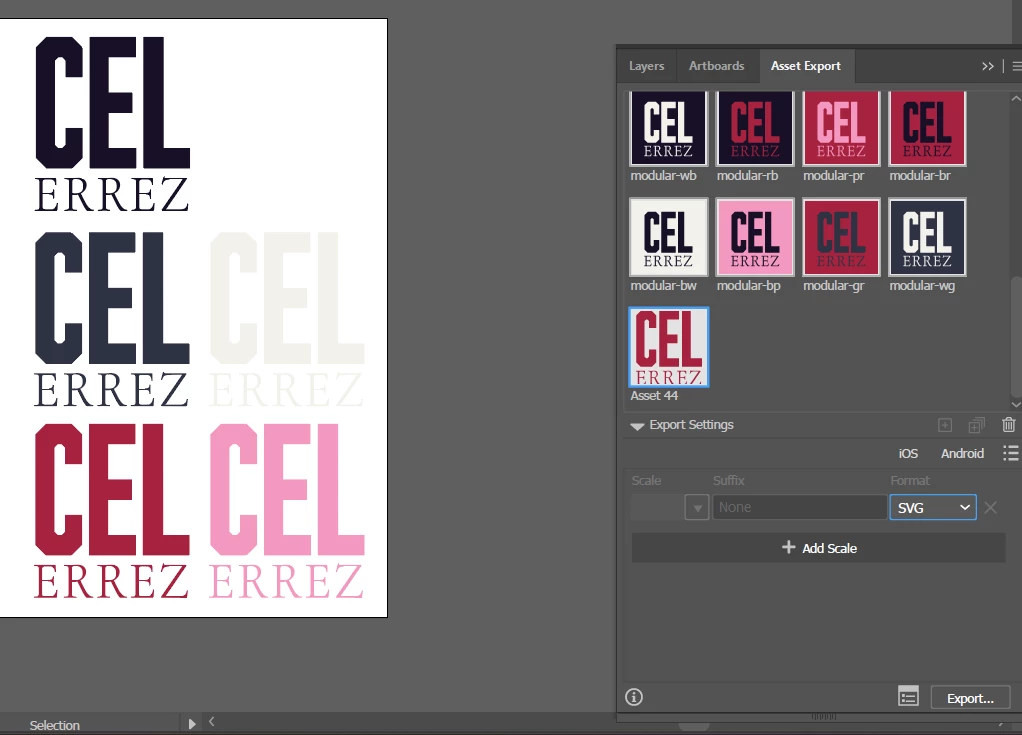
This is what the assets in my logo file are supposed to be like. Notice Asset 44:
 

When I open up the SVG file or import it onto InDesign, I get this:
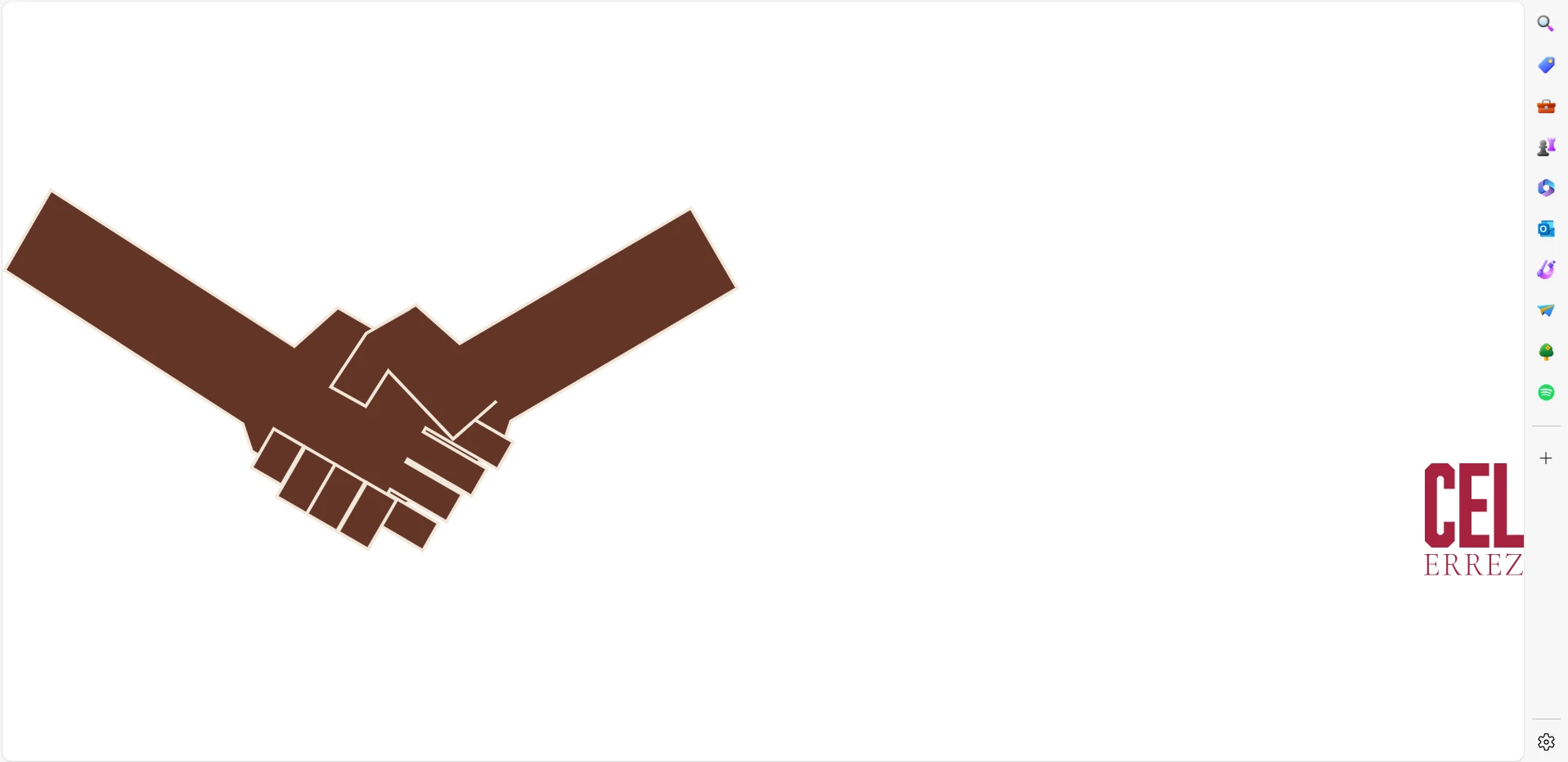
 

The artwork comes from another file I created earlier, but I never pasted any of the hands artwork onto the logo file. I checked every layer and group of my file, and these hands are not in any of them. It's not an issue with having the file open, because I noticed the problem before I even opened up this handshake.ai file. 
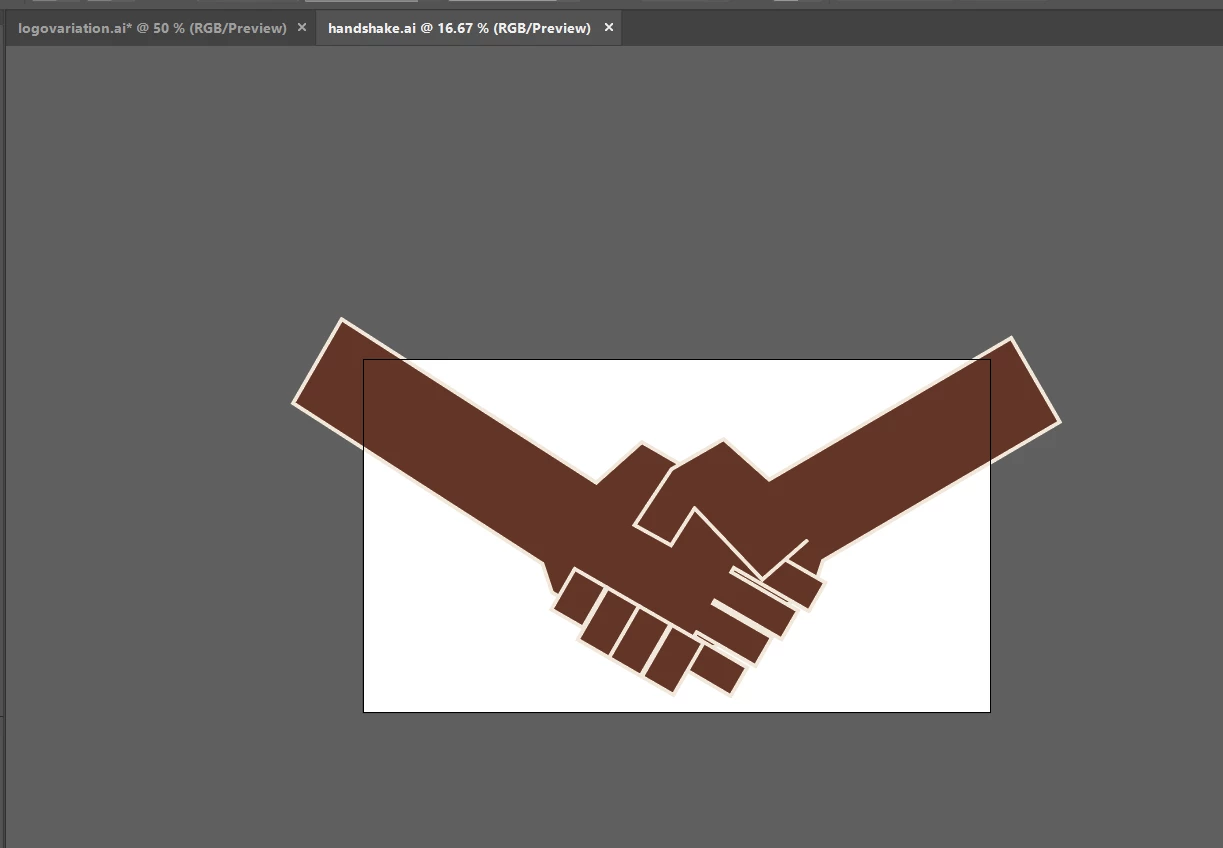
 

I tried to export the logos again. I tried cutting and pasting them, then exporting them as SVGs again.  When I export the other assets as SVGs, the hands show up again. What gives? How do I fix it? 

This topic has been closed for replies.
Correct answer Celina265730365ydl

Thank you so much for replying, you're a life saver! You really helped me fix my problem. Turns out, my new document profile for Web documents contained the artwork for some reason.

For anyone else with this problem, here's how to get to the files to fix it:

  1.  Go to the settings file of the most recent version of Illustrator that you're using. Just type in these addresses without the quotations to Windows Explorer or Finder

    Windows: "%AppData%\Adobe\Adobe Illustrator <version> Settings\<locale>\x64"

    macOS: "~/Library/Application Support/Adobe/Adobe Illustrator <version>/<locale>"

  2.  Then go to New Document Profiles and go through each Ai file on the list. All of them should be blank. The one that isn't is the one that's creating the problem when exporting as an SVG. Just delete the artwork and save. Then everything should be fine. 

2 replies

Ton Frederiks
Community Expert
Community Expert
April 19, 2024
Ton Frederiks
Community Expert
Community Expert
April 16, 2024

Looks like this problem:

https://community.adobe.com/t5/illustrator-discussions/exporting-svg-asset-brings-unwanted-document-with-it-each-time/m-p/14523526#M402908

Can you check your New Document Profile that you use for new documents?

Celina265730365ydlAuthorCorrect answer
Participant
April 22, 2024

Thank you so much for replying, you're a life saver! You really helped me fix my problem. Turns out, my new document profile for Web documents contained the artwork for some reason.

For anyone else with this problem, here's how to get to the files to fix it:

  1.  Go to the settings file of the most recent version of Illustrator that you're using. Just type in these addresses without the quotations to Windows Explorer or Finder

    Windows: "%AppData%\Adobe\Adobe Illustrator <version> Settings\<locale>\x64"

    macOS: "~/Library/Application Support/Adobe/Adobe Illustrator <version>/<locale>"

  2.  Then go to New Document Profiles and go through each Ai file on the list. All of them should be blank. The one that isn't is the one that's creating the problem when exporting as an SVG. Just delete the artwork and save. Then everything should be fine. 
Ton Frederiks
Community Expert
Community Expert
April 22, 2024

Thanks Celina, good to hear that solved it.

But it remains a mystery how the artwork became part of your new document profile.