
Participant
June 25, 2019
Question

Why do my logos look different when I preview them?

  • June 25, 2019
  • 2 replies
  • 2141 views

Hello,

My company has a logo that I recently edited. I used the original Illustrator file and the only thing that I changed was the text content underneath of our company name. I saved the logo at a few different sizes as PNG files to be used on our website. When I place the files in a Word document, they do not look pixelated, but when I preview the files with Windows Photos, they look pixelated. Is this just an error with Photos, or am I doing something wrong to cause the images to get pixelated?  I appreciate your input!

When placed in Word, they look like this-
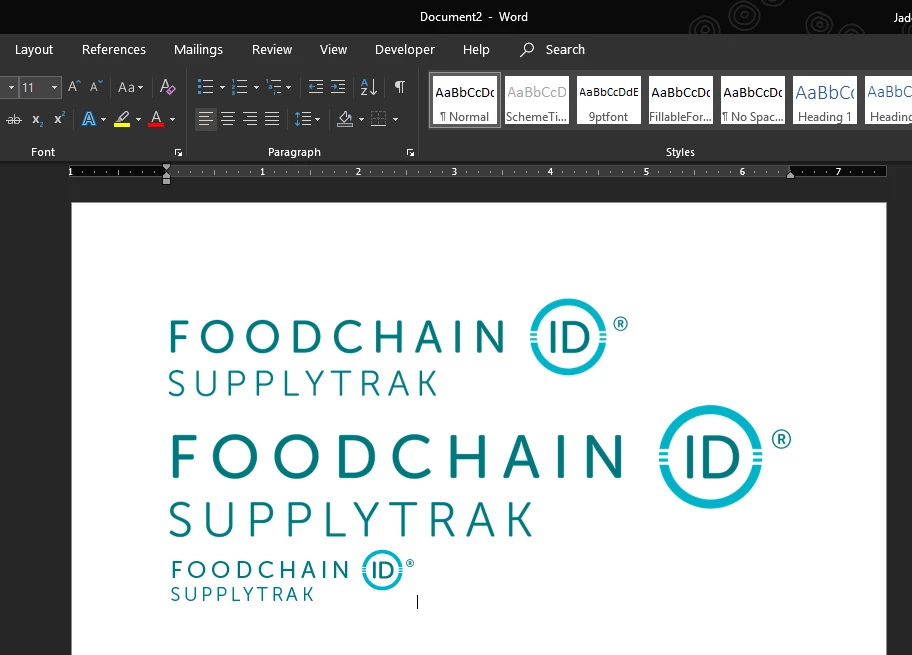
When previewing in Photos, they look like this-

This topic has been closed for replies.

2 replies

Mike_Gondek10189183
Community Expert
Community Expert
June 25, 2019

Don't use windows photos, use the open command in a web browser to see how this will look posted to the web.

You can also use file >> Export >> Save for web to see a preview of what this looks like and better fine tune yoru settings.

Also make sure align to pixel grid is on when working with web graphics, especially small sizes.

Participant
June 25, 2019

Thank you for your input! I tried using that setting and the smallest version is still pixelated.

I have the export anti-aliasing setting set to Type Optimized, and I am starting with the AI file at about 20 inches wide. I have the "Scale Strokes & Effects" box checked. I have tried exporting at 300, 96 and 72 ppi but changing the ppi isn't making much of a difference. I have been trying different things all day- I've tried saving the original file as a PDF and as an EPS and in Photoshop to resize, I've tried converting the text to outline, changing the Flatten Transparency settings, saving as GIF/PNG/PDF/EPS etc., and it is still pixelated. I understand that saving as a PNG or JPG may cause pixelation, but even when I save in a vector format it is still pixelated.

Jon Fritz
Community Expert
Community Expert
June 25, 2019

Looks to me like you have the Anti-Aliasing setting set to "None" when you Export out of AI.

You should be using "Type Optimized" instead.

it also looks like you're exporting in a relatively low resolution, you might want to go higher for better quality, then resize in Photoshop or by using CSS on your website.

Then again, they look right in Word...

Have you checked them in a browser? Open any browser, then go to File > Open and browse to your .PNG. If they look right there, it's just a Windows Photo problem.

Participant
June 25, 2019

Thanks for the tip to open it in a web browser! The logos looked much less pixelated previewing on a browser compared to Windows Photos. But the small versions are still pixelated. I have the export anti-aliasing setting set to Type Optimized, and I am starting with the AI file at about 20 inches wide. I have the "Scale Strokes & Effects" box checked. I have tried exporting at 300, 96 and 72 ppi but changing the ppi isn't making much of a difference. I have been trying different things all day- I've tried saving the original file as a PDF and as an EPS and in Photoshop to resize, I've tried converting the text to outline, changing the Flatten Transparency settings, saving as GIF/PNG/PDF/EPS etc., and it is still pixelated. I understand that saving as a PNG or JPG may cause pixelation, but even when I save in a vector format it is still pixelated.

Thanks for your input!