Participating Frequently
April 18, 2023
Question

Why does every document shows as CMYK

  • April 18, 2023
  • 4 replies
  • 6540 views

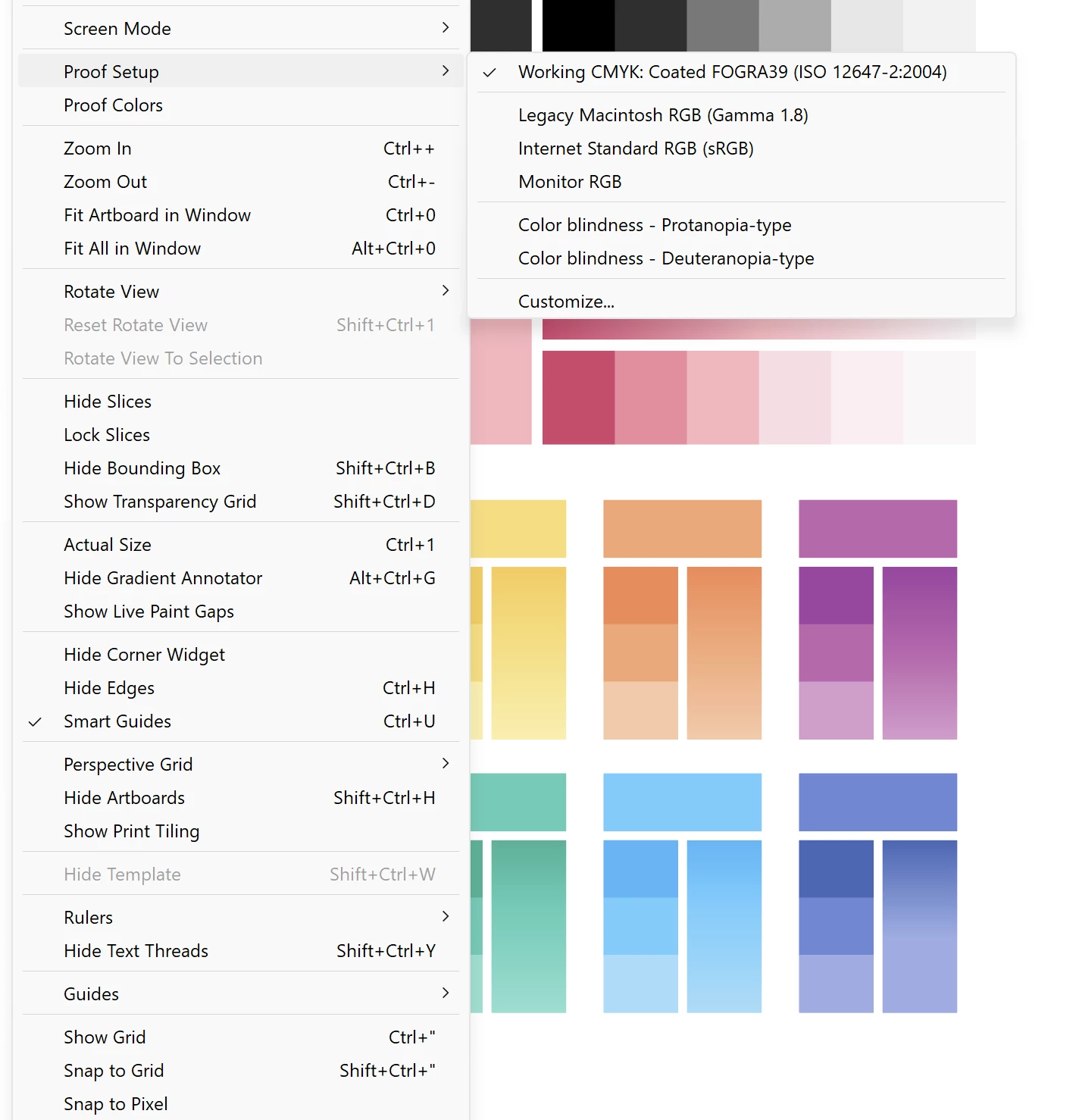
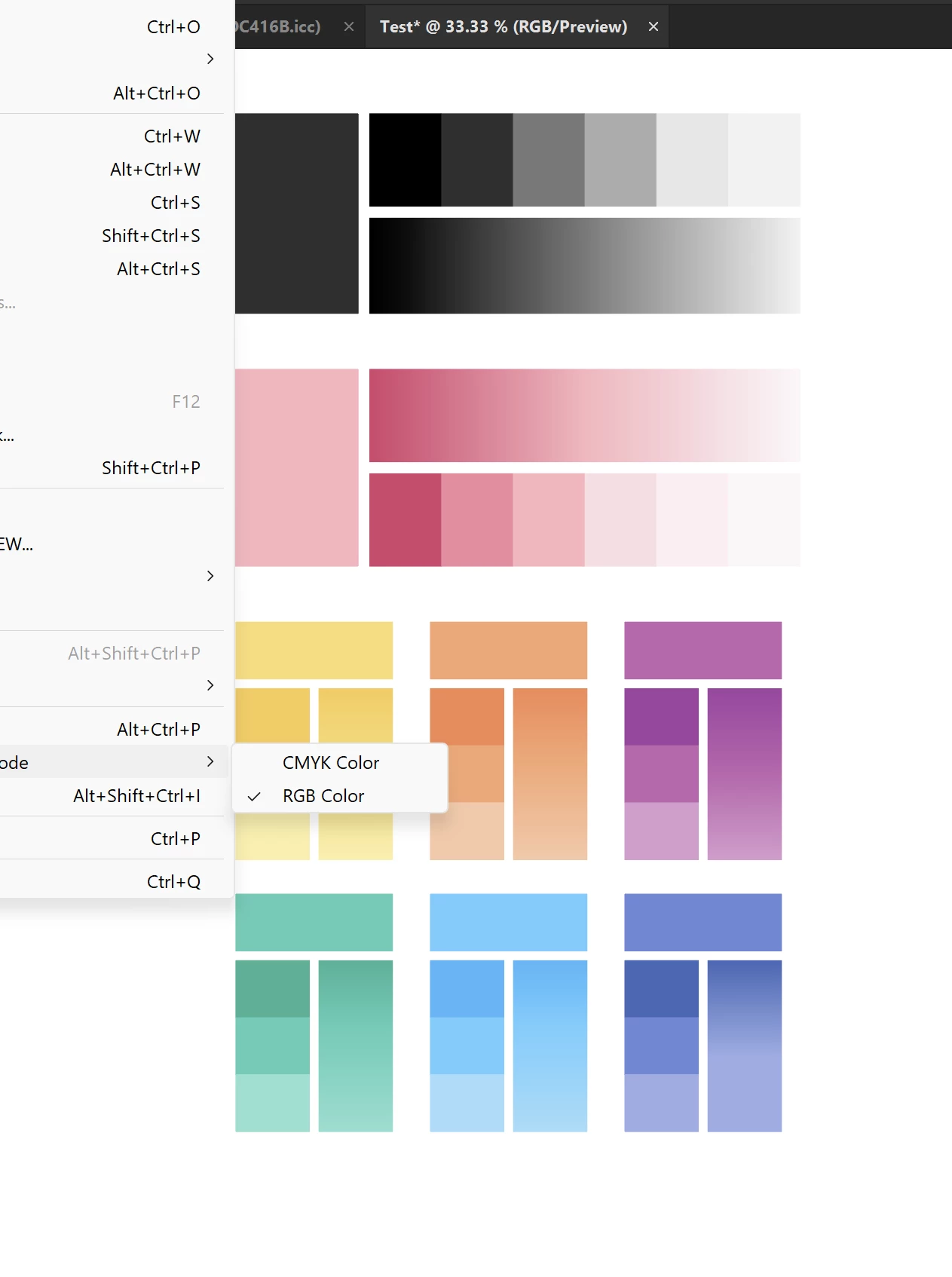
If I open a new document and select RGB, it shows washed out colors, and Working CMYK is selected by default in the Proof Setup.

Why? Why doesn't Illustrator Display RGB colors in an RGB document without me having to manually change it? Am I missing something?

Thanks!
 

4 replies

dvnatic
Participant
April 14, 2024

When you save the file for the first time (SaveAs .Ai or .EPS), make sure you uncheck the "Include CMYK PostScript in RGB Files."

Anna Lander
Inspiring
April 19, 2023

Proof Colors = Printing colors. By default, Printing is the process based on four inks (Cian, Magenta, Yellow, and Key (Black)). So if your desired printing process is based on some other ink set (e.g. hexachrome), you will not see the proper colors in the Proof Colors mode. And yes, Proof Setup (= Print colors setup) always will be primarily set as Working CMYK. It's its nature.

CwykAuthor
Participating Frequently
April 20, 2023

Hello,

That's what I dont get, though! If it is an RGB file selected from a Web, Film or Illustration preset why would it default to Working CMYK?

If I don't have Proof Colors selected it shows desaturated colors and I have to select Monitor RGB from the Proof Setup for the colors to display as I would expect from an RGB file. I feel like I'm stupid and missing something obvious.


Probably as @Monika Gause says, I really just have to learn me some color stuff :P...

Thanks!


Participating Frequently
August 29, 2023

Hiya, in my case the problem was mostly my own ignorance and the fact that AERO Gigabyte laptops come pre calibrated with a proprietary color profile that sets as default and other panel settings that need to be changed in their weird “Control Center” software.


Basically, for me, what fixed the issue was as simple as making the system color profile match with the file's color mode and disabling Gigabyte's “Panel Color” settings.


Unless you have to calibrate your monitor or change something specific to the laptop manufacturer, as was my case. It could be just as simple as checking your system profile (Type “Color Management” in the Start Menu, and it will show you the current ICC Profile) and checking for discrepancies.


Thank you so much for your reply!
I had to google where to find my color profile on Mac and I found it. Changed to sRGB instead of Color LCD and it seems to fixed the problem. In my proof colours it still shows that it shows CMYK (even if its an RGB file), but its better than it was 🙂 Thanks!

Ton Frederiks
Community Expert
Community Expert
April 18, 2023

You probably open a new document based on a Print Preset and change the Document Color Mode to RGB.

Try opening a new document based on Art & Illustration.

CwykAuthor
Participating Frequently
April 19, 2023

When selecting a document based on Art & Illustration document it defaults to Working RGB too.


Met1
Legend
April 19, 2023

Use Print presets.

Whatever you choose, you can always change the color mode in the new dialog, then any subsequent new docs choose from Recent.

Monika Gause
Community Expert
Community Expert
April 18, 2023

How do you create a new RGB document?

Correct would be by selecting a web, film & video or mobile document profile form the tabs.


How is your color management set up?

How many monitors are connected and which profile is assigned to them in the system?

CwykAuthor
Participating Frequently
April 19, 2023

I do select an appropriate document profile from the tabs.

My color management setup is very barebones, I dont have multiple monitors or color calibration gadgets. I have a decent Gigbyte Laptop AERO 16 is called and it has a pretty nice screen, I do not have HDR activated, though.

Monika Gause
Community Expert
Community Expert
April 19, 2023
quote

My color management setup is very barebones,


By @Cwyk


Please tell us your settings in Illustrator. And do yourself a favour and educate yourself about color management.


This is the "barebones" edition. I strongly suggest to learn more than this (There are trainings available on LinkedIn (which are not for free, but maybe available in your local library): https://helpx.adobe.com/acrobat/using/color-management.html